Qwen Image 2.1 for Text to Image
Generate images from a text prompt using Qwen Image 2.1, Alibaba's open-weight diffusion model with strong text rendering and product photography. Write a prompt, pick a size, and hit run.
Image
Qwen Image 2.1
Text to Image
36


Nodes & Models
ResolutionSelector
UNETLoader
qwen_image_2.1_int8_convrot.safetensors
CLIPLoader
qwen3vl_8b_bf16.safetensors
VAELoader
qwen_image_2.1_vae_bf16.safetensors
EmptyLatentImage
TextEncodeQwenImage21
KSampler
VAEDecode
SaveImageAdvanced
ABOUT THE WORKFLOW
Generate an Image from Text
Write a prompt describing what you want to see, choose an aspect ratio, and the model generates it. Add a negative prompt to exclude things, or attach a reference image to guide the look. Output is a PNG at your chosen resolution.
Model
Qwen Image 2.1 by Alibaba. An open-weight diffusion model strong at clean text rendering, product photography, and multi-reference compositing. Outputs up to 2K resolution.
HOW IT WORKS
Step 1. Write your prompt
Describe the image you want. Include the subject, lighting, style, and composition. The more specific, the better.
Works great with: product shots · portraits · scenes · typography
Step 2. Add a negative prompt (optional)
List anything you want excluded from the image. Leave it empty for a first run.
Step 3. Attach a reference image (optional)
Upload an image to guide the generation with a visual reference. Not connected by default.
Step 4. Hit run and download
The model generates your image and saves it as a PNG. Preview it in the workflow, then download.
Ready for: Photoshop · Figma · Canva · any editor
First time? Leave every setting as-is. The defaults (1:1 square, 1 MP, 25 steps) are the right starting point for almost everyone.
RECOMMENDED SETTINGS
Quick-start guide. Find the goal that matches yours and copy the settings.
Standard generation (most people) — 1:1 square · 1 MP · 25 steps · CFG 1 · fixed seed. The right starting point for almost everyone.
Need a wide or tall image — Change the aspect ratio to 16:9, 4:3, 3:2, or any vertical ratio. The resolution selector keeps dimensions in valid multiples.
Want sharper detail — Raise steps to 30 or 40. More passes add refinement but take longer.
Image drifts from the prompt — Raise CFG to 2 or 3 to increase prompt adherence. Going above 5 risks artifacts.
Want variations of the same image — Change the seed number. Each seed produces a different take from the same prompt.
Reproducing a result you liked — Keep the seed fixed and use the same prompt. The output stays consistent.
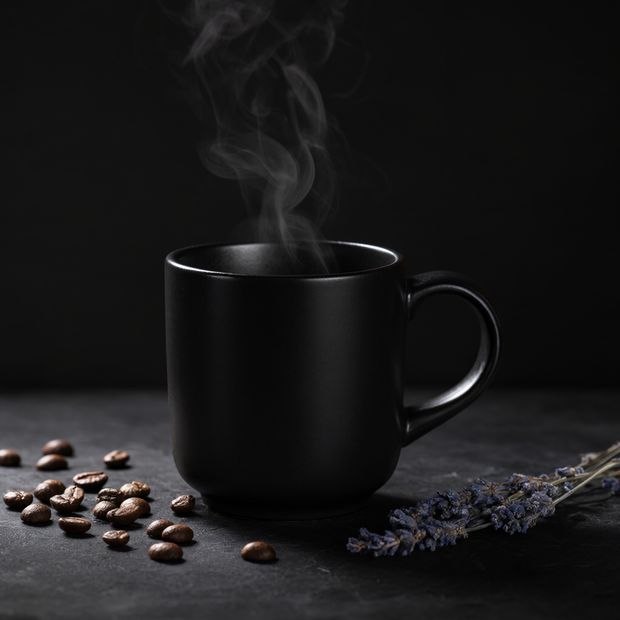
Prompt: Be specific about subject, lighting, and composition. "A matte black coffee mug on dark slate, steam rising, dramatic side light, product photography" works better than "a nice photo of a cup." Add style and mood at the end to steer the look.
LEARN
📹 Videos
ComfyUI 101 Free Course ft. Sebastian Kamph
Floyo 101 for Team Collaboration
✨ Quick links
USE CASES
🛍️ Product Photography
Generate clean product shots with controlled lighting and composition from a text description alone.
🔤 Text in Images
Create images with legible text, such as signs, labels, posters, and title cards, where most models fail.
🎨 Concept Art & Illustration
Explore visual ideas and mood directions before committing to a full render or photo shoot.
📐 Design Assets
Generate UI illustrations, hero images, and marketing visuals at specific aspect ratios, ready to drop into Figma or Photoshop.
WHAT WORKS BEST / WHAT TO AVOID
✅ Works great
Detailed prompts with subject, lighting, and style
Product photography and commercial compositions
Images that include readable text
Reference images to guide the look
⚠️ May produce softer results
Single-word or vague prompts
Very large outputs above 2K on constrained hardware
Prompts that describe multiple unrelated scenes at once
Heavy reliance on negative prompts instead of rewriting the main prompt
FAQ
What is Qwen Image 2.1?
Qwen Image 2.1 is an open-weight image generation model made by Alibaba's Qwen team, released in September 2026. It is the successor to Qwen-Image (20B). It takes text prompts, optional negative prompts, and up to 10 reference images, and outputs images up to 2K resolution. It is known for clean text rendering, product photography, and multi-reference compositing.
Can Qwen Image 2.1 render text in images?
Yes. Accurate text rendering is one of its strongest capabilities compared to other open-weight models. It handles signs, labels, titles, and short copy well. Spell out the exact words you want in the prompt.
Is Qwen Image 2.1 open source?
Qwen Image 2.1 uses open weights released under the Qwen Research License. Non-commercial use is allowed. Commercial use requires a separate agreement from Alibaba. Check Alibaba's current licensing terms before using outputs in commercial projects.
What resolution does Qwen Image 2.1 output?
The model outputs up to 2K resolution. The default in this workflow is 1 megapixel (1024x1024 at 1:1). You can change the aspect ratio and megapixel count to get different sizes. Dimensions must be multiples of 8, which the resolution selector handles for you.
How is Qwen Image 2.1 different from Flux or Stable Diffusion?
Qwen Image 2.1 uses a Qwen vision-language encoder instead of CLIP, which gives it stronger prompt understanding and text rendering. It also supports reference image inputs natively and can generate RGBA images with transparency in a single pass. Flux and Stable Diffusion have larger community ecosystems and more LoRA options.
What CFG value should I use for Qwen Image 2.1?
The default CFG is 1, which works well for most prompts. If the output drifts from what you described, raise it to 2 or 3. Going above 5 often introduces artifacts. Rewriting the prompt is more effective than raising CFG in most cases.
How to run Qwen Image 2.1 online?
You can run Qwen Image 2.1 online through Floyo. No installation, no setup, no model downloads to manage. Open the workflow in your browser, write your prompt, and hit run. Free to try.
WHY FLOYO?
Floyo is the only platform with team collaboration for ComfyUI in the browser. You run workflows with no install. You share run history, assets, and models across your team. You pay only when you generate. Floyo supports open-source and closed-source models.
A designer runs a generation and likes the result. A teammate opens that exact run from shared history and keeps going. No file handoffs. No version confusion.
For studios and enterprise teams, Floyo adds private workspaces, pooled resources, and a team usage dashboard. Other ComfyUI cloud tools run for one person at a time. Floyo runs for the whole team, with transparent per-generation costs.
Ready to try it?
Write a prompt and generate your first image. The settings are already dialled in.
Questions? Watch the free course or check the FAQ above.
Read more