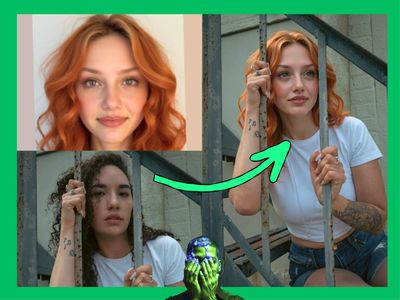
Omnipotent Image 2.0 – Multi-Image Scene Composer
Upload up to 3 reference images for a face, clothing, and scene, then describe what you want. Nano Banana 2 combines all three into one composed output.
Image
image-to-image
Nano banana
Omnipotent
0
561
_1774783037628.png?width=1400&height=620&quality=80&resize=contain)
_1774783037628.png?width=104&height=104&quality=80&resize=cover)



Nodes & Models
NanoBanana2Unified_floyo
LoadImage
WorkflowGraphics
Note
SaveImage
Description:
Generate images that combine elements from up to three reference photos into a single result.
Upload a face, an outfit, and a background as separate images. Write a prompt that tells the model who does what, where, and how. Nano Banana 2 (Omnipotent Image 2) merges your references into one composed output that keeps facial features, clothing details, and scene context intact.
One prompt, up to three references, one result. Runs at 1K resolution by default.
How do you combine multiple reference images with Nano Banana 2?
Upload your reference images into the three image slots: one for the person, one for the clothing, one for the scene. Write a prompt that describes the final composition you want, referencing each figure by number. The model reads all three inputs and generates a combined result.
Prompt This is where the output lives or dies. Be specific. Reference your images by number: "the person in Figure 1 is wearing the outfit in Figure 2, standing in the location in Figure 3." Add camera angle (close-up, wide shot, low angle), posture, expression, and lighting. Vague prompts get vague results. The more precise you are about who does what and where, the better the composition holds together.
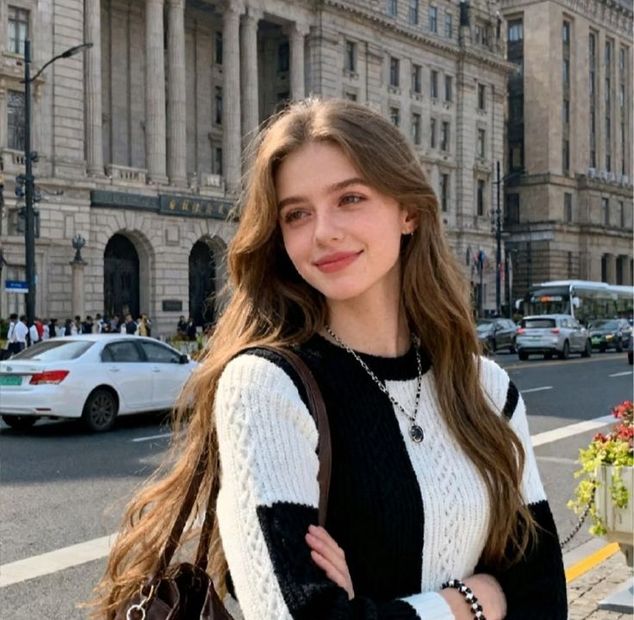
Image 1 (Person/Face) Your primary subject. This is the face and body the model will try to keep consistent. Use a clear, well-lit photo where the face is visible.
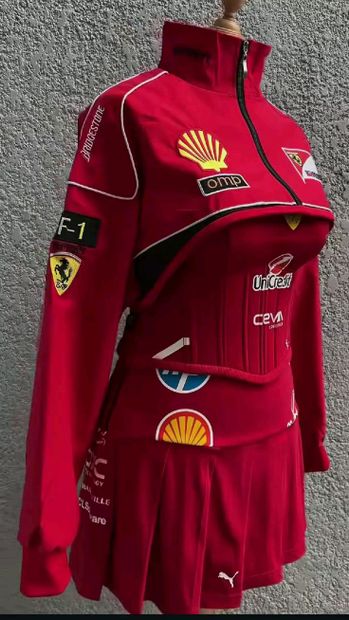
Image 2 (Clothing/Object) The outfit or item you want transferred onto your subject. Flat lays and full-body shots both work.
Image 3 (Scene/Background) The environment or setting for the final image. Can be a photo of a real location, a render, or a reference mood shot.
Image 4 Optional fourth reference for additional context. Leave empty if three references cover what you need.
Aspect Ratio Default is 1:1. Change this to match your intended output format. Portrait, landscape, and square are all available.
Resolution Default is 1K. Higher resolution means more detail but longer generation time.
Num Images Default is 1. Set higher to generate multiple variations in one run. Helpful when you want options to pick from.
Seed Set to randomize by default. Lock it to a specific number when you want to compare prompt changes without other variables shifting.
What is Omnipotent Image 2 good for?
Nano Banana 2 is built for combining separate visual elements into one coherent image. It works best when you have specific references for a person, their clothing, and a scene, and you want them merged without losing the identity of each element.
Product photography where you need the same model wearing different outfits across multiple backgrounds. Concept art where you want a character placed in a specific environment while keeping their look locked. Lookbook generation where face consistency matters across every shot.
It handles three-way reference merging better than most single-reference workflows. If you only need to swap one element (a background or a face), a dedicated face swap or background removal workflow might be faster. This workflow shines when you need all three elements composed together.
Prompt quality matters more here than in most workflows. The model needs clear instructions about which reference goes where. Follow the note in the workflow: mention who does what, define camera angle, and add motion or interaction to get the best results.
FAQ
How many reference images can Omnipotent Image 2 use? Up to four. The typical setup uses three: one for the person, one for clothing, and one for the scene. The fourth slot is optional for extra context. You can also use fewer references and leave the unused slots empty.
What prompt style works best with Nano Banana 2? Reference your images by number. Start with composition (close-up, wide shot), then describe who from Figure 1 is doing what, wearing what from Figure 2, in the setting from Figure 3. Add lighting, mood, and posture. Specific prompts get specific results.
Does Omnipotent Image 2 keep faces consistent? Yes, when your reference image has a clear, well-lit face. The model prioritizes facial feature consistency from Image 1. Blurry or partially obscured faces give weaker results.
What resolution does Omnipotent Image 2 output? Default is 1K. You can select higher resolutions in the settings. Higher resolution adds detail but takes longer to generate.
How to run Omnipotent Image 2 online? You can run Omnipotent Image 2 online through Floyo. No installation, no setup. Open the workflow in your browser, upload your reference images, write your prompt, and hit run. Free to try.
Read more
_1767601871879.png?width=400&height=300&quality=80&resize=cover)