Nano Banana Pro · Generate & Edit Images
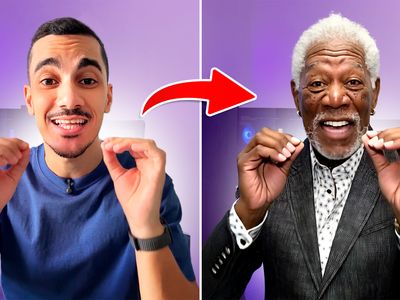
Write a prompt to generate an image from scratch, or upload an image and describe the change you want. Nano Banana Pro, Google's Gemini 3 Pro image model, handles both in one workflow.
gemini 3 pro
Image
image editing
Image to image
nano banana pro
133
_1782808991838.png?width=1400&height=620&quality=80&resize=contain)
_1782808991838.png?width=1400&height=620&quality=80&resize=contain)
_1782808991838.png?width=104&height=104&quality=80&resize=cover)
_1782808991838.png?width=104&height=104&quality=80&resize=cover)

Nodes & Models
NanoBananaProUnified_floyo
LoadImage
ImageConcanate
SaveImage
PreviewImage
FloyoStickyNote
ABOUT THE WORKFLOW
Generate or Edit an Image
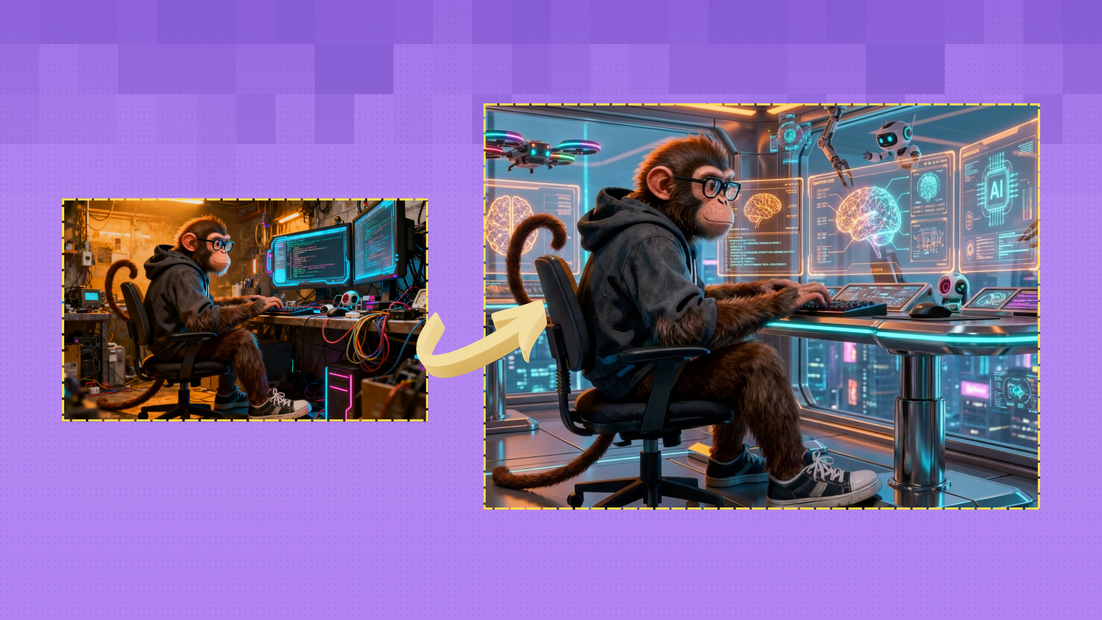
This workflow does two things in one node. Write a prompt with no image attached and it generates an image from scratch. Upload an image and write an instruction and it edits that image instead. Add a second reference image to guide the style, object, or look. The result is saved alongside the original for side-by-side comparison.
Partner node. This workflow calls an external API, so each run uses credits from your API wallet. No API key needed. Floyo handles the connection.
Model
Nano Banana Pro by Google. The Gemini 3 Pro image model, strong at photorealistic generation, accurate text rendering, and precise image edits with reference image support.
HOW IT WORKS
Step 1. Write your prompt
For generation: describe the image you want. "A ceramic coffee mug on a marble counter, morning light through a kitchen window, shallow depth of field" tells the model what to build.
For editing: describe the change. "Turn this scene into night time" or "replace the background with a tropical beach."
Works great with: photos · product shots · portraits · illustrations · designs
Step 2. Upload an image (optional)
Leave this empty to generate from text. Add an image to switch to edit mode. The model reads the image and applies your prompt as an instruction.
Step 3. Add a reference image (optional)
Upload a second image to guide the edit or generation. Use it to bring in a specific style, object, or visual reference. Describe what it contributes in the prompt.
Step 4. Hit run and download
The workflow generates or edits the image and saves the result next to the original for easy comparison.
Ready for: Photoshop · Figma · Canva · social media · print · any editor
First time? Leave every setting as-is. The defaults (1 image, auto aspect ratio, 1K resolution) are the right starting point for almost everyone.
RECOMMENDED SETTINGS
Quick-start guide. Find the goal that matches yours and copy the settings.
Standard generation or edit (most people) — 1 image, auto aspect ratio, 1K resolution, PNG. No changes needed.
Want options to choose from — Raise the number of images to generate several versions per run and pick the strongest.
Need a specific aspect ratio — Switch from auto to match where the image is going: square for social, 16:9 for widescreen, 9:16 for vertical.
Higher resolution — Step up from 1K for sharper detail. Higher resolution uses more credits per run.
Guide the result with a reference — Upload a second image and describe what it contributes in the prompt. "Use the color palette from image 2" or "match the style of image 2."
Editing or adding text in the image — Nano Banana Pro renders text accurately. Spell out the exact words you want in the prompt.
Real-world accuracy — Turn web search on when you want the model to reference how a real place, product, or landmark looks.
The edit is not landing — Keep the prompt specific about what to change and what to keep. "Change the background to a beach, keep the subject and pose" is clearer than "make it beachy."
Prompt: For generation, describe the full scene: subject, setting, lighting, camera, style. For editing, state the change and what to preserve. "Change to a watercolor style, keep the composition and colors" is specific. "Make it look better" is not.
LEARN
📹 Videos
ComfyUI 101 Free Course ft. Sebastian Kamph
Floyo 101 for Team Collaboration
✨ Quick links
USE CASES
🎨 Quick Concept Generation
Generate product mockups, scene concepts, or visual ideas from a text description without touching a camera or design tool.
🖼️ Photo Editing and Restyling
Upload a photo and restyle it, swap the background, change the time of day, or adjust elements with a plain-language instruction.
🛍️ Product and Marketing
Generate product lifestyle shots from text or edit existing product photos to fit a new campaign, season, or platform format.
🔤 Text-Accurate Visuals
Generate or edit images with legible text, such as signs, labels, titles, or social media graphics, where most models produce garbled lettering.
📐 Two-in-One Workflow
Use a single workflow for both generation and editing instead of switching between separate tools. Start by generating an image, then re-run with the result attached to refine it further.
WHAT WORKS BEST / WHAT TO AVOID
✅ Works great
Detailed, specific prompts for both generation and editing
Clean, well-lit source images for editing
Reference images to guide style or objects
Text rendering where exact words are spelled out in the prompt
⚠️ May produce softer results
Vague instructions like "improve this" or "make it better"
Heavily compressed or very low-resolution source images
Conflicting edits in a single prompt ("add a sunset and make it night time")
Too many changes described at once in one run
FAQ
What is Nano Banana Pro?
Nano Banana Pro is Google's Gemini 3 Pro image model. It handles both text-to-image generation and image editing in a single model. It is strong at photorealistic output, accurate text rendering in images, and precise edits guided by reference images.
How does the unified generate and edit workflow work?
The workflow uses a single node that detects whether you uploaded an image. With no image attached, it generates from your text prompt. With an image attached, it applies your prompt as an editing instruction to that image. You do not need to switch between different workflows or modes.
Can I use a reference image to guide the generation or edit?
Yes. Upload a second image and describe what it brings to the result in your prompt. You can reference a style, a specific object, a color palette, or a visual look. The model draws on that reference alongside your text instruction.
Does Nano Banana Pro render text well in images?
Yes. Accurate text rendering is one of its strengths. Spell out the exact words you want in the prompt. This works for signs, labels, titles, product packaging, and social media graphics.
Do the outputs have a watermark?
Google applies an invisible SynthID watermark to all images from Nano Banana Pro. It does not change how the image looks, but it stays embedded in the file to mark it as AI-generated.
Can I use the results commercially?
Nano Banana Pro is a proprietary Google model. Commercial use is governed by Google's terms rather than an open license. Commercial use is generally allowed, but review Google's current terms and note that outputs carry the SynthID watermark.
How to run Nano Banana Pro online?
You can run Nano Banana Pro online through Floyo. No installation, no setup, no API key to wire up. Open the workflow in your browser, write a prompt, and hit run. Free to try.
WHY FLOYO?
Floyo is the only platform with team collaboration for ComfyUI in the browser. You run workflows with no install. You share run history, assets, and models across your team. You pay only when you generate. Floyo supports open-source and closed-source models.
A designer runs an edit and likes the result. A teammate opens that exact run from shared history and keeps going. No file handoffs. No version confusion.
For studios and enterprise teams, Floyo adds private workspaces, pooled resources, and a team usage dashboard. Other ComfyUI cloud tools run for one person at a time. Floyo runs for the whole team, with transparent per-generation costs.
Ready to try it?
Write a prompt to generate, or upload an image and describe the change. Hit run.
Questions? Watch the free course or check the FAQ above.
Read more