

MOSS Image for Image Editing
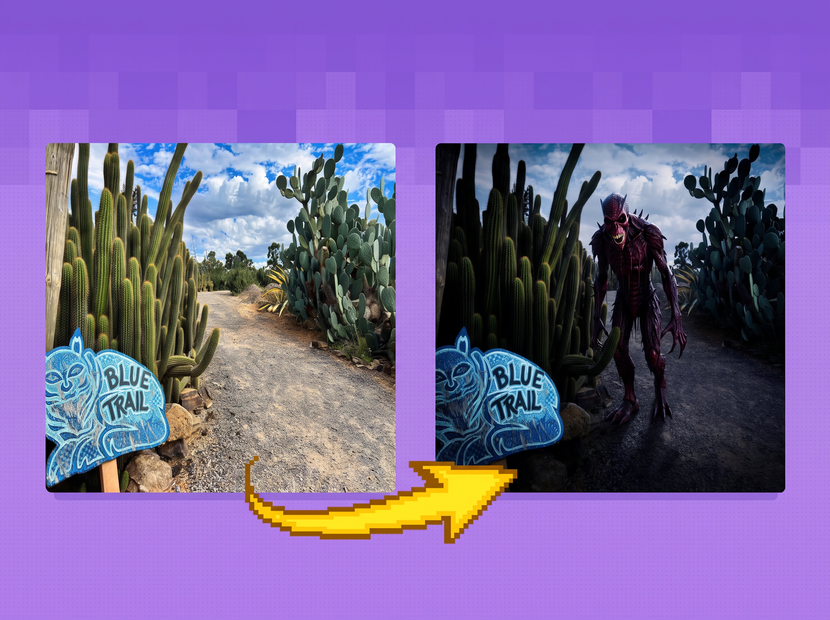
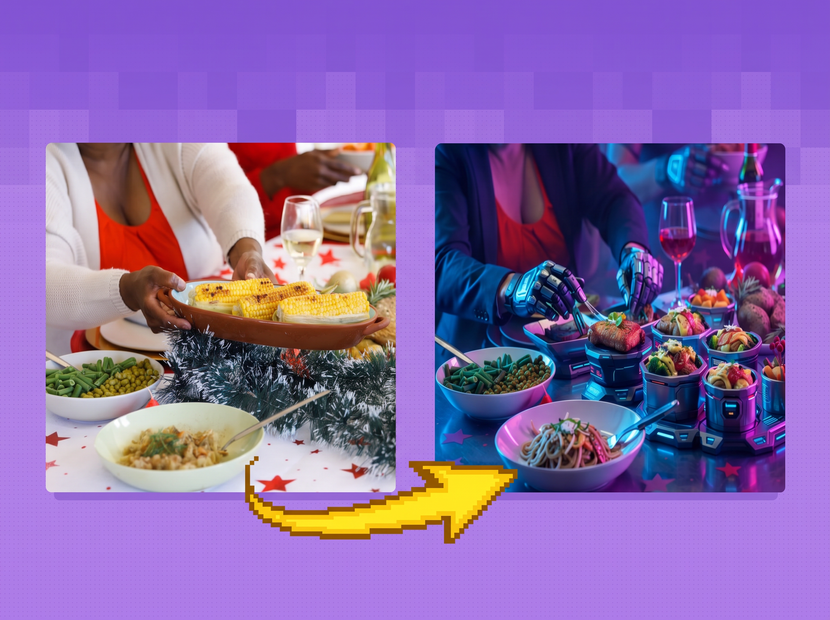
Edit a photo with a text instruction using MOSS-Image SFT and the community Edit LoRA. Upload your image, describe the change, and hit run.
Image
Image Editing
LoRAs
MOSS Image
139


Nodes & Models
LoadImage
UNETLoader
moss_image_sft_int8_convrot.safetensors
CLIPLoader
qwen3.5_9b_w4a8_gptq.safetensors
VAELoader
flux2-vae_small.safetensors
MarkdownNote
ImageScaleToTotalPixels
LoraLoaderModelOnly
moss_image_edit_lora_rank_64_bf16.safetensors
TextEncodeMOSSImageEdit
GetImageSize
SkipLayerGuidanceDiTSimple
EmptyFlux2LatentImage
KSampler
VAEDecode
SaveImage
ImageCompare
ABOUT THE WORKFLOW
Edit an image
Upload a photo and describe what to change. The model applies the edit and keeps everything else intact. You get the edited image next to the original for comparison.
Model
MOSS-Image SFT by OpenMOSS. A 5-billion-parameter open source text-to-image model, strong at clear text rendering and structured layouts.
MOSS-Image Edit LoRA by chinoll. A rank-64 adapter that adds instruction-based editing. Strong at clothing swaps, color changes, lighting shifts, and style edits that preserve identity.
HOW IT WORKS
Step 1. Upload your image
The photo you want to edit. Any standard image format works.
Works great with: portraits · fashion shots · street scenes · product photos
Step 2. Describe the edit
Write a clear instruction in the positive prompt. Be specific about what to change and what to keep.
Example: “Change only the pink floral blazer to a plain black wool coat. Keep both women, their faces, glasses, berets, poses, and the background unchanged.”
Step 3. Add a second reference image (optional)
Connect a second image to guide the edit, such as a garment to match or a style to follow. Leave it empty for single-image edits.
Step 4. Hit run and compare
The model scales your photo to 1 megapixel, applies the edit, and returns the result side by side with the original.
Ready for: Photoshop · Figma · Canva · any editor
First time? Leave every setting as-is. The defaults are the right starting point for almost everyone.
RECOMMENDED SETTINGS
Steps: 20–40 (default 30). Below 10 = noise, above 50 = diminishing returns.
CFG: 2.0–6.0 (default 4). Above 7 = artifacts.
Denoise: Keep at 1.0 (default). The edit LoRA is designed for full denoise.
Image Strength: Keep at 1.0 (default). Both positive and negative.
LoRA Strength: 0.8–1.2 (default 1.0). At 0 = no editing capability. Above 1.5 = artifacts.
Edit Format:
Moss-Image-Edit— don’t change.Sampler/Scheduler:
euler/normal— don’t swap with text-to-image defaults.SLG: Leave on (single_layers “22”). Sharpens detail.
Resolution: Auto-scales to 1MP, rounded to ×16. Don’t override manually.
Seed: Default 42 (fixed). Change for variations.
Prompt tips: One edit at a time. Say what to keep AND what to change.
Models: Don’t swap any of the 4 model files.
LEARN
📹 Videos
ComfyUI 101 Free Course ft. Sebastian Kamph
Floyo 101 for Team Collaboration
✨ Quick links
USE CASES
👗 Clothing and outfit swaps
Change a jacket, shirt, or full outfit in a portrait without reshooting. The model preserves the person’s face, pose, and surroundings.
🎨 Color and material changes
Swap the color of a car, a wall, a piece of furniture, or any surface. Describe the new color or material and the model handles the rest.
🌦️ Lighting and season shifts
Turn a daytime scene into golden hour, or move a summer photo into autumn. The model adjusts lighting and color palette while keeping the composition.
🖼️ Style transfers with a reference
Connect a second image as a style reference. The model applies the visual style from one image onto another while preserving the subject.
WHAT WORKS BEST / WHAT TO AVOID
✅ Works great
Clothing swaps and outfit changes
Color, material, and texture edits
Lighting and seasonal shifts
Style changes that preserve identity
⚠️ May produce softer results
Moving or rearranging objects in a scene
Adding or removing entire objects
Fine anatomical edits (hands, fingers)
Complex multi-element changes in one prompt
FAQ
What is MOSS-Image?
MOSS-Image is a 5-billion-parameter open source text-to-image model from OpenMOSS. It supports natural-language prompts, tag sequences, and JSON layouts for controlling text placement and object arrangement. The SFT version is a supervised fine-tuned release optimized for image generation. This workflow pairs it with a community-built Edit LoRA to add instruction-based image editing.
What is the MOSS-Image Edit LoRA and who made it?
The Edit LoRA is a rank-64 adapter trained by chinoll (Chenkin-x) and released on October 22, 2026. It adds instruction-based editing to MOSS-Image, taking one image and a text instruction, with support for up to four reference images. The LoRA teaches the model to follow an edit instruction while preserving everything else in the photo.
What kinds of edits does MOSS-Image handle well?
The model is strongest at clothing swaps, color changes, lighting shifts, seasonal edits, and style changes that preserve a person’s identity. It holds faces, poses, and backgrounds steady while changing the targeted element. It is weaker at spatial rearrangements, adding or removing whole objects, and fine anatomical edits.
Is MOSS-Image free for commercial use?
MOSS-Image SFT is released under the Apache 2.0 license, which allows commercial use. The Edit LoRA by chinoll is released under GPLv3, which requires derivative works to be open-sourced. If you plan to use the outputs commercially, review the GPLv3 terms for how they apply to generated images in your use case.
Can I use more than one reference image?
Yes. The workflow supports up to four reference images total. Connect additional images to the text encode node’s image inputs. When using multiple references, describe what each one contributes in your prompt, such as “Dress the person in image 1 in the outfit from image 2.”
What resolution does the output use?
The workflow scales your input image to 1 megapixel while keeping the original aspect ratio. Dimensions are rounded to multiples of 16. The output matches the scaled resolution.
How to run MOSS-Image editing online?
You can run MOSS-Image editing online through Floyo. No installation, no setup, no API key to wire up. Open the workflow in your browser, upload your image, describe the edit, and hit run. Free to try.
WHY FLOYO?
Floyo is the only platform with team collaboration for ComfyUI in the browser. You run workflows with no install. You share run history, assets, and models across your team. You pay only when you generate. Floyo supports open-source and closed-source models.
A designer runs an edit and likes the result. A teammate opens that exact run from shared history and keeps going. No file handoffs. No version confusion.
For studios and enterprise teams, Floyo adds private workspaces, pooled resources, and a team usage dashboard. Other ComfyUI cloud tools run for one person at a time. Floyo runs for the whole team, with transparent per-generation costs.
Ready to try it?
Upload a photo, describe the change, and run it. The settings are already set.
Questions? Watch the free course or check the FAQ above.
Read more






