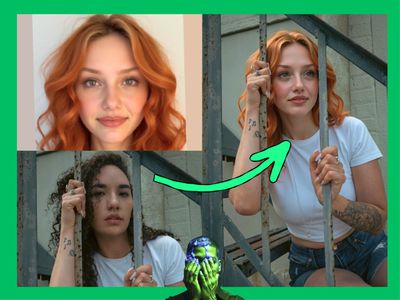
MiniMax H3 Max Image to Video · Image to Video
Turn a single image into a 5-second video with native audio using MiniMax H3 Max, upload your starting frame, describe the motion you want, and hit run.
image to video
43
ABOUT THE WORKFLOW
Animate any image into video
Upload one image as your starting frame. Describe the motion, camera movement, and sound you want. The workflow sends your inputs to MiniMax H3 Max and returns a video with synchronized audio. You can also add a last frame to control where the motion ends.
Partner node. This workflow calls an external API, so each run uses credits from your API wallet. No API key needed. Floyo handles the connection.
Model
MiniMax H3 Max by MiniMax. The full-resolution API version of MiniMax H3, supporting text-to-video, image-to-video, and first-and-last-frame-to-video generation at up to 2K resolution with native stereo audio.
HOW IT WORKS
Step 1. Upload your starting image
Load the image you want to animate. This becomes the first frame of your video. The model preserves the composition, colors, and subjects from your image.
Works great with: product photos · portraits · landscapes · illustrations · AI-generated images
Step 2. Write your prompt
Describe the motion and action you want. What moves, how the camera behaves, what sounds play. Add “Music: N/A” at the end if you want natural sound only, or describe a score. Example: “The woman turns toward the camera and smiles, slow push-in, warm afternoon light. Music: N/A”
Step 3. Add a last frame (optional)
Upload a second image as the ending frame. The model generates motion that transitions from your first frame to your last frame. Skip this for open-ended animations where the model decides the ending.
Step 4. Run and download
Hit run. The API generates the video with audio and returns a download link. The workflow saves it as an MP4 automatically.
Ready for: Premiere Pro · DaVinci Resolve · After Effects · social platforms
First time? Leave every setting as-is. The defaults are the right starting point for almost everyone.
RECOMMENDED SETTINGS
Quick-start guide. Find the goal that matches yours and copy the settings.
Standard image-to-video at 480p — Duration 5s, resolution 480P, prompt expansion balanced. The right starting point for almost everyone.
Want higher resolution output? — Change resolution from 480P to 768P or 2K. Higher resolution costs more API credits per second.
Want the model to expand your prompt with more detail? — Set prompt_expansion_mode to “balanced” (default). For full control over what appears, switch to “off” so the model follows your prompt exactly.
Need the video to end on a specific frame? — Connect a second image to the last_frame input. The model transitions from your first frame to your last frame across the full duration.
Motion too wild or too subtle? — Write a more specific prompt. Describe the speed, direction, and timing of movement. “Slow pan right over 3 seconds, then hold” gives more control than “the camera moves.”
Audio not matching the scene? — Describe the soundscape in your prompt. “Footsteps on gravel, distant birdsong, no music” gives the model clear direction. Add “Music: N/A” to suppress background music.
Prompt: Describe what happens in the scene, not what the image looks like (the model already sees that). A good prompt: “The woman walks forward through the field, wind catches her hair, slow dolly follow. Ambient wind and grass rustling. Music: N/A” A vague prompt: “Make it move.”
Read more