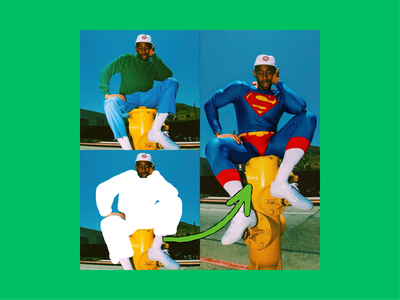
Luma Uni-1 · Edit (Image to Image)
Edit any image with a text instruction using Luma Uni-1, a reasoning-first image model that changes only what you describe. Upload an image, describe the edit, and hit run.
image editing
image to image
luma ai
luma uni-1
55

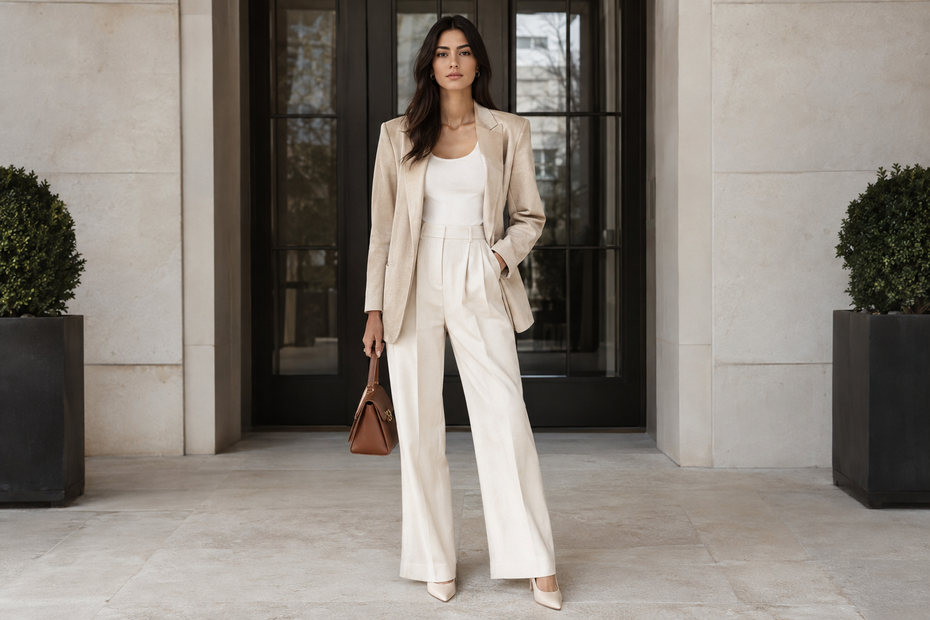
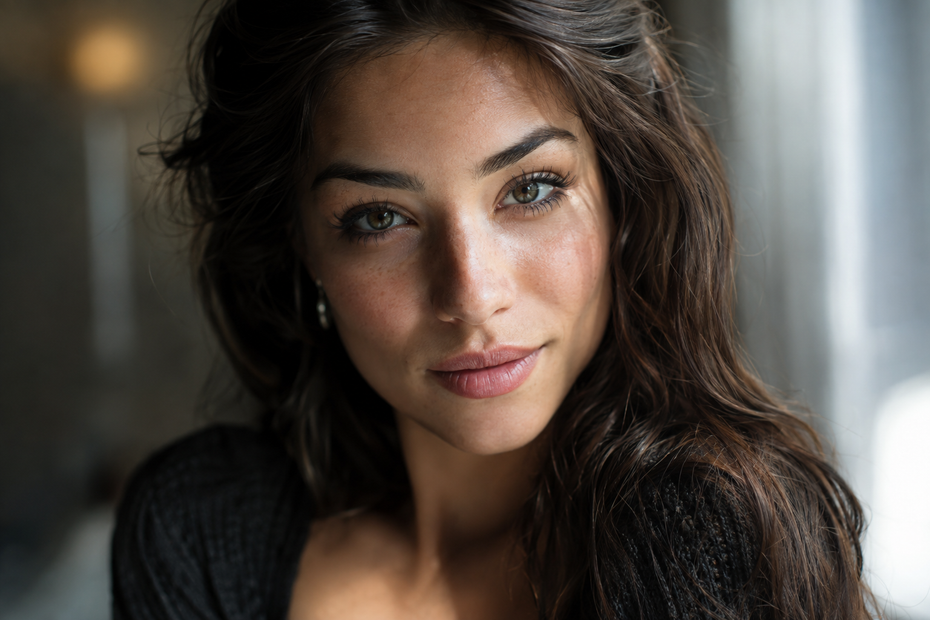



Nodes & Models
LumaUni1Edit_floyo
LoadImage
SaveImage
ABOUT THE WORKFLOW
Edit an Image
Upload an image and describe what to change. Luma Uni-1 reasons through the instruction, edits what you asked for, and keeps everything else stable. Add up to eight reference images to guide the look.
Partner node. This workflow calls an external API, so each run uses credits from your API wallet. No API key needed. Floyo handles the connection.
Model
Luma Uni-1 by Luma AI. An autoregressive reasoning model that interprets edit instructions and preserves what you did not ask to change. Strong at targeted edits, consistent character preservation, and following complex multi-part instructions.
HOW IT WORKS
Step 1. Upload your image
The image you want to edit. Upload your own or replace the default.
Works great with: photos · illustrations · renders · screenshots
Step 2. Describe the edit
Say what to change in plain language. A sample instruction is pre-filled. Replace it with your own.
Example: "make it a sunset scene with warm orange light"
Step 3. Add reference images (optional)
Upload up to eight images for the model to draw style or subject cues from. None are connected by default.
Step 4. Hit run and download
Uni-1 reasons through the edit, applies the change, and returns the result as a JPEG. Preview it in the workflow, then download.
Ready for: Photoshop · Figma · Canva · any editor
First time? Leave every setting as-is. The defaults (auto style · JPEG) are the right starting point for almost everyone.
RECOMMENDED SETTINGS
Quick-start guide. Find the goal that matches yours and copy the settings.
Standard edit (most people) — Auto style · JPEG. The right starting point for almost everyone.
Want to match a specific look — Upload one or more reference images that carry the style, colour palette, or mood you want the edit to follow.
Need a different file type — Switch the output format to PNG or WebP depending on where the image is going.
The edit changed too much — Narrow the instruction. "Change the sky to sunset orange" is more targeted than "make it warmer." The model interprets broadly when the prompt is vague.
The edit did not change enough — Be more explicit about what should change. Name the element, the direction, and the end state. "Turn the jacket from blue to red, keep the rest unchanged" is clearer than "different jacket colour."
Want to restyle the whole image — Describe the target style and mention that the composition should stay. A reference image showing the style you want helps the model lock in the look.
Prompt: Describe what to change and what to keep. "Make it a night scene, keep the pose and framing" is clearer than "nighttime." When you add references, say what each one contributes to the edit.
LEARN
📹 Videos
ComfyUI 101 Free Course ft. Sebastian Kamph
Floyo 101 for Team Collaboration
✨ Quick links
USE CASES
🎨 Style Changes
Restyle a photo or render into a different look with a single instruction. Add a reference image to pin the target style.
🖼️ Scene & Lighting Edits
Change time of day, weather, mood, or lighting conditions while keeping the subject and composition intact.
🧑 Character-Preserving Edits
Change a background, outfit, or environment around a person and the model holds their face and pose. Uni-1's reasoning step makes this more reliable than standard inpainting.
📐 Reference-Guided Retouching
Feed in a style board or colour reference alongside the edit instruction. The model draws from the reference to shape the output without copying it.
WHAT WORKS BEST / WHAT TO AVOID
✅ Works great
Specific, targeted edit instructions
Single clear source images
Style transfers and lighting changes
Reference images that match the edit direction
⚠️ May produce softer results
Vague instructions like "make it better" or "improve it"
Too many references pulling in conflicting directions
Heavily composited or collage-style source images
Expecting pixel-perfect preservation of fine text or logos
FAQ
What is Luma Uni-1?
Luma Uni-1 is a multimodal reasoning model by Luma AI, released in March 2026. It uses an autoregressive transformer architecture instead of diffusion. In edit mode, it reads the source image, reasons through the instruction, and changes only what you described while keeping the rest of the frame stable.
How is Luma Uni-1 different from other AI image editors?
Most image editors apply changes globally or rely on masks to isolate the edit area. Uni-1 reasons through the instruction before generating, so it understands what to change and what to leave alone without a mask. That makes it stronger at complex edits where the boundary between "change this" and "keep that" is hard to draw manually.
What are reference images and how do they work?
Reference images are optional uploads that guide the edit. You can use them to bring in a specific style, colour palette, or visual tone. The model draws from them alongside your text instruction. Up to eight reference image slots are available in this workflow. Each reference adds to API cost, so use only the ones that contribute to the edit.
Can Luma Uni-1 edit text inside an image?
Uni-1 can modify elements in an image based on text instructions, but it is not optimized for rendering or editing legible text within images the way GPT Image 2.5 is. For edits that require accurate in-image text, a text-rendering-focused model may produce better results.
Is Luma Uni-1 editing different from the Luma Uni-1 text-to-image workflow?
Yes. This workflow is image-to-image editing: it starts from your uploaded image and changes it based on your instruction. The text-to-image workflow creates a new image from a prompt. Use this one to modify an existing image, and the text-to-image workflow to generate from scratch.
Can I use the results commercially?
Luma Uni-1 is a proprietary closed-source model. Commercial use is generally permitted, but review Luma AI's current terms of service before using outputs in shipped products or client work.
How to run Luma Uni-1 image editing online?
You can run Luma Uni-1 image editing online through Floyo. No installation, no setup, no API key to wire up. Open the workflow in your browser, upload an image, describe the edit, and hit run. Free to try.
WHY FLOYO?
Floyo is the only platform with team collaboration for ComfyUI in the browser. You run workflows with no install. You share run history, assets, and models across your team. You pay only when you generate. Floyo supports open-source and closed-source models.
A designer runs an edit and likes the result. A teammate opens that exact run from shared history and keeps going. No file handoffs. No version confusion.
For studios and enterprise teams, Floyo adds private workspaces, pooled resources, and a team usage dashboard. Other ComfyUI cloud tools run for one person at a time. Floyo runs for the whole team, with transparent per-generation costs.
Ready to try it?
Upload an image, describe the change, and run it. A sample instruction is already set.
Questions? Watch the free course or check the FAQ above.
Read more