LTX-2.5 ICLoRA Motion Track for Image to Video
Animate a still image along motion paths you draw with LTX-2.5 and the Motion Track IC-LoRA. Upload an image, sketch the tracks, write a prompt, and hit run.
IC LoRa
Image
Image to Video
LTX-2.5
Motion Tracking
Video
13

Nodes & Models
PrimitiveStringMultiline
VAELoader
ltx-2.5-audio-vae-bf16.safetensors
ltx-2.5-video-vae-bf16.safetensors
LTXVConditioning
ManualSigmas
EmptyLTXVLatentVideo
LTXVAudioVAEDecode
MarkdownNote
CLIPTextEncode
Note
LTXVImgToVideoInplace
CreateVideo
UNETLoader
ltx-2.5-22b-distilled-transformer-bf16.safetensors
CFGGuider
LTXVConcatAVLatent
VAEDecode
Reroute
PrimitiveInt
SamplerCustomAdvanced
LTXAddVideoICLoRAGuide
CLIPLoader
gemma4_e2b_it_bf16.safetensors
gemma4-12b-with-proj-ltx-2.5-bf16.safetensors
ResizeImageMaskNode
KSamplerSelect
PrimitiveFloat
ComfyNotNode
RandomNoise
LTXVEmptyLatentAudio
LTXICLoRALoaderModelOnly
ltx-2.3-22b-ic-lora-motion-track-control-ref0.5-ltx-2-5-iclora-motion-tr-5BjaLX_S.safetensors
GemmaAPITextEncode
ltx-2.3-22b-dev.safetensors
LTXVSeparateAVLatent
GetImageSize
LTXVCropGuides
LTXVDrawTracks
LoadImage
PrimitiveBoolean
ComfySwitchNode
ltx-2.3-22b-dev.safetensors
StringContains
ComfyMathExpression
PreviewAny
LTXVSparseTrackEditor
SaveVideo
ABOUT THE WORKFLOW
Draw the Motion Path
Upload a still image, draw paths on it to show where things should move, and add a short prompt. The workflow returns a video that follows your paths, with audio generated in the same pass. You also get a preview of the motion guide so you can check your paths.
Model
LTX-2.5 by Lightricks. A 22B open-weights video model that generates video and synced audio together, paired here with the LTX Motion Track IC-LoRA so objects follow the paths you draw.
HOW IT WORKS
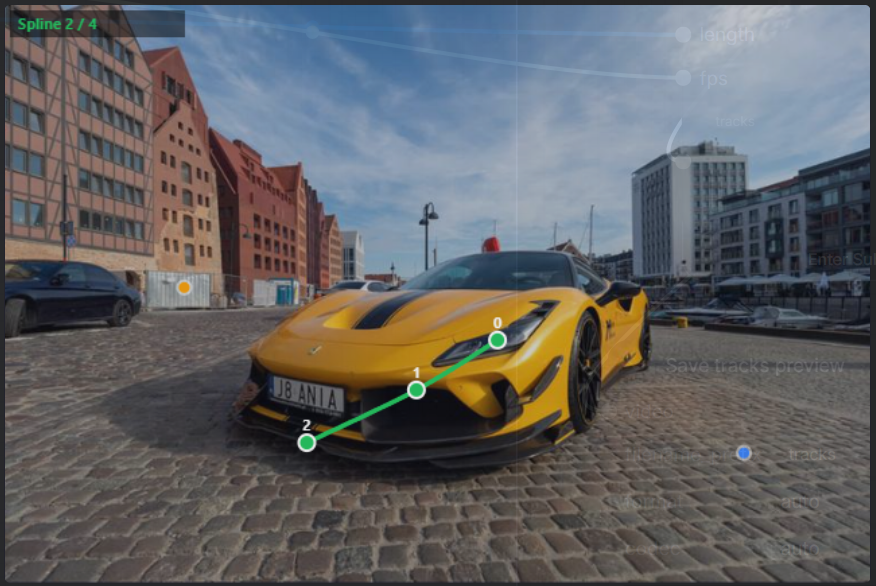
Step 1. Upload your image
The still your video opens on. It sets the subject, framing, and aspect ratio. Large images are scaled down to a shorter side of 544px, not cropped.
Works great with: animals · characters · vehicles · products
Step 2. Draw your motion tracks
Drag points on the track editor to sketch a path for each thing that should move. Draw a path from the dog's head toward the right edge, and the dog walks right. A single point with no path keeps that spot still.
Step 3. Write a prompt
Describe the scene and what happens, like "The dog walks forward across the grass." The prompt controls how things look. The tracks control where they go.
Step 4. Add a negative prompt (optional)
List anything you want to keep out of the video, like "blur, distorted limbs." Empty by default.
Step 5. Hit run and download
The model generates the video with synced audio, plus a tracks preview showing the motion guide. Download both and drop the clip into your edit.
Ready for: Premiere Pro · DaVinci Resolve · After Effects · CapCut
First time? Leave every setting as-is. The defaults (5 seconds · 24 fps · seed 42) are the right starting point for almost everyone.
RECOMMENDED SETTINGS
Quick-start guide. Find the goal that matches yours and copy the settings.
Standard clip (most people) — 5 seconds · 24 fps · seed 42 · LoRA strength 1 · enhance prompt off. The right starting point for almost everyone.
Want a different take on the same motion? — Change the seed. Your tracks stay the same, but the details and audio come out new.
Need a longer or shorter clip? — Change the duration. The frame count rounds to fit the model, so the final length can land slightly off what you typed.
Want the prompt to do more work? — Turn on enhance prompt. A short prompt gets rewritten into a fuller scene description before generation.
Objects drift off your paths? — Keep LoRA strength at 1 and space your tracks further apart. Paths that cross or overlap confuse the model.
Runs taking too long? — Shorten the duration before anything else. Clip length drives most of the memory and generation time.
Prompt: Describe appearance and action, and let the tracks handle direction. "A golden retriever trots forward on a sunny lawn, ears bouncing" works better than "dog moves right," because the tracks already set the path.
LEARN
📹 Videos
ComfyUI 101 Free Course ft. Sebastian Kamph
Floyo 101 for Team Collaboration
✨ Quick links
USE CASES
🎬 Animatics & Previz
Block out character and camera-free subject motion from a single concept frame before committing to a full shot.
🐕 Character & Creature Motion
Make a character, animal, or creature walk, turn, or move along the exact path the scene needs.
🛍️ Product & Ad Shots
Slide a product across frame or move one element while the rest of the shot holds still.
📱 Social Clips
Turn a still photo into a short, directed clip with matching audio for posts and reels.
🎨 Concept Art in Motion
Bring an illustration or key art to life with controlled movement instead of random animation.
WHAT WORKS BEST / WHAT TO AVOID
✅ Works great
One or two clear subjects with space to move
Smooth, spaced-out motion paths
Prompts that describe look and action, not direction
Still anchor points on things that should stay put
⚠️ May produce softer results
Crossing or overlapping tracks
Many small objects moving at once
Tiny details in low-resolution source images
Prompts that contradict the drawn paths
FAQ
What is LTX-2.5?
LTX-2.5 is a 22B-parameter open-weights video model from Lightricks, released in August 2026 as the successor to LTX-2.3. It generates video and audio together in one pass and supports text-to-video and image-to-video. This workflow runs the distilled version, which generates in 8 steps.
How does motion tracking work in LTX-2.5?
You draw paths on your image, and the workflow turns them into a guide video. The Motion Track IC-LoRA reads that guide and steers the generation so objects follow your paths frame by frame. The guide frames are removed before the final video is decoded, so only the generated clip remains.
What is an IC-LoRA?
An IC-LoRA (in-context LoRA) is an add-on that lets the model take a control video as a guide alongside your image and prompt. Here it is the motion-track version, trained to follow drawn point paths. It adds direction control without changing the base model's look.
Does LTX-2.5 generate audio with the video?
Yes. LTX-2.5 generates video and synced audio together in the same pass, so the output file includes sound. You do not need a separate audio model or a sync step.
Can I use LTX-2.5 for commercial projects?
LTX-2.5 uses the LTX-2.x Community License, not an open-source license like Apache 2.0. Commercial use is free for companies with under $10M in annual revenue, and companies above that need a paid license from Lightricks. Transferring fine-tuned versions of the model may also require a paid license, so review the license terms before shipping.
How long can the videos be?
The default is 5 seconds at 24 fps, which gives 121 frames. You can raise the duration, but the frame count always rounds to 1 plus a multiple of 8, and longer clips take more time and memory.
How to run LTX-2.5 Motion Track online?
You can run LTX-2.5 Motion Track online through Floyo. No installation, no setup, no API key to wire up. Open the workflow in your browser, upload your inputs, and hit run. Free to try.
WHY FLOYO?
Floyo is the only platform with team collaboration for ComfyUI in the browser. You run workflows with no install. You share run history, assets, and models across your team. You pay only when you generate. Floyo supports open-source and closed-source models.
A designer runs an edit and likes the result. A teammate opens that exact run from shared history and keeps going. No file handoffs. No version confusion.
For studios and enterprise teams, Floyo adds private workspaces, pooled resources, and a team usage dashboard. Other ComfyUI cloud tools run for one person at a time. Floyo runs for the whole team, with transparent per-generation costs.
Ready to try it?
Upload an image, draw your motion paths, and run it. The settings are already set.
Questions? Watch the free course or check the FAQ above.
Read more