LTX-2.5 ICLoRA Ingredients for Reference to Video
Upload a reference sheet of characters, props, or locations, describe the action in a prompt, and LTX-2.5 with the Ingredients IC-LoRA generates a video with synced audio.
IC LoRA
Ingredients
LoRAs
LTX-2.5
Video
22




Nodes & Models
PrimitiveStringMultiline
VAELoader
ltx-2.5-audio-vae-bf16.safetensors
ltx-2.5-video-vae-bf16.safetensors
LTXVConditioning
ManualSigmas
EmptyLTXVLatentVideo
MarkdownNote
CLIPTextEncode
Note
LTXVConcatAVLatent
UNETLoader
ltx-2.5-22b-distilled-transformer-bf16.safetensors
CFGGuider
LTXAddVideoICLoRAGuide
Reroute
PrimitiveInt
SamplerCustomAdvanced
CLIPLoader
gemma4-12b-with-proj-ltx-2.5-bf16.safetensors
ResizeImageMaskNode
KSamplerSelect
LTXVEmptyLatentAudio
PrimitiveFloat
LTXICLoRALoaderModelOnly
ltx-2.5-22b-ic-lora-ingredients-0.9.safetensors
GemmaAPITextEncode
ltx-2.5-22b-distilled-transformer-bf16.safetensors
LTXVSeparateAVLatent
GetImageSize
LTXVCropGuides
RepeatImageBatch
LoadImage
StringContains
RandomNoise
ComfySwitchNode
ComfyMathExpression
CreateVideo
GetVideoComponents
VAEDecode
LTXVAudioVAEDecode
SaveVideo
ABOUT THE WORKFLOW
Generate Video from a Reference Sheet
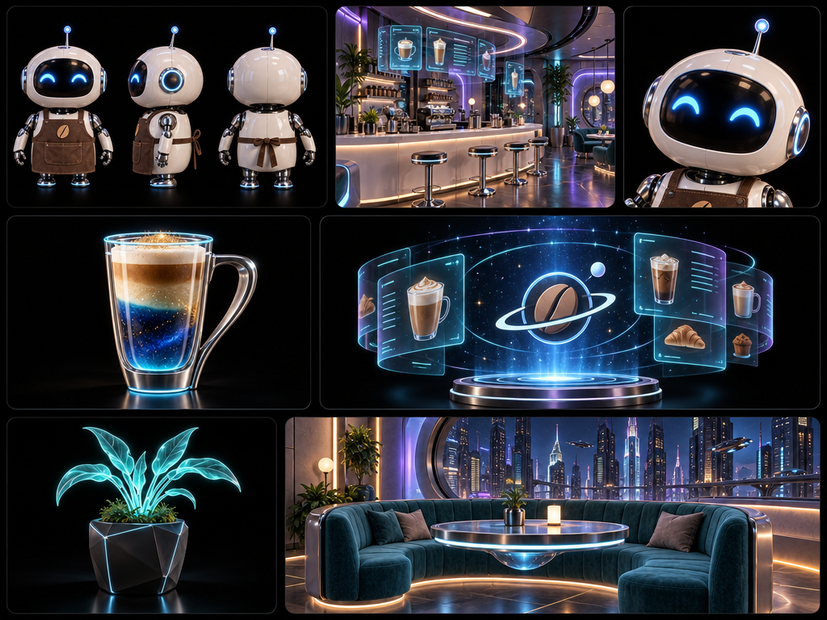
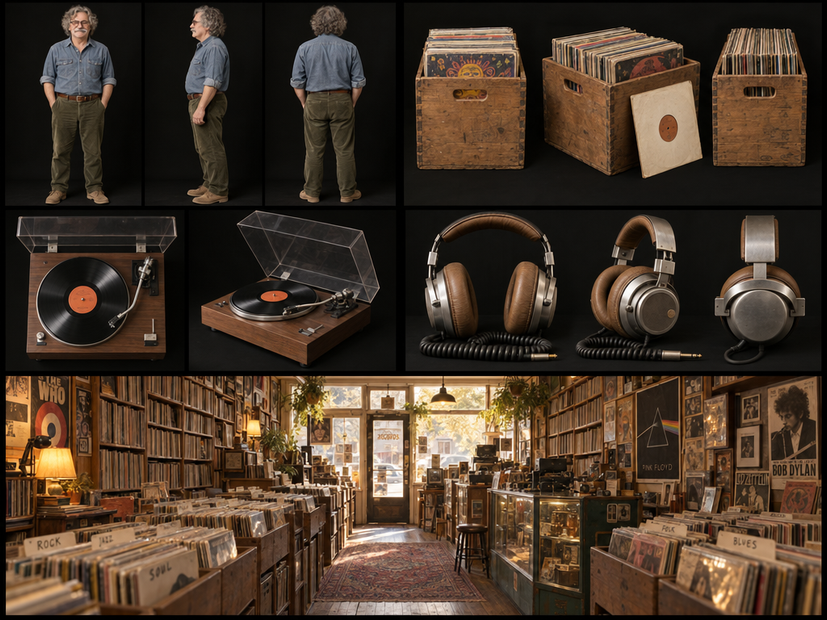
Upload one image that lays out your characters, props, or locations side by side. Write a prompt describing the action. The model generates a video with synced audio, keeping the elements from your reference sheet consistent across every frame.
Model
LTX-2.5 22B Distilled by Lightricks (LTX). An open source video-and-audio model that generates both in a single pass at 8 steps. Uses a Gemma 4 12B text encoder.
IC-LoRA Ingredients adapter. Holds your reference sheet as a visual guide on every frame so the generated video stays consistent with the characters and elements you provided.
HOW IT WORKS
Step 1. Prepare your reference sheet
One image with the characters, props, wardrobe, or locations you want in the video, laid out side by side on a plain background. The clearer the layout, the better the model reads each element.
Works great with: character sheets · prop layouts · location panels · wardrobe boards
Step 2. Write your prompt
Use the two-part format: first describe the reference panels, then describe the action. "Reference sheet: top-left panel shows a woman in a red coat. Generated video: the woman walks through falling snow." Refer to elements by their position on the sheet.
Step 3. Set duration and frame rate (optional)
Duration defaults to 10 seconds at 24 fps. The frame count rounds to fit the model's requirements (1 + a multiple of 8), so the clip may come out slightly shorter than requested.
Step 4. Hit run and download
The model generates video and audio together. The reference frames are cropped out automatically, so your output is a clean video file with synced sound.
Ready for: Premiere Pro · DaVinci Resolve · After Effects · any NLE
First time? Leave every setting as-is. The defaults (10s at 24fps, seed 42, CFG 1) are the right starting point for almost everyone.
RECOMMENDED SETTINGS
Quick-start guide. Find the goal that matches yours and copy the settings.
Standard generation (most people) — 10s · 24fps · seed 42 · CFG 1 · LoRA strength 1. The right starting point for almost everyone.
Quick test before a longer clip — Lower duration to 3-4 seconds. Fastest way to check whether your reference sheet and prompt produce the look you want.
Longer clip — Raise duration up to the limit your GPU allows. Keep in mind that longer clips take longer to generate. Duration beyond one pass needs a separate extend step.
Different motion feel — Change the seed for a different take on the same prompt and reference sheet. Keep the seed locked to reproduce a result you liked.
More or less reference influence — Adjust LoRA strength. Higher values tie the output more tightly to the sheet. Lower values give the model more freedom.
The reference elements are not matching — Use the two-part prompt format and refer to each element by position on the sheet. The model relies on position cues to know which element you mean.
Saving memory on prompt encoding — Supply an LTX API key. The workflow detects it and encodes prompts through the API instead of locally.
Prompt: Use the two-part format. "Reference sheet: top-left panel shows X, bottom-right panel shows Y. Generated video: X does this while Y does that." is clearer than "make a video with X and Y." Describe positions on the sheet so the model knows which element you mean.
LEARN
📹 Videos
ComfyUI 101 Free Course ft. Sebastian Kamph
Floyo 101 for Team Collaboration
✨ Quick links
USE CASES
🎬 Animation & Short Film Pre-Production
Lay out your characters on a reference sheet, describe a scene, and get a video draft with audio to test blocking, timing, and character consistency before committing to a full production pass.
🎮 Game Cinematics & Cutscenes
Generate in-engine style cutscene drafts from concept art reference sheets. Test character motion and scene mood with synced audio before handing off to a 3D team.
📖 Storyboard-to-Motion
Turn a storyboard panel or character lineup into a moving scene. Useful for pitch decks, animatics, and director reviews where static frames are not enough.
🎵 Music Videos & Social Content
Create short clips with synced audio from character and set designs. Iterate on the look by swapping reference sheets and prompts without re-shooting.
🧪 Concept Testing for VFX
Upload prop and environment reference panels to generate quick motion tests. Check how elements read in motion before building full CG assets.
WHAT WORKS BEST / WHAT TO AVOID
✅ Works great
Clean reference sheets with elements on a plain background
Clear position-based prompts ("top-left panel shows...")
Character sheets with distinct outfits and poses
Well-lit, high-contrast reference images
⚠️ May produce softer results
Cluttered reference sheets with overlapping elements
Vague prompts that do not describe panel positions
Very long durations that exceed one-pass limits
Low-resolution or heavily compressed reference images
FAQ
What is the LTX-2.5 ICLoRA Ingredients workflow?
It is a reference-conditioned video generation workflow built on the LTX-2.5 model by Lightricks. You upload a reference sheet showing characters, props, or locations, write a prompt describing the action, and the model generates a video with synced audio. The IC-LoRA Ingredients adapter holds your reference sheet as a visual guide on every frame, so the elements stay consistent throughout the clip.
How does the reference sheet work in LTX-2.5?
The reference sheet is resized to a 544px shorter side, then repeated on every frame as a visual guide through the IC-LoRA adapter. The model reads the elements on the sheet and draws from them while generating the video. After sampling, the guide frames are cropped out, so the output is a clean video. By default, the sheet does not become the first frame.
Does LTX-2.5 generate audio with the video?
Yes. LTX-2.5 generates video and audio together in a single pass. The output is a video file with synced sound. The model uses separate video and audio VAEs, and both are decoded after sampling.
What is the two-part prompt format for IC-LoRA Ingredients?
The format has two sections. First, "Reference sheet:" where you describe each panel by its position (top-left, bottom-right, etc.) and what it shows. Second, "Generated video:" where you describe the action you want. This tells the model which element to use and what to do with it. Skipping positions or writing vague descriptions weakens the reference match.
Is LTX-2.5 free to use commercially?
LTX-2.5 is released under the LTX-2.x Community License. It is free for individuals and entities with under $10M in annual revenue. Larger companies need a paid license from Lightricks. Check the license terms on the LTX Hugging Face page for current details.
What resolution and duration does this workflow support?
The reference sheet is resized to a 544px shorter side, and the video is generated at that resolution. Duration defaults to 10 seconds at 24fps. The frame count is calculated as 1 + floor(fps × duration / 8) × 8, so the clip may be slightly shorter than requested. Longer clips increase generation time.
How to run LTX-2.5 ICLoRA Ingredients online?
You can run LTX-2.5 ICLoRA Ingredients online through Floyo. No installation, no setup, no model downloads to manage. Open the workflow in your browser, upload your reference sheet, and hit run. Free to try.
WHY FLOYO?
Floyo is the only platform with team collaboration for ComfyUI in the browser. You run workflows with no install. You share run history, assets, and models across your team. You pay only when you generate. Floyo supports open-source and closed-source models.
A designer runs an edit and likes the result. A teammate opens that exact run from shared history and keeps going. No file handoffs. No version confusion.
For studios and enterprise teams, Floyo adds private workspaces, pooled resources, and a team usage dashboard. Other ComfyUI cloud tools run for one person at a time. Floyo runs for the whole team, with transparent per-generation costs.
Ready to try it?
Upload your reference sheet, describe the action, and run it. The prompt format and settings are already set.
Questions? Watch the free course or check the FAQ above.
Read more