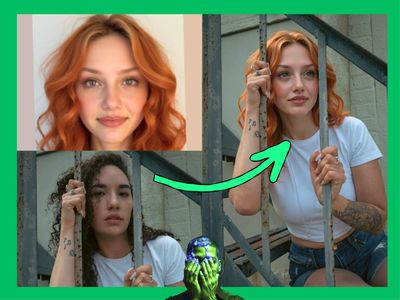
Kling O3 Pro - Video to Video Reference
Edit your video with Kling O3 Pro. Upload a clip, describe what to change, set duration and aspect ratio. Audio is preserved by default.
API
Video
Video2Video
667

Nodes & Models
KlingO3ProVideoToVideoReference_floyo
VideoToFrames
WorkflowGraphics
LoadVideo
VHS_VideoCombine
VHS_VideoCombine
Upload a video, describe the changes you want, and Kling O3 Pro rewrites the content. Unlike basic video-to-video editing, this workflow gives you control over output duration and aspect ratio. Audio stays by default.
Write your prompt, set your duration, hit run.
How do you use Kling O3 Pro for video-to-video with reference?
Upload your clip, describe what to change, and choose your duration and aspect ratio. Kling O3 Pro rewrites the visual content of your video based on your prompt. Audio carries over automatically. Optional reference images let you target specific characters or elements.
video Your source clip. This is the only required input. Everything else is optional or already set to a sensible default.
prompt Describe the target state of your video. The default shows the kind of instruction the model responds to: specific about subject and style. "Replace the man's outfit with something formal" is clearer than "make it look better."
duration Defaults to 5 seconds. This is the key difference from a standard video-to-video workflow: you can control how long the output runs. Match it to your input or trim it down.
aspect_ratio Defaults to "auto," which follows your input. Want a different format for your output? Set it here. Useful when repurposing footage for a different platform.
keep_audio Defaults to true. Your original audio tracks over automatically. Set it to false if you want a silent output.
shot_type Defaults to "customize." Leave it there unless you have a specific reason to change it.
image_1 / element_1_frontal_image Optional reference images. Connect a photo to give the model a visual target for a specific person or element in the edit.
input_video_url An alternative to uploading a file. Paste a URL if you're working from a hosted clip instead.
What is Kling O3 Pro video-to-video reference good for?
It's built for scene-level edits where you also want control over output length and format. Subject swaps, style changes, outfit replacements, quality improvements. The reference inputs help when a specific look or character needs to stay consistent.

Good fit for: replacing what someone is wearing, upgrading the visual quality of a clip, changing the subject while keeping the background motion, or transforming footage for a different platform using the aspect ratio control.
The duration control makes this the right choice when you need a specific output length. If output length doesn't matter and a quick edit is all you need, a standard Kling video-to-video workflow is simpler.
FAQ
What kind of prompt works best with Kling O3 Pro video-to-video reference? Short, direct instructions describing the target state. "A man in a formal suit walking" is clearer than "change casual clothes to formal." The model responds to what you want to see, not instructions about what to do.
Can I control the length of the output video? Yes. Set the duration input. It defaults to 5 seconds. This is what separates this workflow from basic video-to-video editing, which matches output length to input automatically.
Can I change the aspect ratio of my output? Yes. The aspect_ratio input defaults to "auto" (matching your input), but you can set a different format. Useful when repurposing footage for a different platform.
Does the output keep my original audio? Yes by default. keep_audio is set to true, so your audio carries over. Set it to false if you want a clean silent output.
How do I run Kling O3 Pro video-to-video reference online? You can run it online through Floyo. No installation, no setup. Open the workflow in your browser, upload your video, and hit run.
Read more