InfiniteTalk · Image to Video
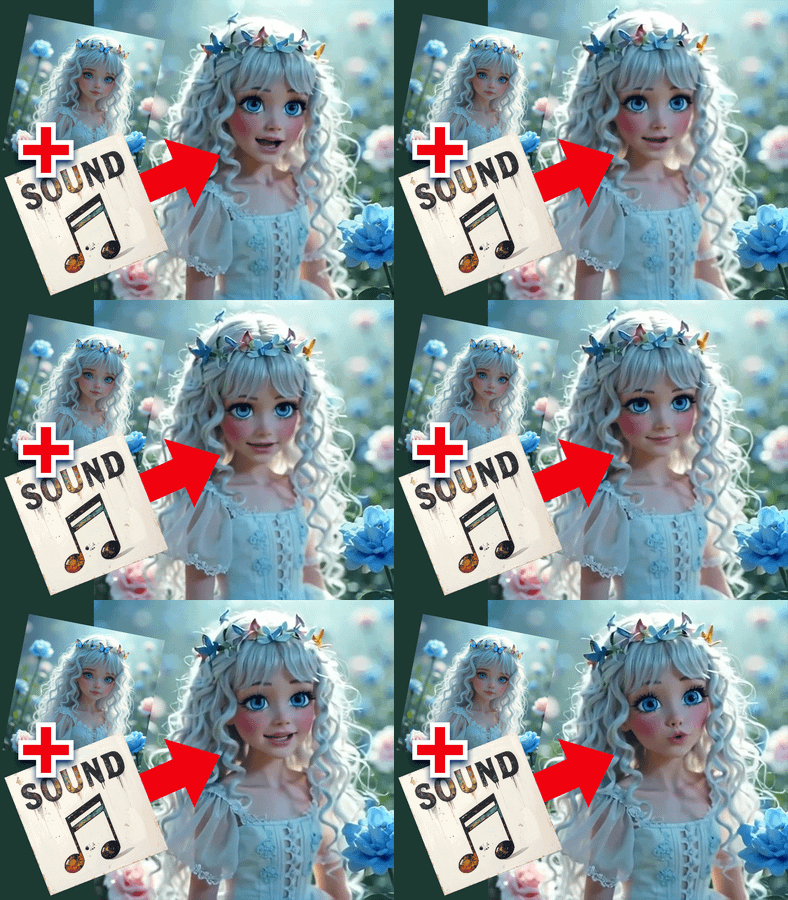
Upload a portrait and an audio file of any length, and InfiniteTalk generates a lip-synced talking avatar video that runs for the full duration of the audio using Wan 2.1 14B with windowed generation.
Audio
image to video
infinite talk
lipsync
talking avatar
Video
wan2.1
402
_1783063183737.webp)
Nodes & Models
LoadImage
GetNode
WanVideoTextEncodeCached
umt5-xxl-enc-bf16.safetensors
LoadAudio
WanVideoTorchCompileSettings
Note
MarkdownNote
WanVideoBlockSwap
INTConstant
WanVideoLoraSelect
lightx2v_I2V_14B_480p_cfg_step_distill_rank64_bf16.safetensors
Wav2VecModelLoader
wav2vec2-chinese-base_fp16.safetensors
DownloadAndLoadWav2VecModel
MultiTalkModelLoader
Wan2_1-InfiniteTalk-Multi_fp8_e4m3fn_scaled_KJ.safetensors
CLIPVisionLoader
clip_vision_h.safetensors
WanVideoVAELoader
Wan2_1_VAE_bf16.safetensors
SetNode
WanVideoModelLoader
wan2.1_i2v_720p_14B_fp8_scaled.safetensors
WanVideoSampler
WanVideoImageToVideoMultiTalk
MultiTalkWav2VecEmbeds
WanVideoClipVisionEncode
ImageResizeKJv2
GetImageSizeAndCount
PreviewAny
WanVideoPassImagesFromSamples
FloyoStickyNote
MelBandRoFormerModelLoader
MelBandRoformer_fp16.safetensors
MelBandRoFormerSampler
VHS_VideoCombine
MelBandRoFormerModelLoader
MelBandRoformer_fp16.safetensors
MelBandRoFormerSampler
ABOUT THE WORKFLOW
Animate a Face to Any Audio Length
Upload a portrait image and an audio file. The workflow separates vocals from background noise, extracts speech features, and generates a talking avatar video where the character's mouth syncs to your audio. InfiniteTalk processes the audio in overlapping windows and loops until the full recording is covered, so there is no duration cap. A 10-second clip and a 5-minute monologue use the same workflow. The output is an MP4 with your original audio embedded.
Model
Wan 2.1 I2V 14B by Alibaba with the InfiniteTalk Multi adapter. Generates audio-driven talking head video in windowed chunks that tile across the full audio length, with built-in vocal separation and Wav2Vec2 feature extraction for accurate lip-sync across languages.
HOW IT WORKS
Step 1. Upload your image
A portrait or headshot of the person you want to animate. Front-facing, well-lit, with a visible mouth and jaw.
Works great with: portraits · headshots · AI-generated faces · character renders
Step 2. Upload your audio
A recording of speech, singing, or voice acting at any length. The workflow separates vocals from background noise automatically before processing.
Works great with: voiceovers · podcast clips · dialogue recordings · singing · narration
Step 3. Write a short prompt
Describe the action and mood. "A man is talking" or "A woman singing with gentle expression" tells the model what motion style to generate around the lip-sync.
Step 4. Hit run and download
InfiniteTalk processes the audio in windowed segments, generates lip-synced video for each, and combines everything into a single MP4 at 25fps with your audio.
Ready for: Premiere · DaVinci Resolve · After Effects · TikTok · YouTube · podcasts
First time? Upload a clear front-facing portrait and an audio clip. Leave every setting as-is. The defaults are the right starting point for almost everyone.
RECOMMENDED SETTINGS
Quick-start guide. Find the goal that matches yours and copy the settings.
Standard talking avatar video — Default settings (854x480, 81-frame windows, 25fps, 6 steps). Upload your image and audio and run.
Longer audio (minutes, not seconds) — No changes needed. InfiniteTalk loops through the audio in windows until the full file is covered. Generation time scales linearly with audio length.
Singing instead of speech — Change the prompt to describe singing. "A woman singing softly with subtle head movement" steers the motion toward a musical performance.
Stronger lip-sync effect — Increase the audio_scale value in the Wav2Vec node. Higher values make the mouth track the audio more aggressively. Lower values produce subtler movement.
Lip-sync looks off or jittery — Start with cleaner audio. The workflow includes vocal separation via MelBandRoFormer, but heavily mixed or reverb-heavy tracks still introduce noise into the feature extraction. A clean voice recording produces the best sync.
Face looks distorted — Use a higher-quality, front-facing portrait with even lighting. The mouth and jaw must be fully visible with no occlusion from hands, hair, or accessories.
Prompt: Keep it short and focused on the performance type. "A man talking calmly with slight head nods" is specific. "A person in a room" adds nothing useful.
LEARN
📹 Videos
ComfyUI 101 Free Course ft. Sebastian Kamph
Floyo 101 for Team Collaboration
✨ Quick links
USE CASES
🎙️ Podcast and Narration Visuals
Turn a full podcast episode or narration recording into a talking avatar video, giving audio-only content a visual presence for YouTube and social distribution.
🎤 Audio-Driven Talking Head Videos
Upload a voiceover of any length and a portrait to produce a talking head clip where the character's mouth syncs to the full recording.
🎵 Singing and Music Performance Clips
Upload a vocal track and a character image to generate a singing performance video with matched lip movement for the entire song.
👤 Virtual Spokesperson for Course Content
Generate a consistent talking character from a single portrait across full-length explainer videos, tutorials, or training modules without recording on camera.
📱 Long-Form Social Content
Produce talking avatar videos longer than what other lip-sync tools allow, covering full product walkthroughs, story times, or monologues for YouTube and TikTok.
WHAT WORKS BEST / WHAT TO AVOID
✅ Works great
Front-facing portraits with visible mouth, jaw, and chin
Clean audio with isolated speech or vocals
Audio of any length, from seconds to minutes
Short prompts describing the performance mood
⚠️ May produce softer results
Profile or three-quarter angle portraits where the mouth is partially hidden
Audio with heavy background music, reverb, or overlapping voices
Portraits with hands, objects, or hair covering the lower face
Very low-resolution or blurry source images
FAQ
What is InfiniteTalk and how is it different from MultiTalk?
InfiniteTalk is an extension of the MultiTalk lip-sync adapter for Wan 2.1. Standard MultiTalk generates a fixed number of frames in a single pass, which caps the video duration. InfiniteTalk processes the audio in overlapping windows (81 frames each at 25fps), generates video for each window, re-encodes the frames, and loops to the next segment. This removes the duration cap entirely. A 10-second clip and a 10-minute monologue use the same pipeline.
Is there a maximum audio length for InfiniteTalk?
No hard limit. The workflow loops through the audio in windowed chunks until the full file is covered. Generation time scales linearly with audio length. Longer audio takes proportionally longer to render, but the pipeline handles it automatically.
Does InfiniteTalk lip-sync work in languages other than English?
Yes. The Wav2Vec2 encoder reads acoustic features from the audio signal, not language-specific text. Lip-sync works across languages including English, Mandarin, Japanese, Korean, Spanish, and others. The audio drives the mouth movement regardless of language.
Does the workflow separate vocals from background music automatically?
Yes. The workflow includes a MelBandRoFormer vocal separation step that isolates the voice from background noise and music before extracting speech features. Starting with clean audio still produces better results, but mixed tracks are handled.
Can I use my own voice recording as the audio input?
Yes. Record your voice, upload the file, and the model syncs the character's mouth to your speech. Any standard audio format works. The workflow handles the rest.
Is InfiniteTalk licensed for commercial use?
InfiniteTalk is built on Alibaba's open-source Wan 2.1 model. The InfiniteTalk adapter, LoRAs, and supporting models each have their own license terms. Check each component's license on its model page for commercial use in your specific project.
How to run InfiniteTalk lip-sync video generation online?
You can run InfiniteTalk lip-sync video generation online through Floyo. No installation, no setup, no local GPU needed. Open the workflow in your browser, upload your image and audio, and hit run. Free to try.
WHY FLOYO?
Floyo is the only platform with team collaboration for ComfyUI in the browser. You run workflows with no install. You share run history, assets, and models across your team. You pay only when you generate. Floyo supports open-source and closed-source models.
A designer runs an edit and likes the result. A teammate opens that exact run from shared history and keeps going. No file handoffs. No version confusion.
For studios and enterprise teams, Floyo adds private workspaces, pooled resources, and a team usage dashboard. Other ComfyUI cloud tools run for one person at a time. Floyo runs for the whole team, with transparent per-generation costs.
Ready to try it?
Upload a portrait and an audio file of any length, and hit run.
Questions? Watch the free course or check the FAQ above.
Read more