GPT Image 2 · Image Editing
Upload an image and describe the change you want. GPT Image 2 applies the edit while preserving everything you did not ask to change, with reasoning-powered precision and near-perfect text rendering.
gpt image 2
Image
image editing
image to image
text rendering
179
_1782836552733.png?width=1400&height=620&quality=80&resize=contain)
_1782836558929.png?width=1400&height=620&quality=80&resize=contain)
_1782836558929.png?width=1400&height=620&quality=80&resize=contain)
_1782836552733.png?width=104&height=104&quality=80&resize=cover)
_1782836558929.png?width=104&height=104&quality=80&resize=cover)
_1782836558929.png?width=104&height=104&quality=80&resize=cover)
Nodes & Models
GPTImage2Edit_floyo
LoadImage
SaveImage
FloyoStickyNote
ABOUT THE WORKFLOW
Edit an Image
Upload the image you want to change and describe the edit in plain language. GPT Image 2 reasons through your instruction before generating, planning where elements go and checking for consistency. It preserves the parts of the image you did not mention while applying the change you asked for. You can also supply a mask to target a specific area, or add a second reference image to guide the edit. The output is a PNG at up to 1024x768.
Partner node. This workflow calls an external API, so each run uses credits from your API wallet. No API key needed. Floyo handles the connection.
Model
GPT Image 2 by OpenAI. The #1-ranked image model on Image Arena by a record 242-point margin. An autoregressive model with built-in reasoning that achieves ~99% text rendering accuracy across Latin, CJK, Hindi, and Arabic scripts. Preserves faces and unedited regions during edits with higher fidelity than any previous generation model.
HOW IT WORKS
Step 1. Upload your image
The image you want to edit. Photos, product shots, UI mockups, illustrations, and AI-generated images all work.
Works great with: portraits · product photos · UI mockups · social graphics · marketing assets
Step 2. Describe the edit
Say what to change and what to keep. "Change the jacket to navy blue, keep everything else including the face exactly the same" is specific. "Make it look cooler" is not. To add or change text in the image, put the exact words in quotes.
Step 3. Add a mask (optional)
Draw or upload a mask to limit the edit to a specific region. The model changes only the masked area and leaves the rest untouched. Leave empty for full-image edits guided by the prompt.
Step 4. Add a second reference image (optional)
Upload a second image to guide the style, object, or look of the edit. Describe what it contributes in the prompt.
Step 5. Hit run and download
GPT Image 2 reasons through the edit, applies it, and returns the result as a PNG.
Ready for: Photoshop · Figma · Canva · social media · print · web · video frames
First time? Leave every setting as-is. The defaults (high quality, landscape 1024x768, 1 image, PNG) are the right starting point for almost everyone.
RECOMMENDED SETTINGS
Quick-start guide. Find the goal that matches yours and copy the settings.
Standard image edit (most people) — High quality, landscape 1024x768, 1 image, PNG. No changes needed.
Edit only part of the image — Draw or upload a mask covering the area to change. The model edits inside the mask and leaves the rest pixel-perfect.
Add or change text in the image — Put the exact words in quotes. "Add a neon sign reading 'OPEN 24/7' above the door." GPT Image 2 renders text at ~99% accuracy across Latin and CJK scripts.
Restyle into a different art style — Describe the target aesthetic in the prompt. "Retro pixel-art character card of this man with neon frame, name, and stat bars" transforms the image while preserving the subject's identity.
Keep the face identical — State it explicitly: "keep the face exactly the same." GPT Image 2 is designed to preserve faces during edits, but the explicit instruction reinforces it.
Guide the edit with a reference — Connect a second image and describe what it contributes. "Match the lighting and color palette from the second image" or "use the outfit from the second image on this person."
Multiple variations — Raise the number of images to compare different interpretations of the same edit.
Prompt: State what changes and what stays. One edit per prompt produces the cleanest results. "Change the background to a sunset beach, keep the subject, pose, and face identical" is a clean instruction. Stacking multiple unrelated edits in one prompt reduces precision.
LEARN
📹 Videos
ComfyUI 101 Free Course ft. Sebastian Kamph
Floyo 101 for Team Collaboration
✨ Quick links
USE CASES
🖼️ Photo and Portrait Editing
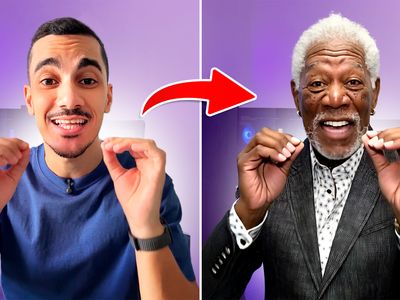
Change clothing, backgrounds, lighting, or props while keeping the subject's face and identity intact. GPT Image 2 holds facial features through edits better than any other model.
🛍️ Product and E-commerce
Restyle product shots for different campaigns, seasons, or platforms. Swap backgrounds, adjust staging, or add lifestyle context to an existing product photo.
🎨 Style Transfer and Art Conversion
Transform photos into pixel art, manga, watercolor, film stills, or any target aesthetic. The reasoning engine plans the transformation so the output reads as a coherent piece, not a filter.
🔤 Text and Typography Edits
Add, change, or correct text inside an image with near-perfect accuracy. Works across Latin, Chinese, Japanese, Korean, Arabic, and Hindi scripts.
📐 UI Mockup and Design Iteration
Edit UI screenshots, wireframes, or design mockups by describing component changes. The model preserves the surrounding layout while applying the targeted edit.
WHAT WORKS BEST / WHAT TO AVOID
✅ Works great
One clear edit per prompt with explicit preservation instructions
Masks for precise area-targeted changes
Adding or changing text with exact wording in quotes
Style transformations with specific aesthetic descriptions
⚠️ May produce softer results
Stacking multiple unrelated edits in a single prompt
Vague instructions like "make it better" or "improve this"
Expecting exact brand logo reproduction (composite logos from approved assets)
Very small compliance text or fine print
FAQ
What is GPT Image 2?
GPT Image 2 is OpenAI's latest image generation and editing model, launched April 2026 as part of ChatGPT Images 2.0. It is an autoregressive model with built-in reasoning that plans layouts and checks consistency before generating. It holds the #1 position on the Image Arena leaderboard by a record margin, with near-perfect text rendering across multiple scripts and strong face preservation during edits.
How does GPT Image 2 editing differ from other image editors?
GPT Image 2 reasons through the edit before applying it. It identifies what to change and what to preserve, planning element placement and checking for consistency. Other models apply changes more uniformly, often drifting the surrounding composition. GPT Image 2 holds unedited regions stable, especially faces, which makes iterative editing practical.
Can GPT Image 2 add text to images?
Yes. It achieves approximately 99% character-level accuracy across Latin, CJK, Hindi, Arabic, and Bengali scripts. Put the exact text in quotes in your prompt. It handles headlines, labels, signs, UI text, and multi-language copy in the same image.
What does the mask input do?
The mask limits the edit to a specific region. The model changes only the masked area and leaves the rest untouched. Use it for inpainting (replacing part of an image), object removal, or targeted edits where you want the surrounding image preserved pixel-for-pixel.
Can I use a reference image to guide the edit?
Yes. Connect a second image and describe what it contributes: a style to match, an outfit to apply, a color palette to follow, or an object to bring into the scene. GPT Image 2 accepts reference images and incorporates them into the edit based on your prompt.
Is GPT Image 2 licensed for commercial use?
GPT Image 2 is a proprietary OpenAI model. Commercial use is governed by OpenAI's terms of service and usage policies. Commercial use is generally permitted, but review the current terms for your specific use case and note that outputs may carry invisible C2PA metadata.
How to run GPT Image 2 editing online?
You can run GPT Image 2 editing online through Floyo. No installation, no setup, no API key to wire up. Open the workflow in your browser, upload your image, describe the edit, and hit run. Free to try.
WHY FLOYO?
Floyo is the only platform with team collaboration for ComfyUI in the browser. You run workflows with no install. You share run history, assets, and models across your team. You pay only when you generate. Floyo supports open-source and closed-source models.
A designer runs an edit and likes the result. A teammate opens that exact run from shared history and keeps going. No file handoffs. No version confusion.
For studios and enterprise teams, Floyo adds private workspaces, pooled resources, and a team usage dashboard. Other ComfyUI cloud tools run for one person at a time. Floyo runs for the whole team, with transparent per-generation costs.
Ready to try it?
Upload your image, describe the edit, and hit run.
Questions? Watch the free course or check the FAQ above.
Read more