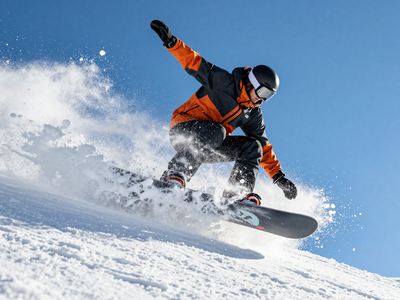
GPT Image 2.5 Flare for Text to Image
Describe any image and GPT Image 2.5 Flare generates it. OpenAI's fastest image model, strong at product shots, clean layouts, and readable text. Write a prompt and hit run.
GPT Image 2.5 Flare
Image
Text to Image
64



Nodes & Models
GPTImage25FlareTextToImage_floyo
PreviewImage
ABOUT THE WORKFLOW
Generate an Image from Text
Write a prompt describing the image you want and the model generates it. Product photos, illustrations, scenes, UI mockups, images with readable text. Describe it, run it, download it.
Partner node. This workflow calls an external API, so each run uses credits from your API wallet. No API key needed. Floyo handles the connection.
Model
GPT Image 2.5 Flare by OpenAI. The fast variant of GPT Image 2.5, strong at product photography, clean layouts, and rendering legible text inside images.
HOW IT WORKS
Step 1. Write your prompt
Describe the image you want. Be specific about the subject, composition, lighting, and style. The more detail you give, the closer the result lands.
Works great with: product shots · portraits · illustrations · scenes with text
Step 2. Hit run and download
GPT Image 2.5 Flare generates the image. Preview it in the workflow, then download.
Ready for: Photoshop · Figma · Canva · any editor
First time? Leave every setting as-is. The defaults (1024x1024 · high quality · 1 image · PNG) are the right starting point for almost everyone.
RECOMMENDED SETTINGS
Quick-start guide. Find the goal that matches yours and copy the settings.
Standard generation (most people) — Square 1024x1024 · high quality · 1 image · PNG. The right starting point for almost everyone.
Want a wider or taller image — Switch image size to landscape (1536x1024) or portrait (1024x1536) to match your canvas.
Want options to choose from — Raise num_images to generate several versions in one run and keep the strongest. Each image adds to the cost.
Need maximum detail — Set quality to xhigh or max. Generation takes longer and costs more per image, but fine detail and text come through sharper.
Need a transparent background — Set background to transparent and keep output format on PNG. Useful for product shots, stickers, and assets that go on top of other layouts.
Quick preview or test — Set quality to low or medium to check composition before committing to a high-quality run.
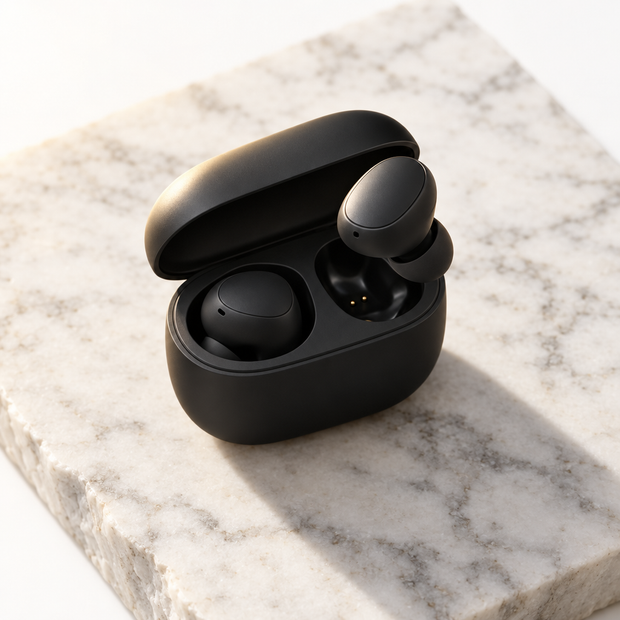
The result does not match the prompt — Make the prompt more specific. Name the subject, angle, lighting direction, and style. "A matte-black earbud case on white marble, overhead angle, warm key light from upper left, product photography" lands closer than "earbud picture."
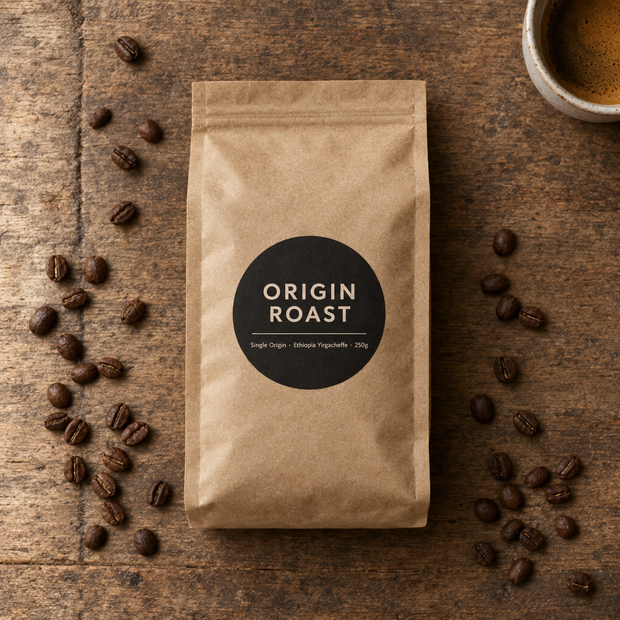
Prompt: Be direct about what you want in the frame. Structure helps: name the subject, then composition, then lighting, then style. "Close-up of a hand pouring espresso into a white ceramic cup, soft window light from the right, warm tones, editorial food photography" is stronger than "coffee photo."
LEARN
📹 Videos
ComfyUI 101 Free Course ft. Sebastian Kamph
Floyo 101 for Team Collaboration
✨ Quick links
USE CASES
🛍️ Product Photography
Generate clean product shots on white, marble, or styled surfaces without a photo studio or photographer.
🎨 Concept Art & Illustrations
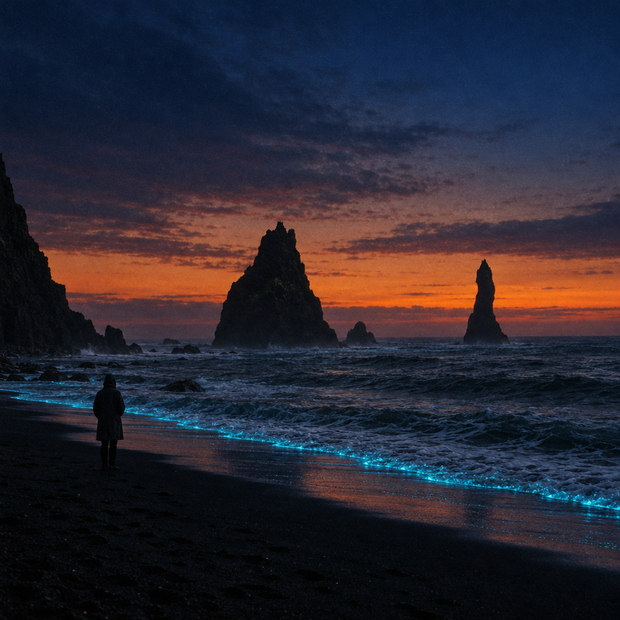
Describe a scene, character, or environment and get a starting image to build on or pitch from.
🔤 Images with Readable Text
Generate social cards, mockup posters, or signage where the text in the image needs to be legible, not garbled.
📐 UI & Marketing Mockups
Produce hero images, app store screenshots, or ad creatives with accurate layouts and clean composition.
🖼️ Stickers & Transparent Assets
Set background to transparent and generate product cutouts, icons, or overlays ready to drop onto any design.
WHAT WORKS BEST / WHAT TO AVOID
✅ Works great
Structured prompts with subject, composition, lighting, and style
Product photography and clean editorial shots
Images that include legible text or labels
Transparent-background assets (PNG)
⚠️ May produce softer results
Highly abstract or painterly art styles
Vague one-line prompts like "cool image"
Prompts that describe multiple unrelated scenes
Extremely complex compositions with many small subjects
FAQ
What is GPT Image 2.5 Flare?
GPT Image 2.5 Flare is OpenAI's fast image generation model, released September 8, 2026. It is the speed-focused variant of GPT Image 2.5, generating images at up to 50% lower latency than GPT Image 2. It supports text-to-image generation with six quality tiers, multiple output sizes, and transparent backgrounds on PNG.
What is the difference between GPT Image 2.5 Flare and Sunburst?
Flare is the faster variant, built for everyday generation and higher-volume work. Sunburst is slower but offers more precision for detailed creative and editing tasks. Both share the same quality improvements over GPT Image 2. For most generation work, Flare is the right default. Use Sunburst when you need fine control over edits or maximum detail in complex scenes.
Can GPT Image 2.5 Flare render text inside images?
Yes. Accurate text rendering is one of its standout strengths. It handles legible text on signs, labels, titles, and product packaging better than most image models. Spell out the exact words you want in the prompt.
What resolutions does GPT Image 2.5 Flare support?
The workflow offers preset sizes including square (1024x1024), landscape (1536x1024), and portrait (1024x1536). The model can generate images from 1024px up to 3840px through the API. For most use cases, 1024x1024 at high quality is the right starting point.
Can I generate images with transparent backgrounds?
Yes. Set the background setting to transparent and keep the output format on PNG. This is useful for product cutouts, stickers, icons, and any asset that needs to layer on top of another design.
Can I use GPT Image 2.5 Flare outputs commercially?
GPT Image 2.5 Flare is a proprietary OpenAI model. Commercial use is generally allowed under OpenAI's usage policies, but review their current terms for your specific use case. Outputs carry an invisible C2PA metadata tag marking them as AI-generated.
How to run GPT Image 2.5 Flare online?
You can run GPT Image 2.5 Flare online through Floyo. No installation, no setup, no API key to wire up. Open the workflow in your browser, write your prompt, and hit run. Free to try.
WHY FLOYO?
Floyo is the only platform with team collaboration for ComfyUI in the browser. You run workflows with no install. You share run history, assets, and models across your team. You pay only when you generate. Floyo supports open-source and closed-source models.
A designer runs an edit and likes the result. A teammate opens that exact run from shared history and keeps going. No file handoffs. No version confusion.
For studios and enterprise teams, Floyo adds private workspaces, pooled resources, and a team usage dashboard. Other ComfyUI cloud tools run for one person at a time. Floyo runs for the whole team, with transparent per-generation costs.
Ready to try it?
Write a prompt describing the image you want and run it. The settings are already set.
Questions? Watch the free course or check the FAQ above.
Read more