FLUX.2 Max Edit · Image to Image
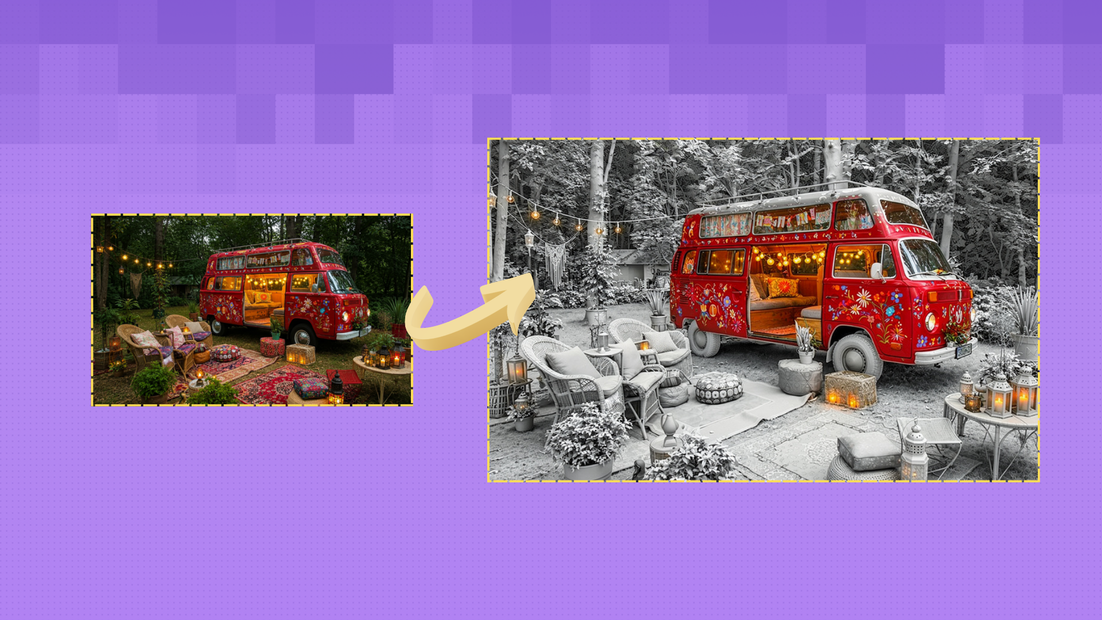
Upload an image to edit and up to eight reference images, describe the change, and FLUX.2 Max applies it with the highest editing consistency in the FLUX.2 family.
flux 2 max
Image
image editing
image to image
multi-image
photorealistic
266
_1783067283308.png?width=1400&height=620&quality=80&resize=contain)
_1783067283308.png?width=1400&height=620&quality=80&resize=contain)
_1783067283308.png?width=104&height=104&quality=80&resize=cover)
_1783067283308.png?width=104&height=104&quality=80&resize=cover)

Nodes & Models
Flux2MaxEdit_floyo
FloyoStickyNote
LoadImage
SaveImage
ABOUT THE WORKFLOW
Edit an Image with References
Upload the image you want to change and describe the edit in your prompt. Add up to eight reference images to lock a character, product, style, or material across the edit. FLUX.2 Max reads every reference and applies your instruction while preserving what you did not ask to change. The output is a single edited image.
Partner node. This workflow calls an external API, so each run uses credits from your API wallet. No API key needed. Floyo handles the connection.
Model
FLUX.2 Max by Black Forest Labs. The top-tier model in the FLUX.2 family, with the strongest editing consistency, highest prompt adherence, and best multi-reference support across the lineup.
HOW IT WORKS
Step 1. Upload your image
The image you want to edit. Photos, product shots, renders, and AI-generated images all work.
Works great with: portraits · product photos · fashion shots · interiors · concept art
Step 2. Add reference images (optional)
Upload up to eight reference images. Use them to bring in a character's face, a product's branding, a material texture, or a style you want applied to the edit. Describe what each reference contributes in the prompt.
Step 3. Write your prompt
Describe the change and what to keep. "Change the background to a sunset rooftop, keep the outfit and pose from the original, match the lighting style from reference 1" tells the model what to do with each input.
Step 4. Hit run and download
FLUX.2 Max applies the edit and returns the result as a JPEG or PNG.
Ready for: Photoshop · Figma · Canva · print · social media · web · e-commerce
First time? Upload your image, write a short edit instruction, and hit run. Leave aspect ratio and format as-is.
RECOMMENDED SETTINGS
Quick-start guide. Find the goal that matches yours and copy the settings.
Standard image edit — Landscape 4:3, JPEG, random seed. Upload your image, write the edit, run.
Lock a character across edits — Upload a front-facing portrait as a reference image. Add "preserve the exact face, hair, and build from the reference" to the prompt. FLUX.2 Max holds identity across complex edits better than Pro.
Retexture an object or surface — Upload a material or texture photo as a reference. "Apply the marble texture from reference 1 to the countertop, keep everything else" gives the model a clear target.
Match a style from another image — Upload the style source as a reference. "Match the color grading and lighting from reference 1" transfers the look without copying the content.
Need lossless output — Switch output format from JPEG to PNG.
Edit changed too much — Be more specific about what to keep. "Keep the subject, pose, face, and outfit identical. Change only the background" narrows the scope of the edit.
Prompt: State what changes and what stays. "Replace the background with a beach at golden hour, keep the subject and outfit identical, match the warm light from reference 1" is specific. "Make it look nicer" gives the model nothing to work with.
LEARN
📹 Videos
ComfyUI 101 Free Course ft. Sebastian Kamph
Floyo 101 for Team Collaboration
✨ Quick links
USE CASES
🖼️ Background and Scene Swaps
Upload a product or portrait and replace the background with a new location, season, or mood while keeping the subject identical.
🧵 Material and Texture Retexturing
Upload a texture reference and apply it to an object, surface, or garment in the image with accurate lighting and geometry preservation.
👤 Character-Consistent Edits
Lock a character's face and build with a reference photo, then change their outfit, scene, or pose across multiple edits with consistent identity.
🛍️ Product Restyling for Campaigns
Take an existing product shot and restyle it for a new season, platform, or campaign by swapping backgrounds, lighting, or staging with reference-guided consistency.
WHAT WORKS BEST / WHAT TO AVOID
✅ Works great
Clear, well-lit source images with defined subjects
Reference images that show the specific element to transfer (face, texture, style)
Prompts that state what changes and what stays
One major edit per prompt for cleanest results
⚠️ May produce softer results
Vague prompts with no preservation instructions
Too many conflicting references (eight textures pulling in different directions)
Very low-resolution or heavily compressed source images
Stacking multiple unrelated edits in a single prompt
FAQ
What is FLUX.2 Max Edit?
FLUX.2 Max Edit is the image editing mode of Black Forest Labs' top-tier FLUX.2 Max model. It takes an input image and applies prompt-guided edits while supporting up to eight reference images for style, character, or material consistency. It delivers the highest editing consistency in the FLUX.2 family, with fewer identity drifts and composition shifts than Pro or Dev.
How many reference images can I use at once?
Up to eight. Each reference can carry a different element: a face for character lock, a texture for retexturing, a color palette for grading, or a product for branding. Describe what each reference contributes in the prompt so the model knows how to use it.
How is FLUX.2 Max Edit different from FLUX.2 Pro Edit?
FLUX.2 Max delivers a higher hit rate for complex edits involving multiple references. It holds character identity, product detail, and style consistency more reliably than Pro, especially when the edit involves simultaneous changes to background, lighting, and subject styling.
Can FLUX.2 Max Edit preserve a character's face across edits?
Yes. Upload a front-facing portrait as a reference image and add preservation instructions to the prompt. The model holds facial features, skin tone, hair, and build across the edit. This works for changing outfits, scenes, or poses while keeping the person identical.
What is retexturing in FLUX.2 Max?
Retexturing replaces the surface material of an object in the image. Upload a material photo (marble, wood, fabric) as a reference and tell the model which surface to change. FLUX.2 Max applies the new texture while preserving the object's shape, geometry, and lighting.
Is FLUX.2 Max Edit licensed for commercial use?
FLUX.2 Max is a proprietary API model from Black Forest Labs. Commercial use is permitted under their API terms of service. Review the current terms on the Black Forest Labs site for your specific use case.
How to run FLUX.2 Max image editing online?
You can run FLUX.2 Max image editing online through Floyo. No installation, no setup, no API key to wire up. Open the workflow in your browser, upload your inputs, and hit run. Free to try.
WHY FLOYO?
Floyo is the only platform with team collaboration for ComfyUI in the browser. You run workflows with no install. You share run history, assets, and models across your team. You pay only when you generate. Floyo supports open-source and closed-source models.
A designer runs an edit and likes the result. A teammate opens that exact run from shared history and keeps going. No file handoffs. No version confusion.
For studios and enterprise teams, Floyo adds private workspaces, pooled resources, and a team usage dashboard. Other ComfyUI cloud tools run for one person at a time. Floyo runs for the whole team, with transparent per-generation costs.
Ready to try it?
Upload your image, add references, describe the edit, and hit run.
Questions? Watch the free course or check the FAQ above.
Read more