
Flux 2 Klein 9B + 360 Panorama ERP LoRA
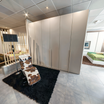
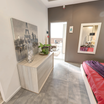
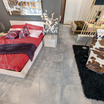
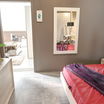
Turn any image into a full 360 equirectangular panorama with Klein 9B and a 360 ERP outpaint LoRA. Cut flat camera shots at any angle from the result.
flux
flux 2 klein
Image
image to image
lora
LoRAs
outpainting
panorama
1
848

Nodes & Models
CLIPLoader
qwen_3_8b_fp8mixed.safetensors
VAELoader
flux2-vae.safetensors
LoadImage
UNETLoader
flux-2-klein-9b.safetensors
CLIPTextEncode
LoraLoaderModelOnly
flux-2-klein-9B-360-erp-outpaint-lora_V1.safetensors
VAEEncode
PreviewImage
ReferenceLatent
KSampler
VAEDecode
SaveImage
Turn a single image into a full 360-degree equirectangular panorama.
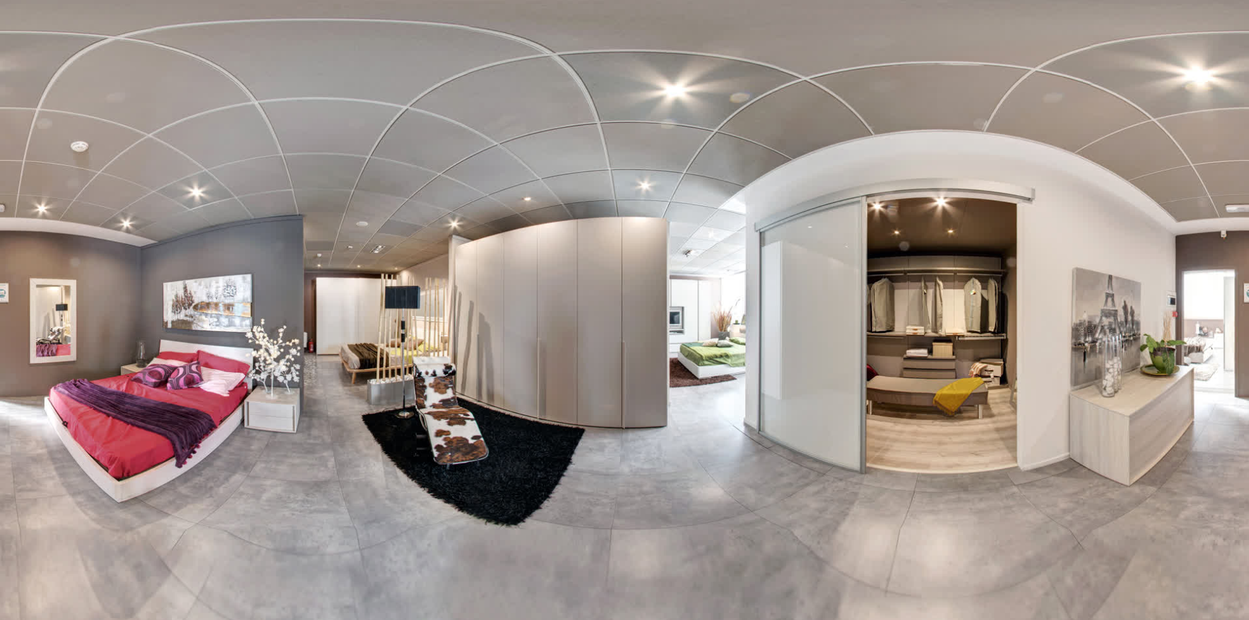
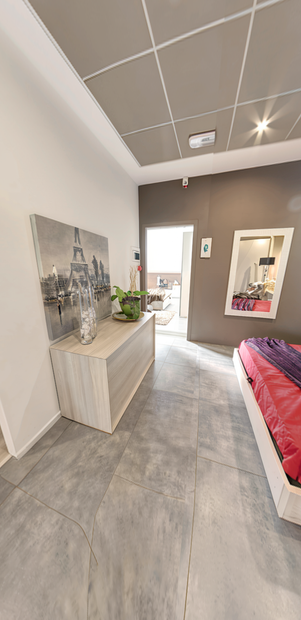
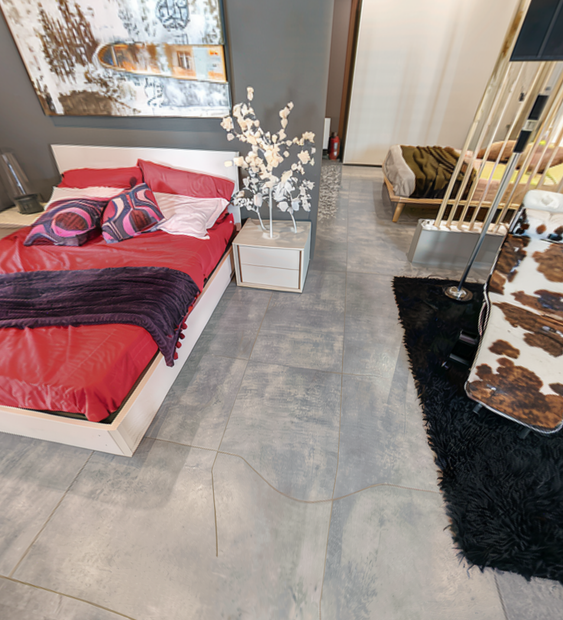
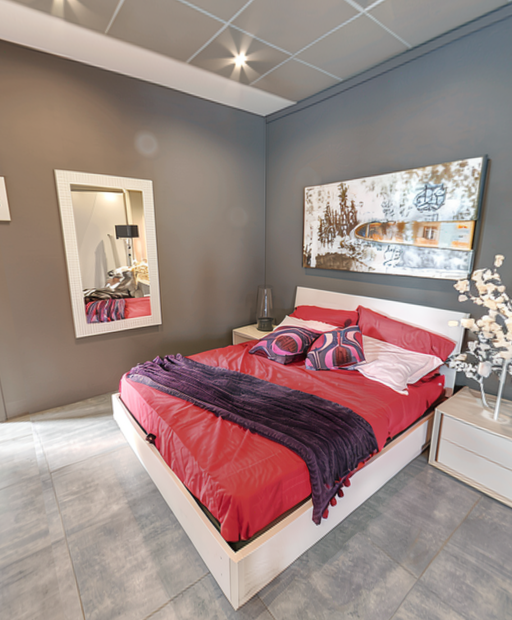
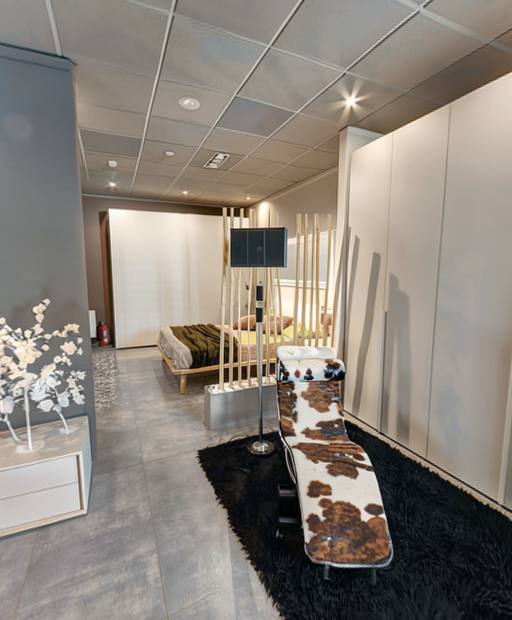
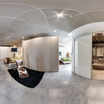
Upload your image, place it on a 360 canvas, and Klein 9B with a 360 ERP outpaint LoRA fills in everything around it. The result is a complete equirectangular panorama you can spin around in the built-in 360 viewer. Then use the cutout tool to frame camera shots at any angle and aspect ratio from inside the panorama.
20 steps, one LoRA, full 360 output.
How do you turn an image into a 360 panorama with Flux 2 Klein 9B?
Upload your image, place it on the 360 canvas using the sticker tool, and Klein 9B outpaints the rest into a full equirectangular panorama. A 360 ERP LoRA trained for this format keeps the left and right edges matching and the horizon level. You extract flat camera shots from the result at any angle.
Input Image This is your starting point. Upload a photo, render, or any image you want to build a panorama around. The workflow places it on a 2048x1024 equirectangular canvas as a "sticker" and fills the green space around it.
Sticker Placement (Yaw, Pitch, FOV) You control where your image sits on the 360 sphere. Yaw rotates it left/right. Pitch tilts it up/down. FOV controls how much of the sphere your image covers. Want your image front and center? Keep yaw at 0 and pitch at 0. Need it looking up at a sky? Push pitch positive.
Positive Prompt The default prompt tells the model to outpaint as a 360 equirectangular panorama, keep the horizon level, and match left-right edges. You can add scene descriptions here. Want a mountain landscape extending from your image? Add that to the prompt. The more specific you are about the surrounding environment, the better the fill.
Negative Prompt Default is "text, worst quality, blurry, ugly." Add anything you want to avoid in the outpainted areas.
LoRA Strength Default is 0.9. This controls how strongly the 360 ERP outpaint LoRA influences the output. Want tighter panorama formatting with cleaner edge matching? Keep it at 0.8 to 1.0. Getting too rigid or losing detail? Drop to 0.6 to 0.7 and see how it responds. Play with it.
CFG (Guidance) Default is 5. Higher values make the model follow your prompt more closely. Lower values give it more freedom to fill creatively. 4 to 7 is the useful range for this workflow.
Seed Default is 12345 (fixed). Change this to get different panorama variations from the same input image. Set it to "randomize" for a new result each run.
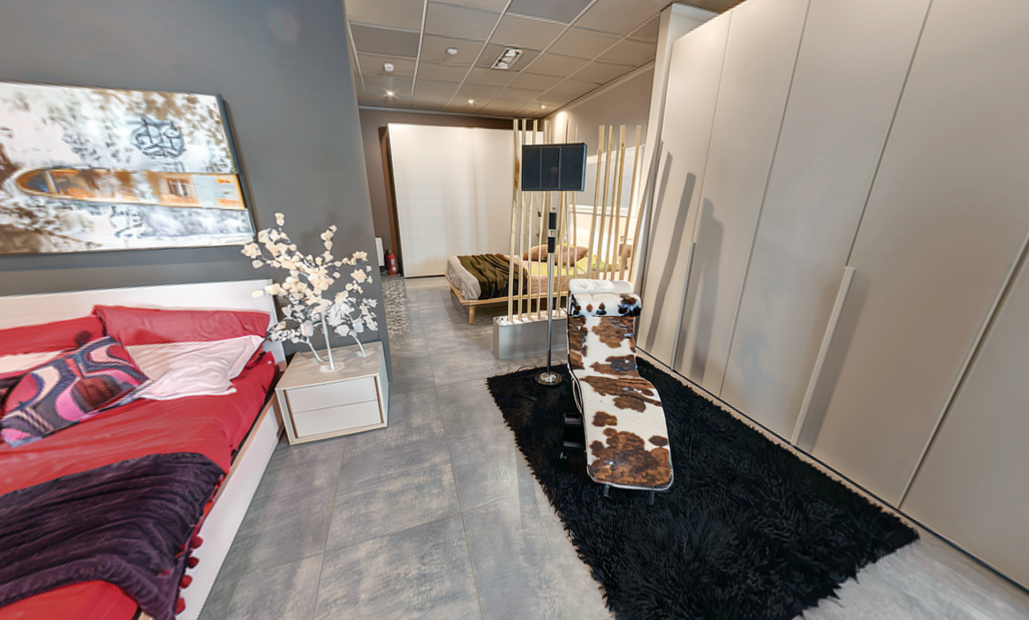
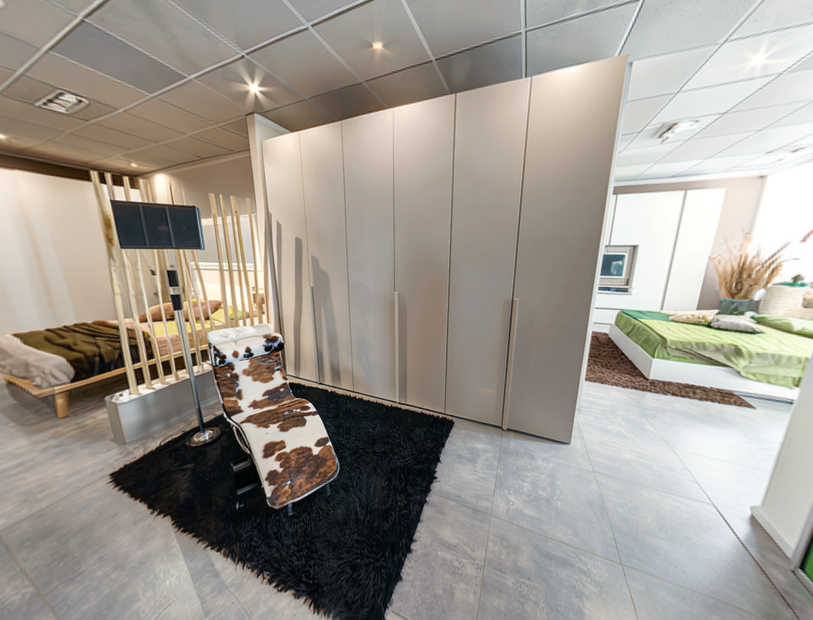
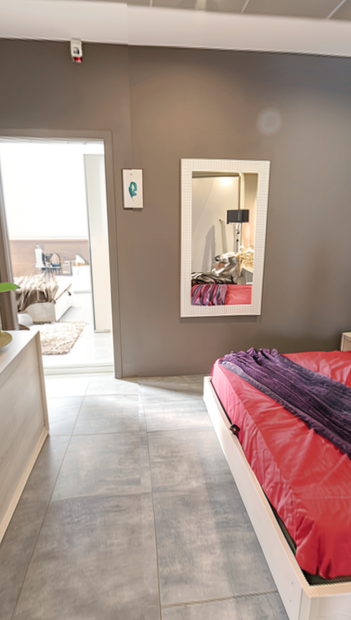
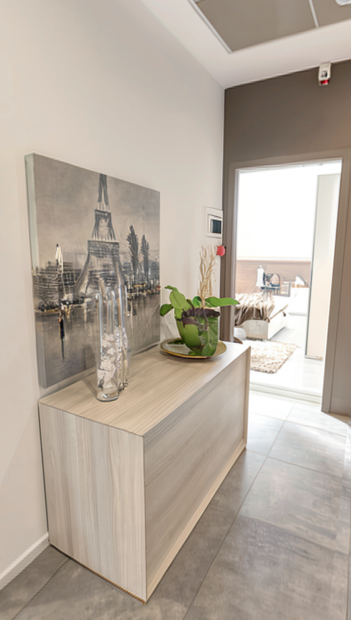
Panorama Cutout (Yaw, Pitch, FOV, Aspect Ratio) After the panorama generates, use the cutout tool to frame a flat rectilinear image from any angle inside the 360 view. Adjust yaw and pitch to point your "camera" anywhere on the sphere. Set the FOV and aspect ratio to frame the shot you want. Output megapixels controls the resolution of the cutout (default: 1 MP).
What is the Klein 9B 360 panorama workflow good for?
This workflow turns a single image into a full 360-degree environment. It is built for anyone who needs equirectangular panoramas for VR, game environments, 3D scene backgrounds, or virtual tours, starting from a reference image instead of from scratch.
If you have a product shot and need a 360 environment around it, this gets you there. Same for concept art where you want to explore the full surroundings of a scene you started in 2D.
The cutout tool makes this useful beyond VR. Generate the panorama once, then pull multiple flat camera angles from it. One generation, many compositions.
The catch: the output resolution is 2048x1024. That works for previews, VR prototyping, and backgrounds, but you may need to upscale for final production assets.
FAQ
What resolution does the Klein 9B 360 panorama output? The default equirectangular output is 2048x1024 pixels (2:1 aspect ratio). The cutout tool lets you extract flat images at a separate resolution controlled by the output megapixels setting. For higher-res final panoramas, consider running the output through an upscaling workflow.
Can I control where my source image appears in the 360 panorama? Yes. The sticker placement tool lets you position your image anywhere on the 360 sphere by adjusting yaw (left/right), pitch (up/down), and field of view (how much of the sphere it covers). You see a preview of the placement before running.
What kind of images work best as input for 360 panorama generation? Images with clear foreground subjects and some environmental context give the best results. The model extends what it sees, so an image with visible ground, sky, or surroundings gives it more to work with. Isolated objects on plain backgrounds produce less coherent panoramas.
Does the 360 ERP outpaint LoRA need a specific prompt format? The default prompt is tuned for equirectangular outpainting. It tells the model to fill green spaces, maintain a level horizon, and match left-right edges. You can add scene descriptions to it, but keep the core outpaint instructions intact for best results.
How to run Flux 2 Klein 9B 360 panorama online? You can run Flux 2 Klein 9B 360 panorama online through Floyo. No installation, no setup. Open the workflow in your browser, upload your inputs, and hit run. Free to try.
Read more

_1786518453053.png?width=400&height=300&quality=80&resize=cover)





