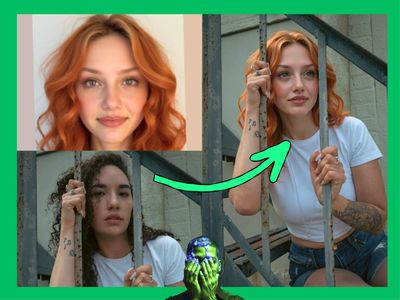
DarkRoom Lens & Optics Tools for Image Editing
Apply chromatic aberration, vignette, barrel distortion, perspective correction, and full lens profiles from 102 real lenses to any image. No model needed.
chromatic aberration
darkroom
Image
image editing
image to image
lens correction
vignette
468



Nodes & Models
LoadImage
ImageCompare
DarkroomChromaticAberration
DarkroomVignette
DarkroomLensDistortion
DarkroomPerspectiveCorrect
DarkroomLensProfile
Five lens and optics tools in one workflow, all built on the DarkRoom custom node pack.
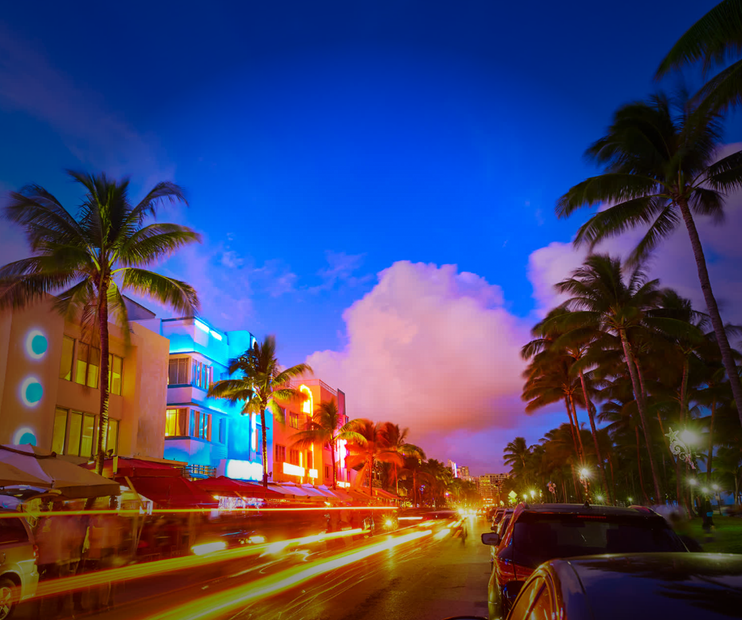
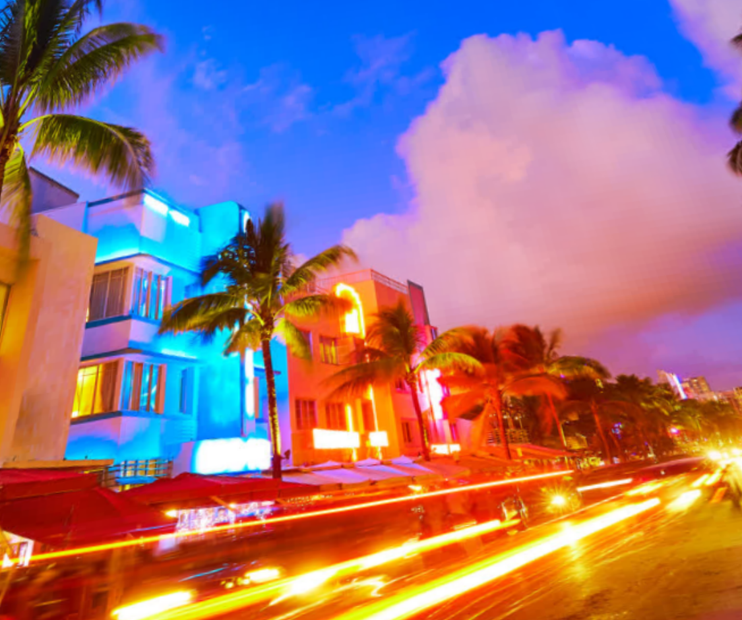
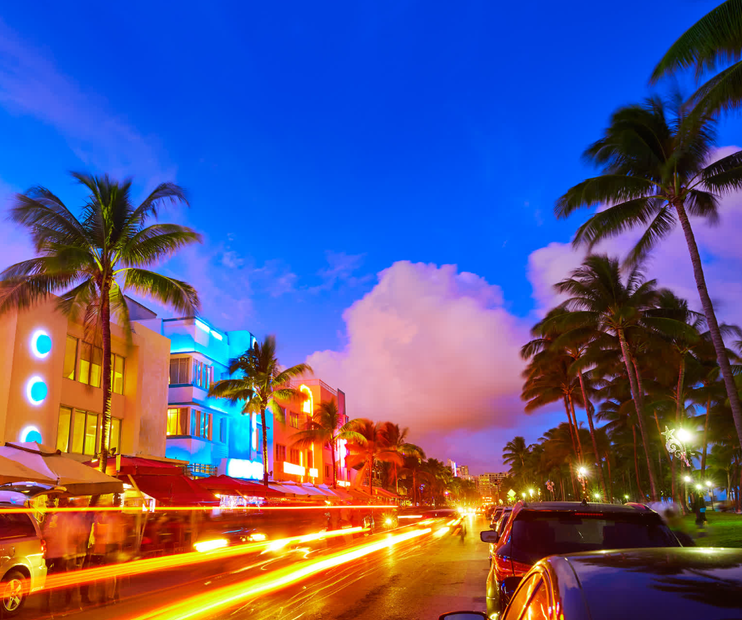
Upload an image and run it through any combination of chromatic aberration, optical vignette, barrel/pincushion distortion, perspective correction, or a full lens profile from 102 real-world lenses (Canon, Nikon, Sony, Zeiss, Leica, and vintage glass). Each tool works independently. Side-by-side comparers let you see before and after for every effect.
No diffusion model needed. This is pure image processing.
How do you use DarkRoom lens tools for image editing?
Upload your image, pick the effect you want, adjust the controls, and hit Run. Each of the five DarkRoom nodes handles a different lens characteristic. The defaults work well for a starting point. Most edits need one or two parameter changes at most.
Chromatic Aberration (DarkroomChromaticAberration) Simulates or corrects lateral CA with per-channel shift. Pick a lens from the built-in library (the default is Fujifilm XF 23mm f/1.4 R). Want a stronger color fringe effect? Push strength up toward 3 to 5. Need subtle fringing? Keep it at 1. The shift_r and shift_b sliders control how much the red and blue channels offset from green. Negative values pull a channel inward, positive pushes it out. Try shift_r at -1 and shift_b at 1 for a classic lateral CA look.
Optical Vignette (DarkroomVignette) Adds or removes corner darkening the way a real lens does. Intensity controls how dark the edges get (0.5 is moderate, 1.0 is heavy). Want the darkening to start closer to center? Lower the midpoint below 0.5. Roundness reshapes the vignette from circular to elliptical. Feather controls the softness of the transition. Enable cos4_falloff for physically accurate light falloff. You can also tint the vignette with tint_r, tint_g, and tint_b if you want warm or cool edges.
Barrel/Pincushion Distortion (DarkroomLensDistortion) Uses a Brown-Conrady model. Pick a lens profile (default is Nikon AF-S 85mm f/1.4G) and set strength. At 1.0, you get the lens's native distortion. Push higher to exaggerate. k1 and k2 let you dial in custom radial distortion coefficients if you want to go beyond the preset.
Perspective Correction (DarkroomPerspectiveCorrect) Fixes converging verticals and horizontal keystone in architectural shots. The vertical slider tilts the perspective plane (0.5 is neutral, higher values correct upward convergence). Horizontal handles left-right keystone. Rotation straightens tilt. Enable auto_crop to trim the warped edges automatically.
Full Lens Profile (DarkroomLensProfile) The all-in-one node. Applies distortion, chromatic aberration, and vignette from a single real lens model. 102 lenses are included across Canon, Nikon, Sony, Zeiss, Leica, and vintage lines. Set mode to "Add Aberrations" to simulate a lens look, or "Correct Aberrations" to remove it. Strength scales the overall effect.
What are DarkRoom lens tools good for?
These tools let you add or correct real optical characteristics without touching a diffusion model. They work on any image, process fast, and give you precise control over each lens artifact independently or as a package.
Product and e-commerce photography benefits when you want to remove barrel distortion or chromatic aberration from wide-angle shots. Film and video post-production uses the vignette and CA tools to match a specific lens look across frames. Architectural photography gets perspective correction without round-tripping through Lightroom.
The lens profile node is useful when you want the combined look of a specific lens applied to an AI-generated image. Pair it with any text-to-image or image-to-image workflow upstream.
The tradeoff: these are geometric and color transforms, not AI corrections. They won't fix motion blur or recover lost detail. For heavy correction, you may want to combine these with an upscaler or sharpening pass.
FAQ
What lenses are included in the DarkRoom lens profile node? 102 real-world lens models spanning Canon, Nikon, Sony, Fujifilm, Zeiss, Leica, Sigma, Cooke cinema glass, and vintage lenses. Each profile includes distortion, chromatic aberration, and vignette data measured from the actual lens.
Do I need a diffusion model to use the DarkRoom lens tools? No. These nodes are pure image processing. Upload any image and apply the effects directly. No checkpoint, no VAE, no CLIP model required.
Can I stack multiple DarkRoom lens effects on the same image? Yes. Each node operates independently. You can chain chromatic aberration into vignette into distortion in any order. The workflow includes side-by-side comparers so you can evaluate each stage.
What does the "Add Aberrations" vs "Correct Aberrations" mode do in the lens profile node? "Add Aberrations" applies the lens's optical characteristics to your image, simulating how it would look shot through that glass. "Correct Aberrations" removes those same characteristics, useful if your source image was shot with that lens and you want a cleaner result.
How to run DarkRoom lens tools online? You can run DarkRoom lens tools online through Floyo. No installation, no setup. Open the workflow in your browser, upload your inputs, and hit run. Free to try.
Read more