AI Newsletter Generator with Subject Lines and HTM
Type your topic. Get back a newsletter draft, five subject line options with preview text, and paste-ready responsive HTML you can drop into any email platform.
content creation
gemini flash
newsletter
productivity
99
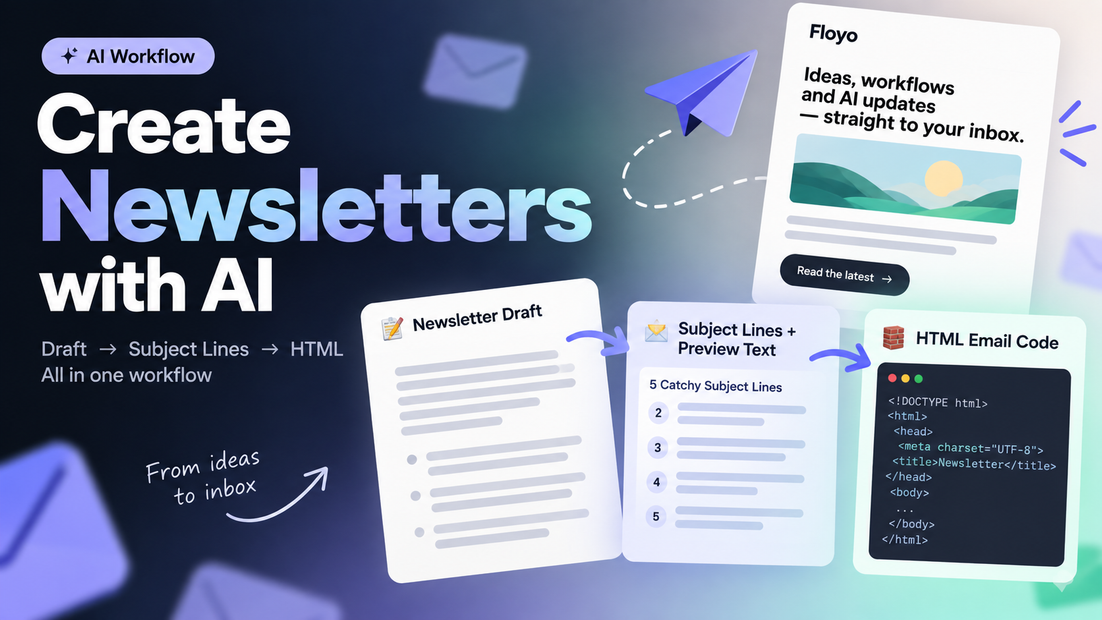

Type a topic, get a send-ready newsletter.
Write a brief or topic description in the prompt field. The workflow drafts a complete newsletter (hook, main story, takeaways, quick hits, CTA, sign-off), generates five subject line options with preview text variants, and converts the whole thing into responsive HTML email code. The HTML is table-based for email client compatibility, includes UTM tracking on all links, an open tracking pixel, and an unsubscribe link in the footer. Copy the HTML into Mailchimp, ConvertKit, Brevo, or any ESP and send.
Three outputs, one click.
How do you generate a newsletter with AI?
Type your topic or brief into the prompt field and hit run. Gemini Flash drafts the newsletter in a casual, skimmable tone, then two parallel passes generate subject lines and production-ready HTML email code. You get three outputs: the plain-text draft for editing, five subject line and preview text options to pick from, and responsive HTML you can paste straight into your email platform.
Topic / brief (the only input you write)
This is where you describe what the newsletter should cover. It can be a single sentence ("This week: Nano Banana 2 dropped") or a detailed brief with multiple topics, links to include, and a specific CTA. The more detail you give, the more targeted the output. Leave it vague and you get a solid general draft you can sharpen afterward.
Newsletter draft output
A 400-600 word newsletter in markdown. Structured with a hero hook, main story (2-3 paragraphs), 3-4 standalone takeaways, quick-hit news bites, a CTA section, and a casual sign-off. The tone reads like a smart friend catching you up, not a corporate update. Bold key phrases for skimmers. Every sentence earns its spot.
Subject lines + preview text output
Five subject line options, each under 50 characters (mobile-friendly), each taking a different angle: curiosity, benefit, contrarian, direct, and emoji. Three preview text options that extend the subject line without repeating it. Pick one pair and drop them into your ESP.
HTML email output
The full newsletter converted to a production-ready HTML email. Table-based layout (600px max-width) that renders in Outlook, Gmail, and Apple Mail. All CSS is inline. Responsive down to 320px. Includes UTM parameters on every link, an open tracking pixel, a preheader text span, and a footer with unsubscribe link and address placeholder. Paste it into your ESP's HTML editor and you're ready to send.
What is an AI newsletter generator good for?
Best for creators, marketers, and small teams who send a regular newsletter and want to cut the drafting-to-sending time from hours to minutes. You still pick the topic and edit the draft, but the blank-page problem and the HTML formatting step disappear.
Running a weekly creator newsletter? Write your brief on Monday morning, run the workflow, edit the draft, copy the HTML into your ESP, schedule it. The subject lines give you A/B test options without brainstorming five variants yourself.
Marketing team sending product updates or roundups? Describe what shipped this week in the brief and get a draft that's structured for readability. The HTML output saves your developer or designer from formatting every issue.
Where it fits less well: highly visual newsletters built around images, layouts, or custom design templates. This workflow produces clean, text-forward email HTML. If your newsletter depends on a specific Figma-designed template, you'll want to use the draft output for copy and drop it into your own template manually.
FAQ
What email platforms can I paste the HTML into?
Any ESP that supports custom HTML: Mailchimp, ConvertKit, Brevo (Sendinblue), Beehiiv, ActiveCampaign, HubSpot, Campaign Monitor, or Buttondown. Open the HTML editor in your platform, paste the code, and preview before sending.
Do I need to edit the tracking links and unsubscribe URL?
Yes. The HTML includes placeholder URLs for the open tracking pixel, unsubscribe link, and UTM campaign slug. Find-and-replace them with your real domain and tracking setup before sending. The structure is ready; the URLs need your specifics.
Can I control the newsletter tone or length?
The default tone is casual and conversational. To change it, add tone direction in your brief: "formal tone for a B2B finance audience" or "keep it under 300 words." The LLM responds to specific instructions in your brief.
Does this generate images or visual elements for the newsletter?
No. The HTML output is text-forward with clean typography, a styled CTA button, and section dividers. If you need header images or inline graphics, add them after pasting the HTML into your ESP.
How do I run an AI newsletter generator online?
You can run this newsletter generator online through Floyo. No installation, no setup. Open the workflow in your browser, type your topic, and hit run. Free to try.
Read more