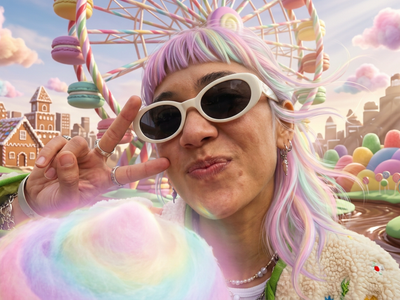
Adding Sparkles to the Jewelry with Nano Banana 2
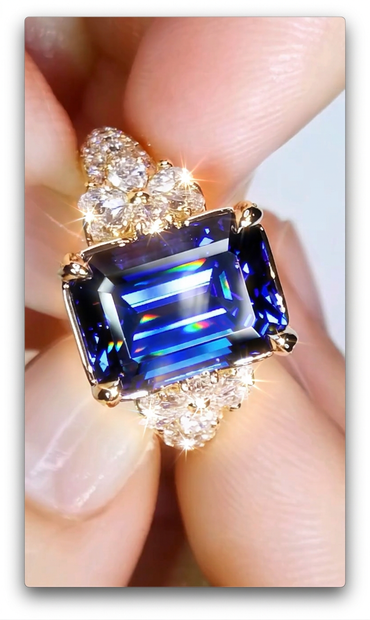
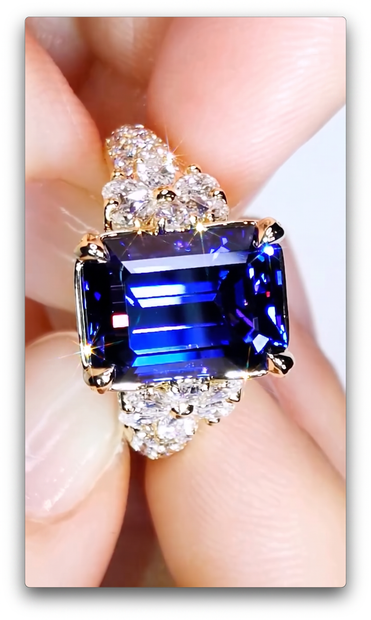
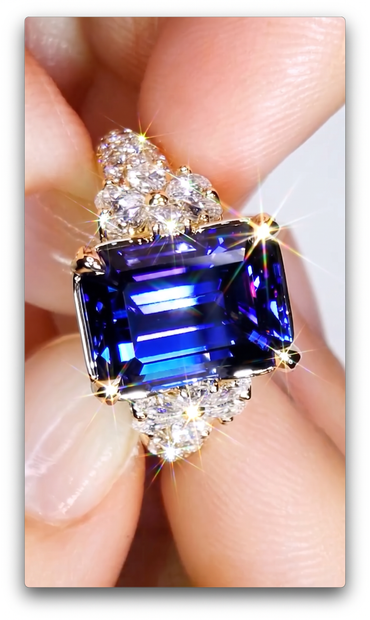
Upload a jewelry photo and Nano Banana 2 adds natural light reflections, specular highlights, and prismatic refractions to every gemstone and diamond. Hit run.
e-commerce
Image
image editing
image to image
jewelry
nano banana 2
product photography
333

Nodes & Models
NanoBanana2Unified_floyo
LoadImage
PreviewImage
ABOUT THE WORKFLOW
Add Sparkle to Any Jewelry Photo
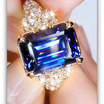
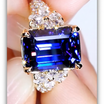
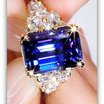
Upload a photo of jewelry. The workflow adds natural specular highlights, prismatic rainbow refractions, and a soft glow to every gemstone and diamond in the image. The original design, setting, and background stay untouched. The prompt is pre-written for this specific task, so there is nothing to configure on a first run.
Model
Nano Banana 2. An image generation and editing model that handles photorealistic modifications while preserving the structure of your original image.
HOW IT WORKS
Step 1. Upload your jewelry photo
The image you want to enhance. Shoot on a clean background with even lighting for the best result.
Works great with: rings · necklaces · earrings · bracelets · watches with gemstones
Step 2. Check the prompt
The prompt is pre-written to add natural light reflections, specular highlights, prismatic refractions, and a soft glow to gemstones while keeping everything else unchanged. Leave it as-is for your first run.
Step 3. Add a reference image (optional)
Drop in a second image to guide the look of the sparkle, such as a photo with the lighting style you want to match.
Step 4. Hit run and download
Nano Banana 2 applies the sparkle effect and returns the enhanced image. Preview it in the workflow, then download.
Ready for: Shopify · Etsy · Amazon · Instagram · any product listing
First time? Leave every setting as-is. The defaults (1K · 1 image · PNG · randomize seed) are the right starting point for almost everyone.
RECOMMENDED SETTINGS
Quick-start guide. Find the goal that matches yours and copy the settings.
Standard jewelry enhancement (most people) — 1K · 1 image · PNG · randomize seed · web search off. The right starting point for almost everyone.
Want options to pick from — Raise num_images to 3 or 4. Generate several versions and keep the one where the sparkle sits most naturally.
Need higher resolution for print or large displays — Set resolution higher if available. For web and social media, 1K is enough.
Want to match a specific lighting style — Add a second reference image showing the sparkle or lighting effect you want the model to follow.
Sparkle looks too strong or artificial — Edit the prompt to soften the effect. Replace "luminous glow" with "faint glow" or remove the glow instruction and keep only highlights and refractions.
Want to reproduce the same result — Lock the seed instead of randomize. This lets you tweak the prompt while keeping the same base output.
Prompt: Already written for natural gemstone sparkle. Leave it as-is for your first run. If you want to nudge the effect, change one word at a time. "Subtle white specular highlights" can become "bright specular highlights" for a stronger look, or "faint highlights" for something quieter. Over-editing breaks the balance.
LEARN
📹 Videos
ComfyUI 101 Free Course ft. Sebastian Kamph
Floyo 101 for Team Collaboration
✨ Quick links
USE CASES
💍 E-Commerce Product Listings
Make gemstone jewelry look alive in your product photos without a full studio reshoot. Upload, run, and drop the enhanced image straight into your Shopify, Etsy, or Amazon listing.
📸 Jewelry Photography Post-Processing
Add consistent sparkle across an entire product catalog. Shoot once with even lighting, then let the workflow handle the highlights and refractions in post.
📱 Social Media and Ad Creatives
Turn flat jewelry photos into scroll-stopping images for Instagram, Pinterest, or paid ads. The added light catches draw the eye without making the piece look altered.
🎨 Jewelry Designers and CAD Renders
Bring life to 3D renders or CAD screenshots of unrealized designs. Add realistic light behavior to gemstones before the piece is ever manufactured.
🛒 Marketplace Sellers and Resellers
Upgrade phone photos of secondhand or vintage jewelry. A clean, well-lit shot plus this workflow produces listing images that compete with professional studio work.
WHAT WORKS BEST / WHAT TO AVOID
✅ Works great
Clean, well-lit jewelry photos on a neutral background
Single-piece shots (one ring, one necklace)
Images where gemstones and facets are clearly visible
Studio-style or lightbox photography
Reference images to guide the sparkle style
⚠️ May produce softer results
Dark or underexposed photos
Crowded shots with multiple overlapping pieces
Heavy filters or color grading already applied
Extreme close-ups where only part of a stone is visible
Blurry or low-resolution source images
FAQ
What does this workflow do to my jewelry photos?
It adds natural-looking light reflections, white specular highlights, prismatic rainbow refractions, and a soft glow to every gemstone and diamond in your image. The original jewelry design, metal setting, and background stay exactly as they are. The effect mimics how stones catch light in a professional studio.
Does Nano Banana 2 change the jewelry design or background?
No. The prompt is written to preserve the original design, setting, and background. The model adds light behavior to the stones and leaves everything else untouched. If you see unwanted changes, make sure the prompt still contains the "maintaining the original jewelry design" instruction.
Can I control how strong the sparkle effect is?
Yes. Edit the prompt to adjust intensity. For a stronger look, change "subtle" to "bright" in the highlights instruction. For something quieter, use "faint" instead. You can also remove the "soft luminous glow" line if you want only highlights without the glow. Make one change at a time.
What kind of jewelry photos work best with this workflow?
Well-lit images on a clean background with visible gemstone facets produce the strongest results. Studio-style or lightbox shots are ideal. Phone photos work too, as long as the lighting is even and the stones are in focus. Avoid heavily filtered images or shots where the gems are in shadow.
Can I use the enhanced images for commercial product listings?
Yes. You own the output and can use it on any product listing, ad, or marketing material. Make sure you have the rights to the original photo you upload.
Is this different from adding sparkle effects in Photoshop?
Photoshop sparkle overlays apply generic light effects on top of your image. This workflow reads the actual structure and facets of the stones and adds highlights and refractions that follow the geometry. The result looks like the piece was photographed under better lighting, not like a filter was applied.
How to add sparkles to jewelry photos online?
You can add sparkles to jewelry photos online through Floyo. No installation, no setup, no API key to wire up. Open the workflow in your browser, upload your jewelry photo, and hit run. Free to try.
WHY FLOYO?
Floyo is the only platform with team collaboration for ComfyUI in the browser. You run workflows with no install. You share run history, assets, and models across your team. You pay only when you generate. Floyo supports open-source and closed-source models.
A photographer enhances a ring shot and likes the sparkle. A teammate opens that exact run from shared history and applies the same settings to the rest of the catalog. No file handoffs. No version confusion.
For studios and enterprise teams, Floyo adds private workspaces, pooled resources, and a team usage dashboard. Other ComfyUI cloud tools run for one person at a time. Floyo runs for the whole team, with transparent per-generation costs.
Ready to try it?
Upload a jewelry photo and hit run. The sparkle prompt is already set.
Questions? Watch the free course or check the FAQ above.
Read more