Seedream5_Outfit_Change_i2i
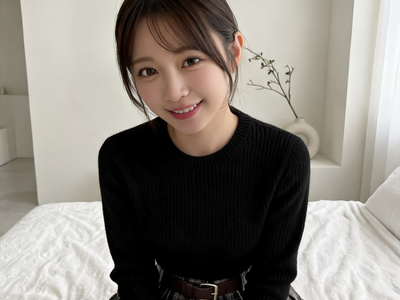
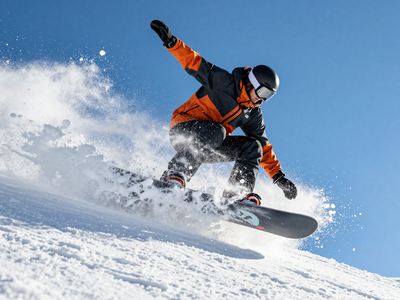
Seedream 5.0を使用した衣装変更用のImage to Imageワークフローです。 This is an Image to Image outfit change workflow using Seedream 5.0.
Image
Image to Image
Seedream 5.0
2.2k

1. Overview|概要
このワークフローは、Seedream 5.0を使用した衣装変更用のImage to Imageワークフローです。
This is a Image to Image outfit change workflow using Seedream 5.0.
プロンプトで人物の特徴と衣装内容を指定して、衣装変更後のビジュアルを生成できます。
You can generate outfit-changed visuals by describing the character and outfit in the prompt.
人物画像を使わず、テキストだけで衣装差分を作りたい場合に向いています。
It is suitable when you want to create outfit variations using only text without a reference image.
キャラクターデザイン、AI美女画像、ファッション案、SNS用ビジュアル制作に活用できます。
It can be used for character design, AI beauty images, fashion concepts, and social media visuals.
Seedream 5.0は、テキスト指示への追従性や画像生成の安定感に優れたモデルです。
Seedream 5.0 is a model known for strong text instruction following and stable image generation.
衣装の種類、素材、色、雰囲気を細かく指定することで、狙った衣装表現に近づけやすくなります。
By specifying clothing type, material, color, and mood in detail, it becomes easier to create the intended outfit.
衣装変更の検証や、複数パターンの衣装案を素早く作る用途におすすめです。
It is recommended for outfit testing and quickly creating multiple outfit variations.
2. How It Works|使い方
このワークフローは、プロンプトを変更するだけですぐに使えます。
You can use this workflow immediately by simply changing the prompt.
生成したい人物の特徴をプロンプトに入力してください。
Enter the character features you want to generate in the prompt.
次に、着せたい衣装の内容をプロンプトに入力してください。
Then, enter the outfit you want the character to wear in the prompt.
生成ボタンを押すだけで、指定した衣装の人物画像を生成できます。
By pressing the Generate button, you can create a character image with the specified outfit.
基本的には、プロンプト欄を編集して実行するだけで使用できます。
Basically, you only need to edit the prompt field and run the workflow.
細かく調整したい場合は、衣装、表情、ポーズ、背景、画風をプロンプトで調整してください。
If you want finer control, adjust the outfit, expression, pose, background, and style in the prompt.
まずはデフォルト設定のまま生成し、結果を見ながらプロンプトを調整するのがおすすめです。
It is recommended to start with the default settings and adjust the prompt based on the result.
3. Prompt Control|プロンプトによる調整
プロンプトには、人物の特徴と衣装内容をできるだけ具体的に書いてください。
In the prompt, describe the character features and outfit as clearly as possible.
人物の年齢感、顔立ち、髪型、体型、雰囲気を指定すると安定しやすくなります。
Specifying the age impression, facial features, hairstyle, body shape, and mood helps stabilize the result.
衣装は、種類、色、素材、丈感、シルエット、装飾を具体的に書いてください。
For the outfit, describe the type, color, material, length, silhouette, and details clearly.
たとえば、ドレス、スーツ、制服、和服、ストリートファッション、近未来風衣装などを指定できます。
For example, you can specify a dress, suit, school uniform, kimono, street fashion, or futuristic outfit.
衣装の質感を高めたい場合は、silk、leather、denim、lace、satin などの素材を指定してください。
If you want richer clothing texture, specify materials such as silk, leather, denim, lace, or satin.
ポーズや構図も指定すると、より狙った衣装見せの画像を作りやすくなります。
Specifying the pose and composition makes it easier to create an image that shows the outfit clearly.
背景をシンプルにしたい場合は、simple background や studio background を指定してください。
If you want a simple background, specify simple background or studio background.
ファッションカタログ風にしたい場合は、fashion catalog, full body, clean lighting などを追加してください。
If you want a fashion catalog look, add terms like fashion catalog, full body, and clean lighting.
衣装を主役にしたい場合は、full body shot や detailed outfit を入れるのがおすすめです。
If you want the outfit to be the main focus, it is recommended to include full body shot and detailed outfit.
短いプロンプトでも生成できますが、詳細に書くほど出力をコントロールしやすくなります。
Short prompts can work, but detailed prompts usually make the output easier to control.
4. Settings|設定
基本設定では、プロンプトを変更するだけですぐに使えます。
With the basic settings, you can use it immediately by only changing the prompt.
まずはデフォルト設定のまま生成することをおすすめします。
It is recommended to generate with the default settings first.
衣装を変更したい場合は、プロンプト内の衣装指定を書き換えてください。
If you want to change the outfit, rewrite the outfit description in the prompt.
Read more