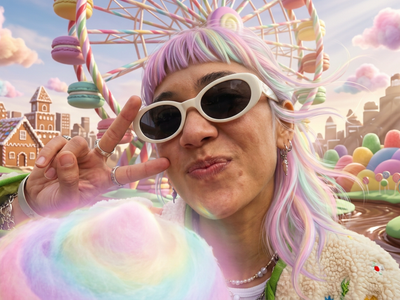
Seedream 5.0 Lite · Generate, Edit and Fuse
Generate, edit, or blend images with Seedream 5.0 Lite, the ByteDance model that reasons through your instruction before drawing. Prompt it and hit run.
Image
Image2Image
Image Editing
Seedream 5.0
Text2Image
6
4.8k






Nodes & Models
SeedreamV50LiteUnified_floyo
LoadImage
PreviewImage
ABOUT THE WORKFLOW
Generate or Edit an Image
Write a prompt on its own to build a picture from nothing. Add a picture to edit it, or two to blend them together. The model reasons through your instruction before it draws anything, then returns a finished image at the size you picked.
Partner node. This workflow calls an external API, so each run uses credits from your API wallet. No API key needed. Floyo handles the connection.
Model
Seedream 5.0 Lite by the Seed team at ByteDance. A unified model covering text to image, editing, and multi-reference fusion. It works through layered instructions step by step and can search the web to get current facts right.
HOW IT WORKS
Step 1. Write your prompt
Describe the picture you want, or the change you want made. Long, layered instructions are followed closely.
Works great with: product shots · portraits · posters · concept art
Step 2. Add a picture (optional)
Connect an image to edit it rather than generate from scratch. "Transform the person into a blocky voxel character, leave the background as it is."
Step 3. Add a second picture (optional)
Use the second slot to blend two pictures or carry a subject from one into the other.
Step 4. Set your size and format
Pick a resolution tier and a file type. Both the tier and the number of images you ask for drive what a run costs.
Step 5. Hit run
The result appears on screen. Download anything worth keeping before you move on.
Ready for: Photoshop · Figma · Canva · any editor
First time? Leave every setting as-is. The defaults (2K · single · 1 image · standard optimization · JPEG) are the right starting point for almost everyone.
RECOMMENDED SETTINGS
Quick-start guide. Find the goal that matches yours and copy the settings.
Standard run (most people) — 2K · single · 1 image · standard optimization · JPEG. The right starting point for almost everyone.
Want more detail — Raise the size preset to 3K. Resolution drives cost per run, so save the higher tier for images you plan to keep rather than tests.
Want options to choose from — Switch batch mode and raise the batch size. You get several takes on the same prompt in one run and can keep the strongest.
Editing rather than generating — Connect your picture to the first image slot. The prompt then reads as an instruction about that picture instead of a description of a new one.
Blending two pictures — Connect a second picture to the second slot. Say in the prompt what each one contributes, so one supplies the subject and the other the setting.
Your wording is already exact — Turn prompt optimization off. Left on, the model rewrites your prompt before drawing, which helps loose descriptions and works against carefully worded ones.
Need a specific shape or exact pixels — Set the size preset to custom. Width and height are ignored until you do, so changing them under a preset has no effect.
Need transparency or a lossless file — Switch the output format away from JPEG.
Prompt: Say what changes and what stays. "Turn the person into a blocky voxel character, keep the background unchanged and realistic" gives you more than "make it Minecraft style." When you connect two pictures, name the job of each one so the model knows which supplies the subject.
LEARN
📹 Videos
ComfyUI 101 Free Course ft. Sebastian Kamph
Floyo 101 for Team Collaboration
✨ Quick links
USE CASES
🛍️ Product and E-commerce
Restyle a product shot or place it in a new setting without a reshoot.
🎭 Character Edits
Change a person's style, wardrobe, or look while their face carries across the edit.
🖼️ Image Fusion
Combine two pictures into one, taking a subject from the first and a scene from the second.
📐 Layered Briefs
Hand the model a long instruction with several conditions and get each one applied in a single pass.
WHAT WORKS BEST / WHAT TO AVOID
✅ Works great
Detailed instructions with several specific conditions
Naming what stays fixed alongside what changes
Clear source pictures with a readable subject
Giving each connected picture one job in the prompt
⚠️ May produce softer results
Vague instructions like "make it look better"
Plain photorealistic work, where the Pro tier is stronger
Conflicting edits stacked into one prompt
Leaving prompt optimization on when your wording is precise
FAQ
What is Seedream 5.0 Lite?
Seedream 5.0 Lite is a proprietary image model from ByteDance's Seed team, launched in early 2026 as the cost-optimized tier of the Seedream 5 family. It is a unified multimodal model, meaning text to image, image editing, and multi-reference fusion all run through the same system. Its distinguishing features are chain-of-thought visual reasoning and real-time web search.
How many reference images does Seedream 5.0 Lite support?
The model reads up to fourteen reference images in a single request. This workflow exposes two slots, which covers editing one picture and blending two. Fourteen is the ceiling for compositing and multi-source scene building on the model itself.
What is the difference between Seedream 5.0 Lite and Seedream 5.0 Pro?
Lite launched first, in early 2026, and is the cheaper tier at roughly half the per-image cost of Pro. Pro arrived in July 2026 and is aimed at dense design work. ByteDance has said realism, aesthetics, and structural stability have room to improve in the Lite tier, so pick Pro for plain photorealistic output and Lite for reasoning-heavy briefs and cost-sensitive volume.
Does Seedream 5.0 Lite search the web?
Yes. Real-time retrieval is built into the model, so a generation can be grounded in current facts rather than only what was in the training data. That matters when a picture has to match a real place, product, or event that a fixed training cutoff would get wrong.
What resolution does Seedream 5.0 Lite output?
The model outputs 2K and 3K natively, with 4K available through some platforms, and full aspect ratio control from square to ultra-wide. This workflow ships on the 2K tier, and the resolution tier is one of the two settings that drive what a run costs.
Can I use Seedream 5.0 Lite images commercially?
Seedream 5.0 Lite is a closed model with no open weights, reached through ByteDance rather than downloaded, so commercial use is governed by ByteDance's terms rather than a public licence. Commercial use is generally permitted, but review the current terms and make sure you hold the rights to any picture you upload as a reference.
How to run Seedream 5.0 Lite online?
You can run Seedream 5.0 Lite online through Floyo. No installation, no setup, no API key to wire up. Open the workflow in your browser, write a prompt, add a picture if you have one, and hit run. Free to try.
WHY FLOYO?
Floyo is the only platform with team collaboration for ComfyUI in the browser. You run workflows with no install. You share run history, assets, and models across your team. You pay only when you generate. Floyo supports open-source and closed-source models.
A designer runs an edit and likes the result. A teammate opens that exact run from shared history and keeps going. No file handoffs. No version confusion.
For studios and enterprise teams, Floyo adds private workspaces, pooled resources, and a team usage dashboard. Other ComfyUI cloud tools run for one person at a time. Floyo runs for the whole team, with transparent per-generation costs.
Ready to try it?
Write a prompt, add a picture if you are editing, and run it. The settings are already set.
Questions? Watch the free course or check the FAQ above.
Read more
0
Reply
_1786522681696.png?width=400&height=300&quality=80&resize=cover)