Qwen Image 2.1 Product to Campaign Images
Upload a product photo and a short brief. Qwen 3.5 writes eight campaign prompts. Qwen Image 2.1 places your product in eight advertising scenes, preserving its packaging and branding.
concept art
e-commerce
image to image
product photography
qwen
style transfer
text to image
72
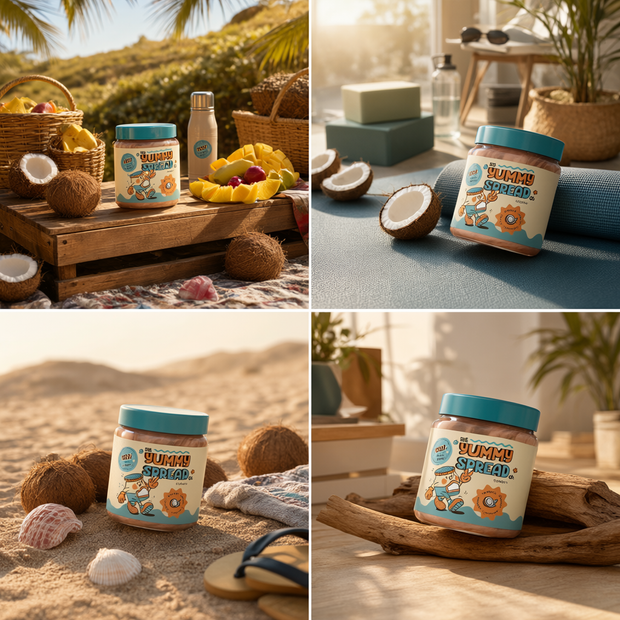
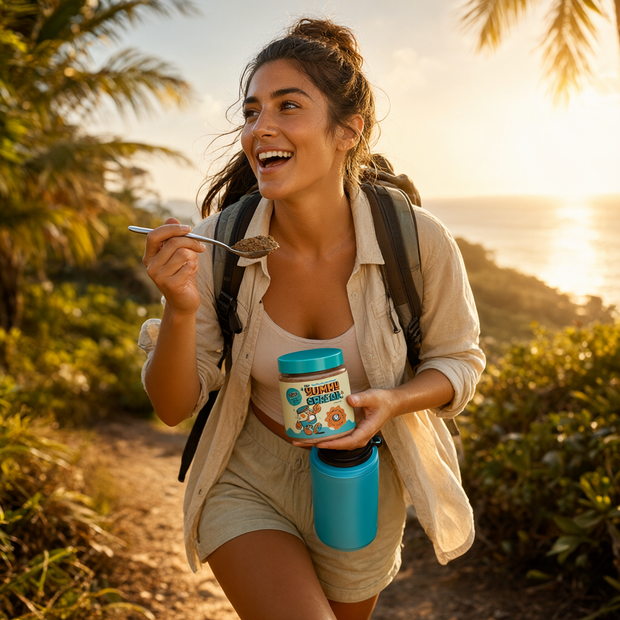
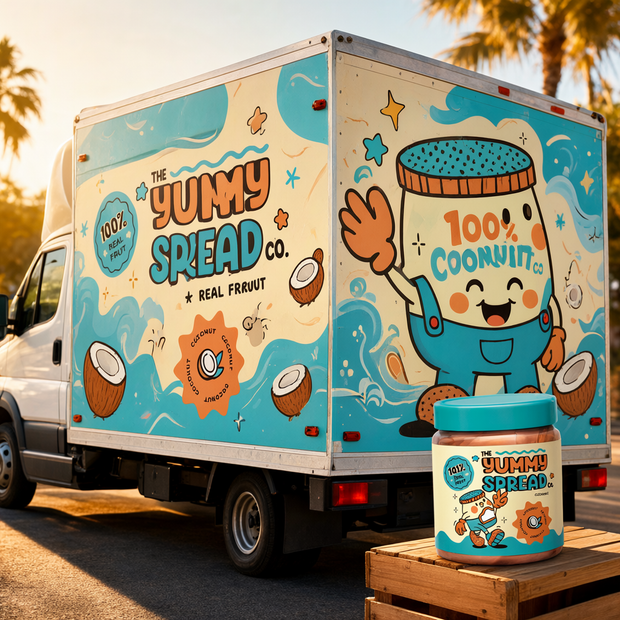
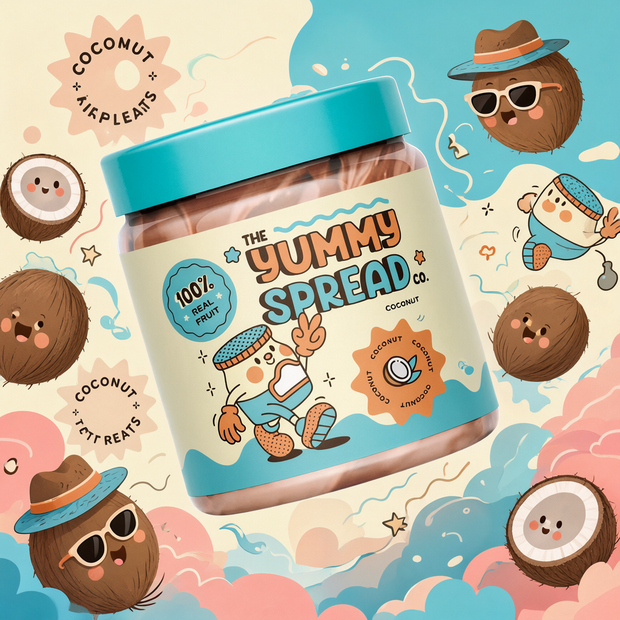
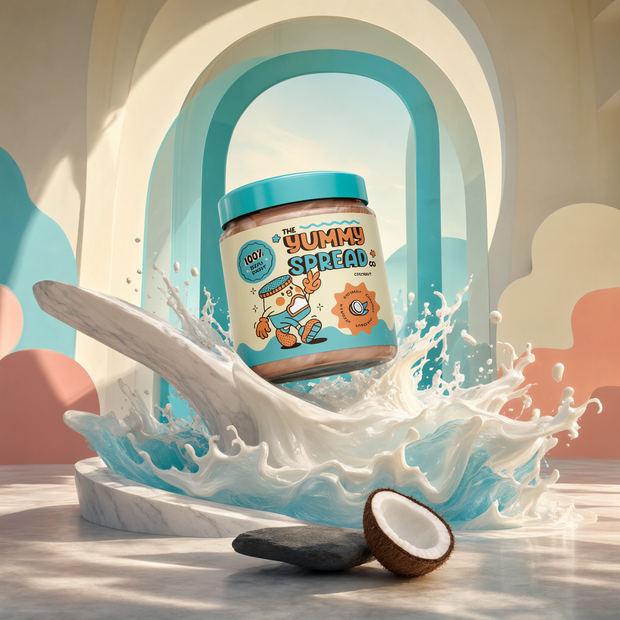
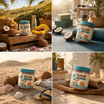

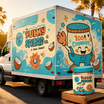
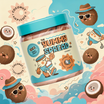
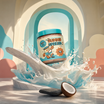
Product-to-campaign pipeline powered by Qwen Image 2.1 and Qwen 3.5 9B.
Upload a photo of your product and write a short brief describing what it is and the look you want. Qwen 3.5 reads both and writes eight campaign prompts. Qwen Image 2.1 generates one advertising scene per concept, keeping your product’s shape, label, colors, and branding intact across all eight. You get eight PNGs back.
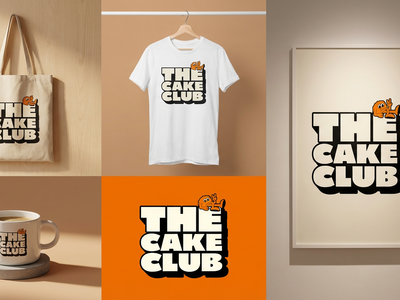
The eight concepts: sculptural hero shot, branded truck wrap, outdoor lifestyle, sensory close-up, colorful outdoor scene, product lineup, illustrated brand world, and premium editorial.
How do you create product campaign mockups with Qwen Image 2.1?
Upload a product photo and write a brief describing the product category and desired look. Qwen 3.5 9B writes eight campaign prompts from your inputs. Qwen Image 2.1 reads each prompt alongside your product photo and generates a full advertising scene that preserves the original product appearance.
Product image
Required. Upload a photo of the actual product. The model treats it as a reference and preserves its shape, colors, label, and branding across all eight outputs. A clean, well-lit photo with the full product visible works best.
Product brief
Required. Describe what the product is, its category, and the visual direction you want. Example: “This is a coconut fruit spread in a jar. Playful pastel colors, fresh coconut props, bold compositions.”
Want different results? Rewrite the brief before changing any other setting. The brief controls how all eight scenes are styled.
Aspect ratio
Default: 1:1 Square. Controls the shape of each output. Options include 4:3, 3:2, 16:9, and portrait versions.
Megapixels
Default: 1 (about 1024x1024 at 1:1). Higher means larger images and longer runs. Best results at 1 MP. Past 1.6 MP, quality drops and total time multiplies by eight.
Seed
Default: random. Lock a number to reproduce a result you liked. Leave on random for variety.
What are Qwen Image 2.1 product campaigns good for?
This workflow is for rapid campaign concepting when you have a finished product and need to see it in different advertising contexts. Upload the product once, get eight different creative directions in one run. It works for any product category, not food and beverage only.
E-commerce sellers who need social media ad images across multiple styles. Upload your product, describe the vibe, and pick the outputs that fit each platform.
Brand managers pitching campaign directions. Run it once with your product photo, show the team eight concepts, narrow down to two or three, refine the brief, run again.
Packaging designers who want to see how a product reads in different environments: on a truck wrap, inside a cooler lineup, against a sensory ingredient backdrop, or in a premium editorial setup.
The key difference from the Logo to Campaign workflow: this one preserves your existing product as-is. It does not apply a logo to new packaging. If you have a finished product with a label, this is the right workflow. If you have a logo and need packaging designed around it, use the Logo version instead.
The tradeoff: Qwen Image 2.1 is weaker at photorealistic human faces and exact text rendering. Scenes with people may have minor anatomy issues. Product labels with small text may not reproduce character by character.
FAQ
What is the difference between the Logo and Product campaign workflows?
The Logo version takes a logo image and applies it to generated product packaging. The Product version takes a photo of an existing product and places it into advertising scenes while preserving its appearance. Use Logo when you need packaging designed. Use Product when you have a finished product and need campaign imagery.
Does the workflow work for non-food products like electronics or apparel?
Yes. The campaign concepts adapt to whatever product category you describe in the brief. The eight concepts (hero shot, truck wrap, lifestyle, sensory close-up, outdoor, lineup, illustrated, editorial) work across categories. The text model reads your product photo and brief together and writes prompts appropriate to the category.
Why does my product look different in some outputs?
Rewrite the brief with more detail about the product’s materials, colors, and shape. The model relies on both the photo and the text to understand what to preserve. A vague brief gives the model more room to interpret. If specific runs look off, lock the seed on a good result and iterate the brief.
Does Qwen Image 2.1 have a commercial license?
Qwen Image 2.1 is released under the Qwen Research License (non-commercial). Commercial use requires a separate agreement with Alibaba Cloud. Check the model’s license page before using outputs in paid campaigns.
How do I run Qwen Image 2.1 product campaigns online?
You can run Qwen Image 2.1 product campaigns online through Floyo. No installation, no setup. Open the workflow in your browser, upload your product photo, write your brief, and hit run. Free to try.
Read more