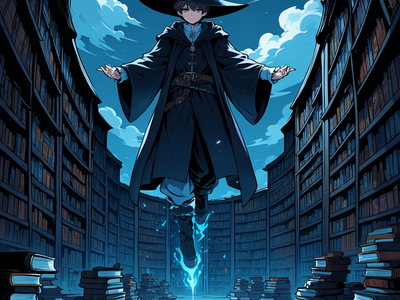
NetaYume Lumina Text to Image
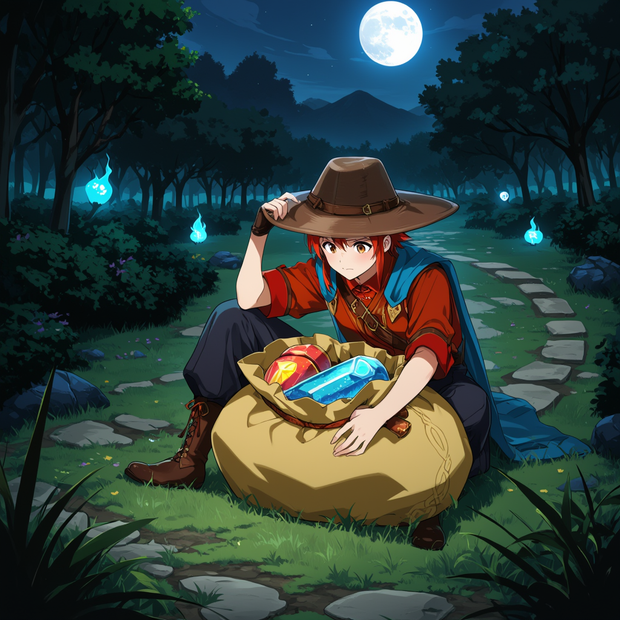
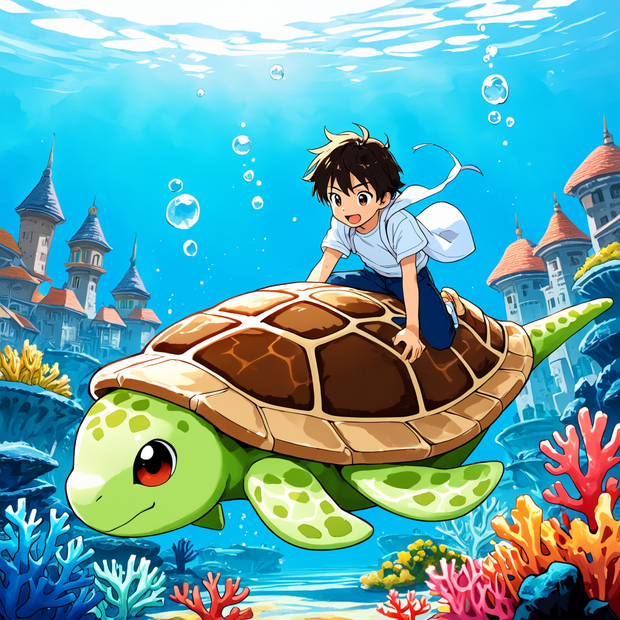
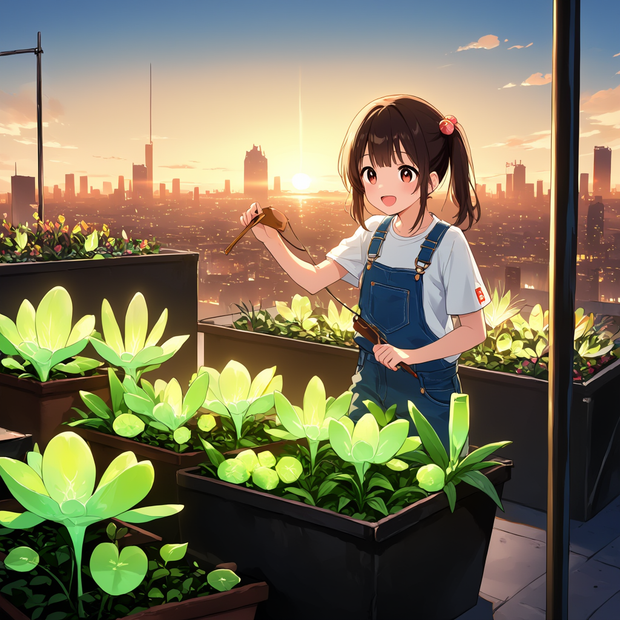
Generate high-quality anime images with NetaYume Lumina, a fine-tuned model built on Lumina Image 2.0. Describe a scene, hit run, get detailed anime art.
animation
character design
concept art
Image
lumina
portrait
text to image
708



Nodes & Models
EmptySD3LatentImage
CheckpointLoaderSimple
Lumina-Image-2.0.safetensors
MarkdownNote
WorkflowGraphics
ModelSamplingAuraFlow
CLIPTextEncode
KSampler
VAEDecode
SaveImage
Description:
Anime image generation with NetaYume Lumina, a fine-tune of Lumina Image 2.0 trained for sharp outlines, vibrant colors, and accurate character rendering.
Describe your scene after the prompt prefix, and the model generates detailed anime-style images. It handles accessories, clothing textures, hairstyles, and background elements well. Best results at 1024x1024. Runs in about 30 steps.
How do you write prompts for NetaYume Lumina?
NetaYume Lumina uses a prompt prefix that stays fixed. Your creative prompt goes after the <Prompt Start> tag. Keep the prefix as-is and write your scene description after the tag. You can include artist style tags using the @ symbol (like @artistname) to steer the visual style.
Positive Prompt The prompt has two parts. The prefix ("You are an assistant designed to generate anime images based on textual prompts.") stays locked. Everything after <Prompt Start> is yours. Describe the scene, characters, setting, and mood. Want a specific artist style? Add an @ tag with the artist name. You can browse available artist tags on the community reference sheet.
Negative Prompt Pre-filled with common quality filters: blurry, worst quality, low quality, jpeg artifacts, bad anatomy, deformed hands, extra limbs. You can leave this as-is for most generations. If you notice specific artifacts showing up, add those terms here.
CFG (Guidance Scale) Default is 4. Lower values give the model more creative freedom. Higher values follow your prompt more tightly but can introduce artifacts. For most anime scenes, 3 to 5 works well.
Steps Default is 30. This gives clean, detailed output. Going lower saves time but loses fine detail. Going above 35 rarely adds visible improvement.
Resolution Default is 1024x1024. The model was trained at this size and performs best here. You can push to 1024x1536 for portrait-oriented compositions, but square is the sweet spot.
Sampler Shift Default is 4. This controls the noise schedule. The default works for most prompts. If your outputs look overcooked or washed out, try lowering it to 2 or 3.
What is NetaYume Lumina good for?
NetaYume Lumina is a fine-tuned anime generation model that excels at character illustration, scene composition, and Danbooru-style artwork. It produces sharp, colorful anime images with accurate character details, making it a strong pick for character design sheets, scene concepts, and stylized portraits.
Character designers will get the most out of this. The model understands anime anatomy, outfit details, and accessory placement better than base Lumina. If you need a character holding a weapon, wearing layered clothing, or standing in a detailed environment, this model handles it.
It also works well for scene illustration. Backgrounds stay coherent, lighting feels intentional, and the overall composition reads as a finished piece rather than a rough generation.
Where it fits less: photorealistic output. This is an anime-first model. If you need photographic realism, look at Flux or SD 3.5 workflows instead.
Community workflow by the NetaYume/Neta.art Lab team. Fine-tuned from Lumina Image 2.0 by Alpha-VLLM (Shanghai AI Laboratory).
FAQ
What resolution should I use for NetaYume Lumina? 1024x1024 gives the best results. The model was trained at this size. You can go up to 1024x1536 for taller compositions, but square is the most reliable starting point.
How do artist tags work in NetaYume Lumina prompts? Add @ followed by an artist name (like @artistname) in your prompt after the <Prompt Start> tag. This steers the visual style toward that artist's look. Browse available tags on the community reference sheets linked in the workflow notes.
What CFG value works best for NetaYume Lumina? Start at the default of 4. For looser, more creative results, drop to 3. For tighter prompt adherence, try 5. Going above 6 tends to introduce artifacts without meaningful quality gains.
Can NetaYume Lumina generate non-anime images? It is trained specifically for anime-style output. You can push it toward semi-realistic anime styles, but it will not produce photographic or painterly realism. Use Flux or SD 3.5 for those.
How to run NetaYume Lumina online? You can run NetaYume Lumina online through Floyo. No installation, no setup. Open the workflow in your browser, write your prompt, and hit run. Free to try.
Read more