MiniMax H3 Masking · Video Identity Replacement
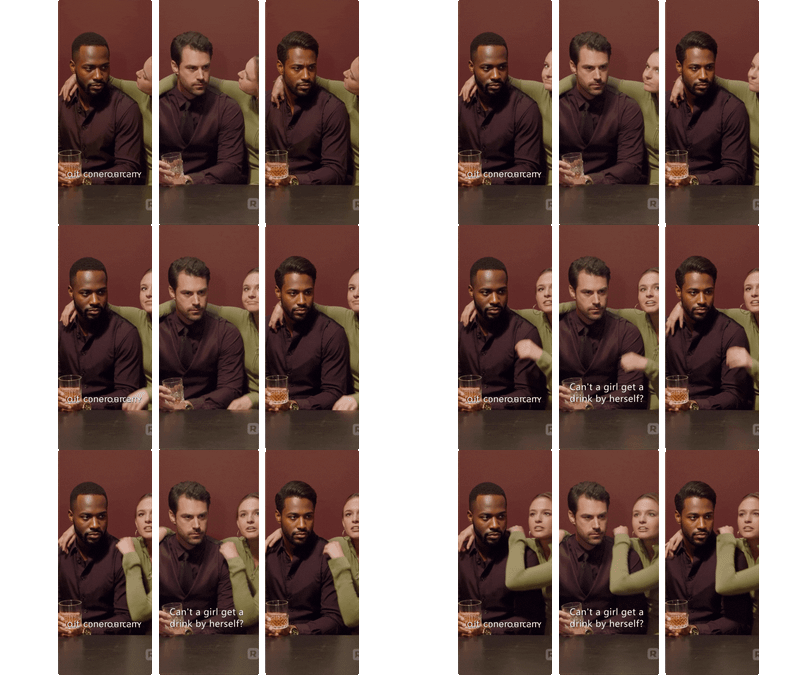
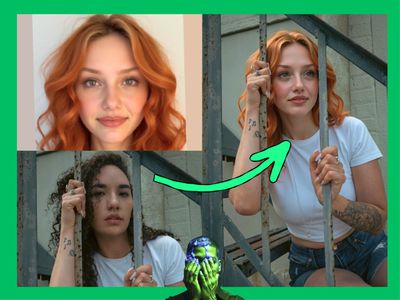
Replace the person in an existing video with a new identity and wardrobe using MiniMax H3 Ref2VA and SAM segmentation, then describe the new look and hit run.
masking
50
ABOUT THE WORKFLOW
Swap the person in a video while keeping the background
Upload a source video and a reference face image. The workflow detects the person in the source video using SAM segmentation, generates a new person with MiniMax H3 from your reference and prompt, and composites the result back into the original scene. The background, lighting, and camera movement from the source video stay intact. Only the person changes.
Model
MiniMax H3 Ref2VA by MiniMax. A 33B-parameter omni-modal generation model that jointly understands text, images, video, and audio. Used here to regenerate the person within the masked region while preserving the source video’s environment. Open-weight, released under the MiniMax H3 Community License.
HOW IT WORKS
Step 1. Upload a source video
Load the video you want to edit through the Video Loader. This provides the background, camera movement, and motion timing that the final output will keep.
Works great with: beauty ads · talking-head clips · fashion footage · product demos with a presenter
Step 2. Upload a reference face image
Load a photo of the person you want to appear in the video through the Media Loader. The model uses this image to generate the new identity.
Step 3. Write your prompt
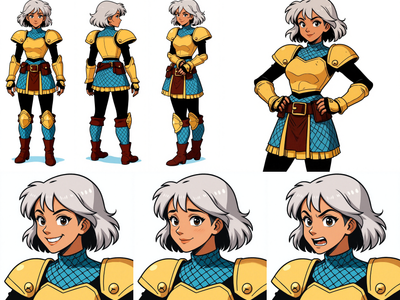
Describe the new person’s appearance, wardrobe, styling, and performance. Reference the uploaded image with “Picture 1” for identity. Describe clothing, accessories, makeup, and motion in detail. Example: “Use Picture 1 as the identity reference. Dress the woman in a blue silk blouse, gold earrings, natural makeup. She makes subtle head turns and maintains eye contact with the camera.”
Step 4. Set resolution and duration
Choose your output aspect ratio and resolution. The default is 2:3 (portrait photo) at 0.4 MP. Set the duration with the Float node. The default is 5 seconds.
Step 5. Run and review
Hit run. The workflow detects the person in the source video, generates the new identity within the masked area, and composites the result. Two outputs appear: the masked composite and a full regeneration with upscale. Download whichever fits your use case.
Ready for: Premiere Pro · DaVinci Resolve · After Effects · social platforms
First time? Leave every setting as-is. The defaults are the right starting point for almost everyone.
RECOMMENDED SETTINGS
Quick-start guide. Find the goal that matches yours and copy the settings.
Standard identity swap at 2:3 portrait — 0.4 MP, 5-second duration, 6 steps, detection target “person.” The right starting point for almost everyone.
Want to swap a specific object instead of a person? — Change the text field in the masking node from “person” to the object you want to replace, such as “shirt,” “dress,” or “bag.” The SAM model detects and masks whatever you name.
Mask edges too sharp or too soft? — Adjust the edge_grow and feather values in the masking node. Increase feather (default 16) for softer blending. Increase edge_grow for a wider mask that covers more of the transition zone. Decrease method.shrink (default 12) if the mask is cutting into the subject.
Want landscape or widescreen output? — Change the ResolutionSelector from 2:3 to 16:9. Match the aspect ratio of your source video for the cleanest composite.
Generated identity drifting from the reference? — Write a more detailed prompt describing the face, hair, and body type. Keep the reference image clear, well-lit, and showing the face from a similar angle to the source video.
Background bleeding into the regenerated area? — Lower the detection_threshold (default 0.5) to make the SAM segmentation more aggressive. This catches more of the person’s silhouette, including loose hair and accessories.
Prompt: Describe the new person’s full appearance, wardrobe, and performance. Reference the face with “Picture 1.” A good prompt: “Use Picture 1 as the identity reference. Preserve her facial structure and skin tone. Dress her in a vibrant pink sweater, oversized cat-eye glasses, white earrings. She makes elegant poses, touching the glasses with delicate finger movements, maintaining eye contact.” A vague prompt: “Put a different person in the video.”
Read more