Minimax H3 for Video to Video Character Swap
Replace a person in a video clip with a character from a single image using MiniMax H3 and the Character Swap LoRA. Upload a clip, upload a character, describe the swap, and hit run.
Character Swap
Minimax H3
Video
Video to Video
768

ABOUT THE WORKFLOW
Swap a Character in a Video
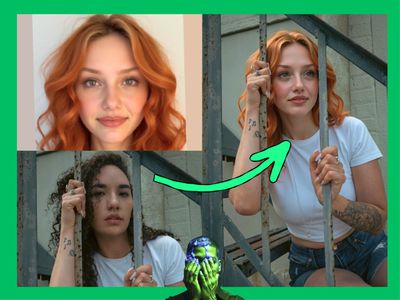
Upload a short clip and an image of the character you want in it, then name who to replace. The model rebuilds the same shot with the new character performing the same actions, keeping the scene, camera, lighting, and timing intact. It writes fresh audio in the same pass, so you get one finished video file back.
Model
MiniMax H3 by MiniMax, the lab behind the Hailuo video models. It reads text, image, video, and audio together, which makes it strong at motion transfer and at holding a scene steady while the subject changes.
Character Swap LoRA by Akatz Labs. Trains the model to replace one person in a clip while leaving everything else alone.
HOW IT WORKS
Step 1. Upload your source video
The clip you want changed. Short continuous shots of 4 to 5 seconds hold up best. Hard cuts and long takes drift.
Works great with: single-subject shots · steady camera moves · medium and wide framing
Step 2. Upload your character image
The person who takes their place. A clear full body shot or a character sheet works best, since the model reads identity, clothing, and proportions from it.
Works great with: full body references · character sheets · clean backgrounds
Step 3. Write the swap prompt
Name who to replace and describe the appearance you want carried over, then say what to keep unchanged. An example is pre-written in the workflow, like “Replace only the man in <Video 1> with the character shown in <Picture 1>.”
Step 4. Hit run and download
The model rebuilds the clip with the new character, generates matching sound, and saves one video file per run under video/H3_Character_Swap_v1.
Ready for: Premiere · After Effects · DaVinci Resolve · any editor
First time? Leave every setting as-is. The defaults (0.4 MP 16:9 · 5 seconds · 8 steps · random seed) are the right starting point for almost everyone.
RECOMMENDED SETTINGS
Quick-start guide. Find the goal that matches yours and copy the settings.
Standard swap (most people) — 0.4 MP, 16:9, 864 x 480 · 5 seconds · 8 steps · random seed. The right starting point for almost everyone.
Want a sharper final shot — Raise resolution to 0.98 MP for 768p. Generation takes longer and uses more memory, so test at 0.4 MP first and step up once the swap lands.
Need the output to match your footage — Set the aspect ratio in the Resolution Selector to the shape of your source clip. Mismatched shapes crop the picture.
Want to reproduce a result you liked — Set a specific seed number instead of leaving it random. The same seed with the same inputs returns the same take, so your prompt edits change one thing at a time.
Need a longer or shorter clip — Change the duration value in seconds. Frame counts sit on a fixed 24 fps grid, so 5 seconds becomes 124 frames, or 5.167 seconds.
The character identity drifts mid-clip — Shorten the clip and avoid close-ups and hard cuts. Those are where H3 loses the face first. A character sheet reference with multiple angles also holds identity better than a single photo.
The new character stands still or loses the original motion — Describe the pose and action explicitly in the prompt. Source video conditioning is not a pixel-preserving mask, so movement you do not name can be dropped.
You need the original soundtrack — The model writes new audio every run. Mux your original track back in after download if you need it preserved.
Prompt: Name the person to replace, describe the replacement character in concrete detail, then list what must stay the same. “Replace only the man in <Video 1> with the character shown in <Picture 1>. Keep the scene, camera movement, lighting, timing, and gestures unchanged” works far better than “swap the guy for the girl.”
LEARN
📹 Videos
ComfyUI 101 Free Course ft. Sebastian Kamph
Floyo 101 for Team Collaboration
✨ Quick links
USE CASES
🎬 Recasting a Shot
Swap the performer in footage you already shot and keep the blocking, camera move, and lighting you set on the day.
🧪 Previz and Pitch Material
Drop a designed character into reference footage to show a client or a director how a scene reads before you build anything.
👕 Wardrobe and Look Tests
Run the same clip with different character references to compare costume, hair, and styling choices in motion.
🎮 Game and Animation Reference
Turn acted reference video into a clip performed by your own character design, with motion and timing carried across.
📱 Content Variants
Produce the same short clip with different on-screen talent for A/B testing or localisation, without a reshoot.
WHAT WORKS BEST / WHAT TO AVOID
✅ Works great
Short continuous shots of 4 to 5 seconds
One clearly visible subject to replace
Full body character references or multi-angle character sheets
Prompts that name the target and describe the action to preserve
⚠️ May produce softer results
Long clips and shots with hard cuts
Tight close-ups where facial expression carries the performance
Crowded frames with several people to disambiguate
Vague prompts that do not name who to replace
FAQ
What is MiniMax H3?
MiniMax H3 is an open-weight video model from MiniMax, the lab behind the Hailuo video models. It reads text, images, video, and audio as a single input, which is what lets a clip, a reference picture, and a written instruction guide the same result. It outputs up to 768p at 24 fps with 32 kHz stereo audio generated in the same pass as the picture.
How does AI character swap in video work?
Your source clip is read as the motion and scene reference, and your character image sets who the replacement is. The model then regenerates the clip with the new character performing the same actions in the same environment. It is a regeneration rather than a mask or an overlay, which is why the prompt needs to name both the person being replaced and the elements that should stay unchanged.
What is the difference between video character swap and face swap?
Face swap replaces the face region on existing footage and leaves the body, clothing, and hair as filmed. This workflow replaces the whole character, including body proportions, hairstyle, and wardrobe, from a single reference image, while holding the scene and camera unchanged. That makes it a fit for recasting a shot rather than retouching a face.
How long can the video be?
MiniMax H3 handles 4 to 15 seconds at 24 fps, and this workflow defaults to 5 seconds. Frame counts sit on a fixed grid, so 5 seconds resolves to 124 frames, which is 5.167 seconds. Shorter clips hold character identity more reliably, so 4 to 5 seconds is the practical sweet spot.
Does it keep the original audio?
No. H3 generates fresh audio alongside the picture, so the soundtrack on the output is new. Source audio is disconnected by default so silent clips run without error. If you need the original track, mux it back in after you download the file.
Can I use MiniMax H3 character swap commercially?
MiniMax H3 is released under the MiniMax H3 Community License and the Character Swap LoRA is by Akatz Labs, so check the current terms of both before shipping work. Beyond the model licence, you are responsible for having rights to the footage and to the likeness of any real person you use as a reference. Swapping a recognisable person into footage without consent carries legal and platform risk.
Can I swap two characters in the same clip?
No. One character per run. If a shot has two people to replace, run the swap once, then run the output back through with a second character reference and a prompt naming the next person.
How to run MiniMax H3 character swap online?
You can run MiniMax H3 character swap online through Floyo. No installation, no setup, no API key to wire up. Open the workflow in your browser, upload your inputs, and hit run. Free to try.
WHY FLOYO?
Floyo is the only platform with team collaboration for ComfyUI in the browser. You run workflows with no install. You share run history, assets, and models across your team. You pay only when you generate. Floyo supports open-source and closed-source models.
A designer runs an edit and likes the result. A teammate opens that exact run from shared history and keeps going. No file handoffs. No version confusion.
For studios and enterprise teams, Floyo adds private workspaces, pooled resources, and a team usage dashboard. Other ComfyUI cloud tools run for one person at a time. Floyo runs for the whole team, with transparent per-generation costs.
Ready to try it?
Upload a short clip and a character image, name who to replace, and run it.
Questions? Watch the free course or check the FAQ above.
Read more