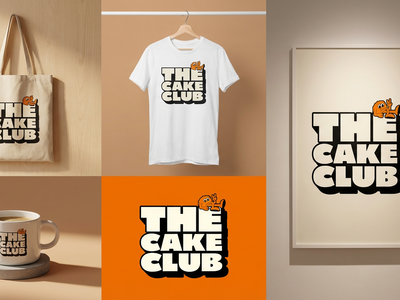
Minimax H3 for Object to Logo Motion Graphics
Upload a photo of any object, convert it into a bold emblem-style logo with GPT-4o Image, then generate a transformation animation and brand showcase video with MiniMax H3 Max.
Image
Minimax H3
Motion Graphics
Object to Logo
Video
108
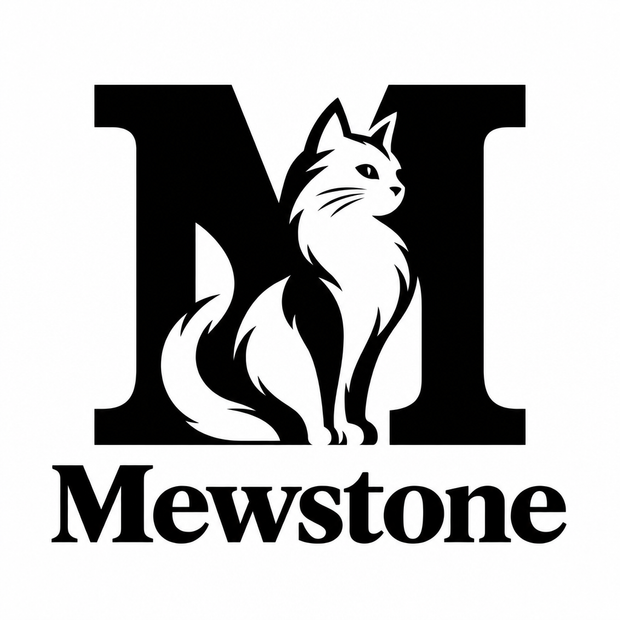
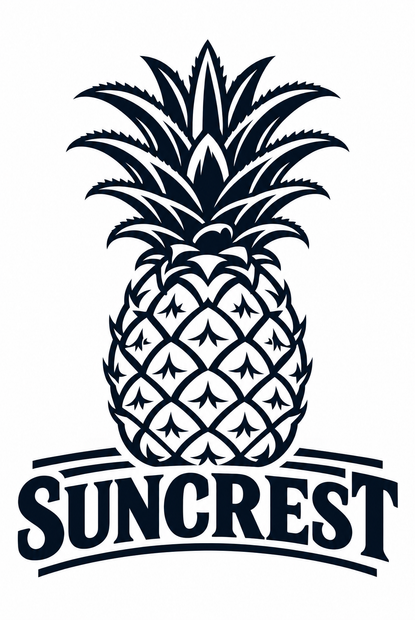


ABOUT THE WORKFLOW
Turn any object into a brand logo video
Upload a photo of any real object. The workflow converts it into a clean, emblem-style logo, then produces two videos: a 5-second transformation animation showing the object morphing into the logo, and a 10-second brand showcase reel displaying the logo on real products like water bottles, caps, tote bags, surfboards, and more. You get a logo and two ready-to-use brand videos from a single photo.
Partner node. This workflow calls an external API, so each run uses credits from your API wallet. No API key needed. Floyo handles the connection.
Model
MiniMax H3 Max by MiniMax. Strong at cinematic video generation with consistent motion, camera control, and high-fidelity first-to-last-frame interpolation. Paired with GPT-4o Image by OpenAI for logo creation from photographs.
HOW IT WORKS
Step 1. Upload your object photo
Drop in a photo of the object you want to turn into a logo. A clear, well-lit shot with a simple background gives the best result.
Works great with: product photos · animals · outdoor gear · mascots · vehicles
Step 2. Review the logo prompt
The prompt is pre-filled to generate a bold, emblem-style logo with thick outlines, a strong silhouette, and a professional sports/brand aesthetic. Dark navy or black on a white background. Edit the prompt if you want a different logo style.
Step 3. Run the workflow
Hit run. The workflow generates the logo from your photo, then creates the transformation animation (object morphing into logo, 5 seconds, 768P) and a brand showcase video (logo placed on eight real products across cinematic shots, 10 seconds, 2K). Both videos export as MP4.
Ready for: Instagram · TikTok · YouTube · Premiere Pro · After Effects
First time? Leave every setting as-is. The defaults are the right starting point for almost everyone.
RECOMMENDED SETTINGS
GPT Image 2.5 Sunburst Edit
Prompt: Required. Maximum 32,000 characters for generation. openai
Input Images: Up to 16 images for GPT image models. Provided as URLs or File API IDs. openai
Size: Arbitrary resolutions supported as WIDTHxHEIGHT strings (e.g. 1536x864). Width and height must both be divisible by 16 and the aspect ratio must be between 1:3 and 3:1. Resolutions above 2560x1440 are experimental, and the maximum supported resolution is 3840x2160. Standard presets are 1024x1024, 1536x1024, 1024x1536, or auto. openai
Quality: low, medium, high, xhigh, and max are supported for Sunburst and Flare, including their 2026-09-08 snapshots. Defaults to auto. openai
Background: auto (default), transparent, or opaque. When using transparent, set the output format to png or webp. openai
Number of Images (n): Between 1 and 10. openai
Mask: Optional. One mask image referencing an input.
Output Format: png, jpeg, or webp.
Output Compression: 0–100% (for jpeg or webp only).
Common error triggers: dimensions not divisible by 16, aspect ratio exceeding 3:1, resolution above 3840x2160, more than 16 input images.
MiniMax H3 Max FLF2V (First-Last-Frame-to-Video)
Prompt: Required. Up to 7,000 characters. civitai
Input Images (first/last frame): First frame required (1 image), last frame optional (1 image). Each reference image must have an aspect ratio between approximately 0.4 and 2.5 (2:5 to 5:2) and a minimum width and height of 256 pixels. Image limits: 256–5760 px per side, up to 30 MB, JPG/PNG/WEBP/HEIC/HEIF. > ## Documentation Index +2
Duration: Any whole number from 4 to 15 seconds. apiyi
Resolution: 768P or 2K. H3 currently only supports 2K, which is also the default (though some providers offer 768P). novitavercel
Aspect Ratio: adaptive, 21:9, 16:9, 4:3, 1:1, 3:4, or 9:16. For first/last frame mode, the aspect ratio follows the input images, so an explicit aspectRatio is ignored. vercelvercel
Prompt Expansion: Optional toggle (H3 Context-IR).
Important constraints: First/last-frame mode cannot be combined with reference-image, reference-video, or reference-audio mode. novita
Common error triggers: image aspect ratio outside the 0.4–2.5 range, image dimensions below 256 px, duration outside 4–15 seconds, mixing FLF2V with reference mode.
MiniMax H3 R2V (Reference-to-Video)
Prompt: Required. Up to 7,000 characters.
Reference Images: Up to 9 images. Each must have an aspect ratio between 0.4 and 2.5, minimum 256 px per side, max 30 MB, JPG/PNG/WEBP/HEIC/HEIF. At least one reference image or one reference video is required. Reference audio alone is not accepted. comfycomfy
Reference Videos: Up to 3 clips. The total duration of all reference videos cannot exceed 15 seconds. comfy
Reference Audio: Up to 3 clips. The total duration of all reference audio clips cannot exceed 15 seconds. comfy
Duration: 4 to 15 seconds (integer).
Resolution: 768P or 2K.
Aspect Ratio: adaptive, 21:9, 16:9, 4:3, 1:1, 3:4, or 9:16.
Common error triggers: no reference image or video provided (audio-only not accepted), total reference video over 15 seconds, image aspect ratio outside 0.4–2.5, more than 9 reference images.
Nano Banana 2.1 Edit
Prompt: Required. Minimum 3 characters, maximum 5,000 characters. (Note: the Runware spec says max 45,000 characters — this varies by provider.) creatifyrunware
Input Images: Required. Minimum 1, maximum 7 images on some providers. Up to 14 reference images on others (WaveSpeed, Runware, Segmind). Check your specific API provider for the exact limit. creatifywavespeed
Number of Output Images: Minimum 1, maximum 4. creatify
Resolution: 1K, 2K, or 4K. Default is 1K. creatify
Aspect Ratio: 21:9, 16:9, 3:2, 4:3, 5:4, 1:1, 4:5, 3:4, 2:3, or 9:16. Default is 9:16. creatify
Output Format: jpeg, png, or webp.
Common error triggers: prompt under 3 characters, no input image provided, exceeding image count for your provider, requesting more than 4 output images.
LEARN
📹 Videos
ComfyUI 101 Free Course ft. Sebastian Kamph
Floyo 101 for Team Collaboration
✨ Quick links
USE CASES
🏕️ Outdoor brand identity from a product photo
Photograph your signature product, convert it into a trail-ready emblem logo, and get a brand reel showing it on gear like water bottles, caps, and van decals.
⚽ Sports team logo from a mascot photo
Snap a photo of your team’s mascot animal or symbol, generate a sports-style emblem, and produce a hype video with the logo on jerseys, banners, and merchandise.
🛍️ Quick mockup videos for e-commerce
Turn a product photo into a stylized logo and get a showcase video placing it on packaging, bags, and apparel for social media ads or pitch decks.
🎨 Logo concept exploration for designers
Test how different objects translate into emblem-style logos without opening Illustrator. Run multiple objects through the workflow to compare directions before refining a final mark.
📱 Social media brand launch content
Generate a transformation reveal video (object becoming logo) for an Instagram Reel or TikTok, plus a product showcase clip, all from one photo upload.
WHAT WORKS BEST / WHAT TO AVOID
✅ Works great
Clear, well-lit photos of single objects with simple backgrounds
Animals, tools, gear, vehicles, and objects with a recognizable silhouette
Photos where the subject fills most of the frame
Objects with strong shapes that translate well to bold outlines
⚠️ May produce softer results
Busy backgrounds or cluttered scenes with multiple objects
Flat or abstract subjects without a clear silhouette (fabrics, patterns)
Very dark or low-contrast photos where edges are hard to detect
Text-heavy input images (signs, labels) that confuse the logo generation
FAQ
What is Object to Logo Motion Graphics?
Object to Logo Motion Graphics is a workflow that converts a photograph of any real object into a bold, emblem-style logo and generates two brand videos: a transformation animation and a product showcase reel. It combines AI image editing for logo creation with AI video generation for the motion content.
How does MiniMax H3 Max generate the transformation video?
MiniMax H3 Max uses first-frame-to-last-frame interpolation. It takes your original object photo as the first frame and the generated logo as the last frame, then creates smooth motion between them. The result is a 5-second video of the object morphing into the logo with motion graphics transitions.
Can I use these logo videos for commercial projects?
The output is generated by GPT-4o Image and MiniMax H3 Max. Check each model provider’s terms of service for commercial usage rights. The workflow produces original content from your own photos, which generally supports commercial use, but verify with the specific model licenses.
What resolution and length are the output videos?
The transformation animation renders at 768P for 5 seconds. The brand showcase video renders at 2K resolution for 10 seconds. Both export as MP4 files.
Can I change which products the logo appears on in the showcase video?
Yes. The brand showcase prompt lists eight products by default (water bottle, baseball cap, tote bag, trailhead sign, surfboard, windbreaker, campfire mug, van decal). Edit this prompt to list any products or surfaces you want the logo displayed on.
What is the difference between the transformation video and the showcase video?
The transformation video shows the object morphing into the logo over 5 seconds on a white background. The showcase video is a separate 10-second cinematic reel that displays the finished logo on physical products across multiple camera angles and environments.
How to run MiniMax H3 Max Object to Logo online?
You can run MiniMax H3 Max Object to Logo online through Floyo. No installation, no setup, no API key to wire up. Open the workflow in your browser, upload your inputs, and hit run. Free to try.
WHY FLOYO?
Floyo is the only platform with team collaboration for ComfyUI in the browser. You run workflows with no install. You share run history, assets, and models across your team. You pay only when you generate. Floyo supports open-source and closed-source models.
A designer runs an edit and likes the result. A teammate opens that exact run from shared history and keeps going. No file handoffs. No version confusion.
For studios and enterprise teams, Floyo adds private workspaces, pooled resources, and a team usage dashboard. Other ComfyUI cloud tools run for one person at a time. Floyo runs for the whole team, with transparent per-generation costs.
Ready to try it?
Upload a photo of any object and get a logo plus two brand videos in one run.
Questions? Watch the free course or check the FAQ above.
Read more