LTX 2.3 Image to Video with Two-Pass Upscaling
API
Audio
LTX
Video
2.2k

Nodes & Models
PrimitiveInt
RandomNoise
LTXAVTextEncoderLoader
gemma_3_12B_it_fp4_mixed.safetensors
ltx-2.3/ltx-2.3-22b-dev.safetensors
LTXVAudioVAELoader
ltx-2.3/ltx-2.3-22b-dev.safetensors
LatentUpscaleModelLoader
ltx-2.3-spatial-upscaler-x2-1.0.safetensors
ManualSigmas
KSamplerSelect
PrimitiveBoolean
CheckpointLoaderSimple
ltx-2.3/ltx-2.3-22b-dev.safetensors
LoadImage
LTXVConcatAVLatent
CFGGuider
SamplerCustomAdvanced
LoraLoaderModelOnly
ltx-2.3-22b-distilled-lora-384.safetensors
LTXVPreprocess
ComfyMathExpression
LTXVAudioVAEDecode
CLIPTextEncode
LTXVEmptyLatentAudio
LTXVSeparateAVLatent
CreateVideo
VAEDecodeTiled
LTXVConditioning
EmptyLTXVLatentVideo
LTXVImgToVideoInplace
LTXVCropGuides
LTXVLatentUpsampler
SaveVideo
ImageResizeKJv2
ImageResizeKJv2

Upload an image and a prompt, and LTX 2.3 22B generates a video from it. The pipeline runs in two passes: a fast low-resolution draft first, then a spatial upscaler brings it to 1920×1080. Audio is generated in the same run, not added separately.
Default output is 121 frames at 24fps — about 5 seconds. Both passes use a distilled LoRA to keep generation time down without sacrificing quality.
There's also a text-to-video mode. Toggle it on and skip the image upload entirely.
How do you use LTX 2.3 image-to-video with two-pass upscaling?
Upload an image, write a prompt describing the motion and scene, and the workflow generates a 1080p video in two passes. Pass one drafts the motion at half resolution. Pass two upscales and refines. Audio comes out automatically. Most users only need to touch the prompt, the image, and the seed.
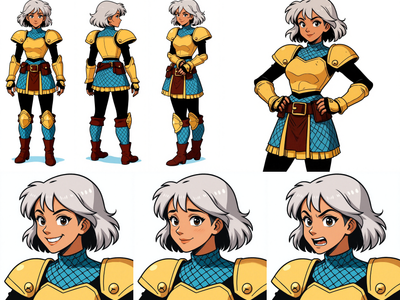
Input image Upload the still you want to animate. The workflow resizes it to fit the target resolution automatically. Cleaner, well-composed images give the model more to work with.
Positive prompt Describe the action, camera movement, and scene in detail. The example in the workflow is a character walking toward camera with a specific push-in shot. The more specific you are about motion and framing, the closer the output follows. Vague prompts like "cinematic" or "dynamic" are hard for the model to pin down.
Negative prompt Defaults to excluding video game aesthetics, cartoons, and ugly outputs. Add anything else you want to avoid. Keep it short and specific.
Mode: Text-to-Video / Image-to-Video Boolean toggle. Default is image-to-video (False). Set it to True to skip the image upload and generate from text alone. Both modes run the same two-pass pipeline.
Image strength (Pass 1) Set to 0.7 by default. This controls how strongly the input image anchors the first pass. Lower values give the model more freedom to move away from the input. Higher values keep the generated motion closer to the source frame. Try 0.5–0.6 if motion feels stiff. Go 0.8+ if you need the starting frame to stay very close to your image.
Resolution Width 1920, Height 1080 by default. Pass 1 runs at half resolution internally; the spatial upscaler brings it to full res for Pass 2. Don't change these unless you have a specific aspect ratio need.
Frame length 121 frames at 24fps = ~5 seconds. Increase for longer clips, but generation time scales with frame count.
Seed Two seeds: one per pass. Fixed seeds let you reproduce a result. Randomize when exploring. Change Pass 1 seed for different motion; change Pass 2 seed for different refinement texture.
What is LTX 2.3 two-pass image-to-video good for?
This pipeline is for when you need 1080p output with generated audio and don't want to run a separate upscale workflow after. The two-pass structure means you get better spatial detail than a single-pass generation at the same resolution, with motion that's already locked in before upscaling touches it.
Good scenarios: cinematic shots from concept art or stills where resolution and audio both matter. Character animations where you want the image anchor to hold across the full clip. Scenes with specific camera moves (push-in, hold, pan) that you can describe precisely in the prompt.
The catch: two passes means more compute than a single-pass workflow. If you need a quick preview or you're still iterating on the prompt, lower the resolution or frame count first. Get the motion right, then run the full pipeline.
Text-to-video mode uses the same pipeline without the image anchor. Good for scene generation where you don't have a reference frame.
FAQ
What is the two-pass upscaling pipeline in LTX 2.3?
Pass 1 generates a low-resolution video draft with the motion and timing locked. A spatial upscaler then increases the resolution, and Pass 2 refines the upscaled latent. The result has sharper spatial detail than a single-pass generation at full resolution.
Does LTX 2.3 generate audio automatically?
Yes. Audio is generated as part of the same run using LTX 2.3's built-in audio VAE. You don't need a separate audio workflow or post-processing step. The audio latent is generated alongside the video latent and combined at the end.
What does the distilled LoRA do in this workflow?
It speeds up generation by reducing the number of steps needed without a proportional drop in quality. It's loaded at strength 0.5 by default. Both passes use it.
How long does LTX 2.3 two-pass video generation take?
Depends on frame count and resolution. At 121 frames and 1920×1080, expect a longer run than a single-pass workflow. Reduce frame length or resolution to speed up iteration.
How do you run LTX 2.3 image to video with two-pass upscaling online?
You can run it online through Floyo. No installation, no setup. Open the workflow in your browser, upload your image, and hit run.
Read more