Kling 3.0 Pro Motion Control · Image to Video
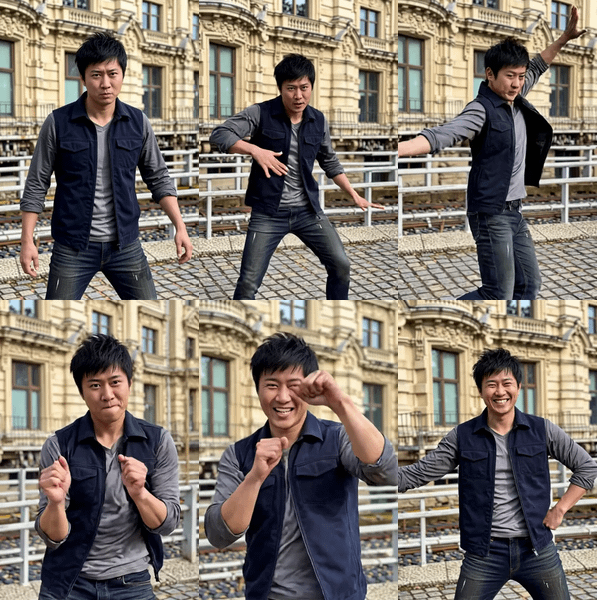
Upload a character image and a motion reference video, and Kling 3.0 Pro generates a new video of your character performing the referenced action with the option to keep the original audio.
image to video
kling 3.0
motion control
motion transfer
Video
188
_1783174306365.webp)
Nodes & Models
KlingV3ProMotionControl_floyo
VideoToFrames
LoadImage
LoadVideo
FloyoStickyNote
VHS_VideoCombine
ABOUT THE WORKFLOW
Transfer Motion onto a Character
Upload an image of the character you want to animate and a video showing the motion you want them to perform. Write a short prompt describing the scene. Kling 3.0 Pro reads the action, timing, and body movement from the reference video and applies it to the character from your image, preserving their face, clothing, and proportions. The output is an MP4 with audio.
Partner node. This workflow calls an external API, so each run uses credits from your API wallet. No API key needed. Floyo handles the connection.
Model
Kling 3.0 Pro by Kuaishou. The Pro tier of Kuaishou's third-generation video model with dedicated motion control that transfers body movement, gesture timing, and spatial choreography from a reference video onto a new subject.
HOW IT WORKS
Step 1. Upload your character image
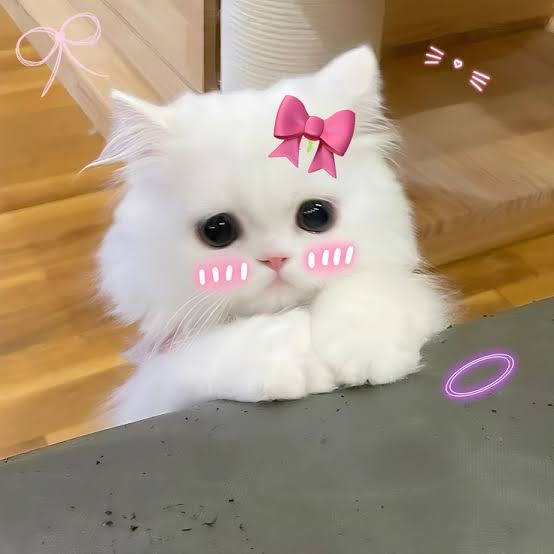
A photo or render of the person or character you want to animate. Front-facing or the angle that best shows their appearance.
Works great with: portraits · character renders · AI-generated faces · product mascots
Step 2. Upload your motion reference video
A video showing the action you want the character to perform. The model reads the body movement, hand gestures, and timing from this clip.
Works great with: cooking demos · dance clips · workout recordings · hand gestures · product interactions
Step 3. Write a short prompt (optional)
Describe the scene context. "Chef mixing sauce in a kitchen" tells the model what setting and action to render around the transferred motion. Leave blank to let the motion speak for itself.
Step 4. Upload a frontal reference image (optional)
Add a front-facing photo of the character for stronger identity preservation across angle changes during the motion.
Step 5. Hit run and download
Kling 3.0 Pro generates the video with the transferred motion and returns an MP4 with audio.
Ready for: Premiere · DaVinci Resolve · After Effects · TikTok · Instagram · YouTube
First time? Upload a character image and a motion reference video. Leave prompt, orientation, and sound settings as-is.
RECOMMENDED SETTINGS
Quick-start guide. Find the goal that matches yours and copy the settings.
Standard motion transfer — Upload a character image and a reference video. Character orientation set to "video," keep original sound on. No other changes needed.
Keep the audio from the reference video — Leave keep_original_sound set to True. The output carries the audio track from your motion reference video.
Generate new audio instead — Set keep_original_sound to False. The model generates audio matched to the scene described in the prompt.
Stronger character identity across angles — Upload a clean, front-facing photo in the element_1_frontal_image input. This anchors the face and build when the motion involves turns or profile views.
Character looks distorted during fast motion — Use a reference video with smoother, more controlled movement. Rapid or chaotic motion at the edges of the frame strains identity preservation.
Motion does not match the reference closely — Write a prompt that describes the same action. "Chef mixing sauce in a kitchen" reinforces the cooking motion from the reference. A contradictory prompt ("person sitting still") fights the motion signal.
Prompt: Describe the scene and action that match the reference video. "A woman dancing in a studio with warm spotlights" aligns with a dance reference. "A person standing in a field" contradicts it. When in doubt, leave the prompt blank and let the motion reference drive the output.
LEARN
📹 Videos
ComfyUI 101 Free Course ft. Sebastian Kamph
Floyo 101 for Team Collaboration
✨ Quick links
USE CASES
🎬 Motion Transfer for Film and Ads
Record a stunt, demo, or performance with a stand-in, then transfer the motion onto a character or talent image without reshooting.
🍳 Product Demo and Tutorial Videos
Film a cooking, crafting, or assembly demo, then transfer the hand movements and actions onto a branded character or spokesperson.
💃 Dance and Performance Content
Transfer choreography from a reference clip onto a character, avatar, or influencer image to produce performance content without filming on set.
👤 Virtual Spokesperson Videos
Generate a consistent talking or gesturing character across multiple motion references to build a library of spokesperson clips from a single portrait.
WHAT WORKS BEST / WHAT TO AVOID
✅ Works great
Clear, well-lit character images with visible face and body
Motion reference videos with smooth, distinct actions
Prompts that describe the same action shown in the reference video
Front-facing element references for stronger identity lock
⚠️ May produce softer results
Blurry or heavily occluded character images
Reference videos with very fast, chaotic, or overlapping motion
Prompts that contradict the motion in the reference video
Character images at extreme profile angles without a frontal reference
FAQ
What is Kling 3.0 Pro Motion Control?
Motion Control is a mode in Kling 3.0 Pro that transfers body movement, gestures, and action timing from a reference video onto a new character. You upload a character image and a motion video, and the model generates a new clip of that character performing the referenced motion while preserving their face, outfit, and proportions.
Does Motion Control copy the motion frame by frame?
The model interprets the motion from the reference video and regenerates it with the new character. It is not a frame-by-frame copy. The model adapts the movement to the character's body type and proportions, producing natural-looking results rather than a rigid overlay.
Can I keep the audio from the reference video?
Yes. Set keep_original_sound to True (the default). The output carries the audio track from your motion reference video. Set it to False if you want the model to generate new audio matched to the scene prompt instead.
What does the character orientation setting do?
Character orientation tells the model how to read the pose of the character in your image. The default "video" setting lets the model match the character's orientation to the motion reference automatically.
Can I use Kling 3.0 Pro Motion Control for commercial projects?
Kling 3.0 Pro is a proprietary Kuaishou model. Commercial use is governed by Kuaishou's terms of service. Review the current terms for your specific use case, and make sure you have the rights to any character image and reference video you upload.
How to run Kling 3.0 Pro Motion Control online?
You can run Kling 3.0 Pro Motion Control online through Floyo. No installation, no setup, no API key to wire up. Open the workflow in your browser, upload your inputs, and hit run. Free to try.
WHY FLOYO?
Floyo is the only platform with team collaboration for ComfyUI in the browser. You run workflows with no install. You share run history, assets, and models across your team. You pay only when you generate. Floyo supports open-source and closed-source models.
A designer runs an edit and likes the result. A teammate opens that exact run from shared history and keeps going. No file handoffs. No version confusion.
For studios and enterprise teams, Floyo adds private workspaces, pooled resources, and a team usage dashboard. Other ComfyUI cloud tools run for one person at a time. Floyo runs for the whole team, with transparent per-generation costs.
Ready to try it?
Upload a character image and a motion reference video, and hit run.
Questions? Watch the free course or check the FAQ above.
Read more