HappyHorse1.0_Image_to_Video
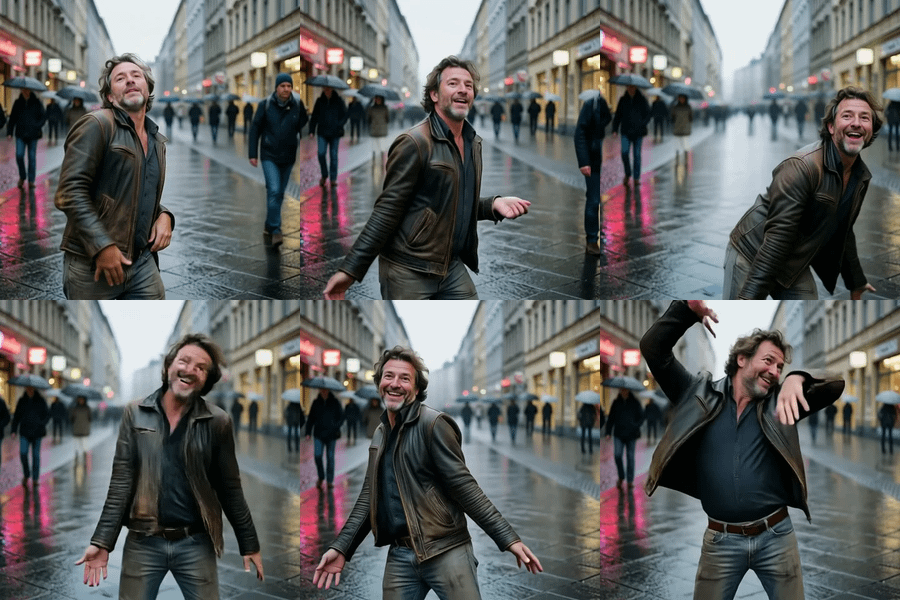
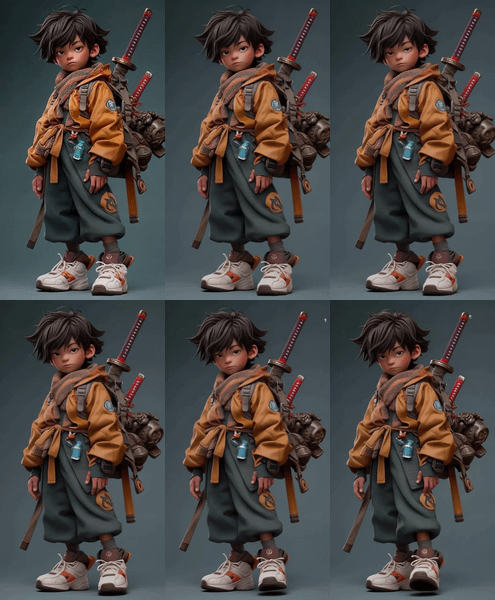
Happy Horse 1.0を使用したImage-to-Videoワークフローです。画像をアップロードし、プロンプトで動き・カメラワーク・演出を指定することで、静止画から動画を生成できます。インプット画像の検閲が緩く、自由な表現を試しやすい構成です。 This is an Image-to-Video workflow using Happy Horse 1.0.
Happy Horse 1.0
Image to Video
Video
574

1. Overview|概要
このワークフローは、Happy Horse 1.0を使用したImage-to-Video用の動画生成ワークフローです。
This workflow is an Image-to-Video generation workflow using Happy Horse 1.0.
1枚の画像をもとに、動きのある動画を生成できます。
You can generate a moving video from a single image.
Happy Horse 1.0は、Alibaba系の高品質な動画生成モデルとして注目されています。
Happy Horse 1.0 is gaining attention as a high-quality video generation model from Alibaba.
静止画に対して、表情、動作、カメラワーク、演出、音声表現を加える用途に向いています。
It is suitable for adding expression, movement, camera work, direction, and audio expression to a still image.
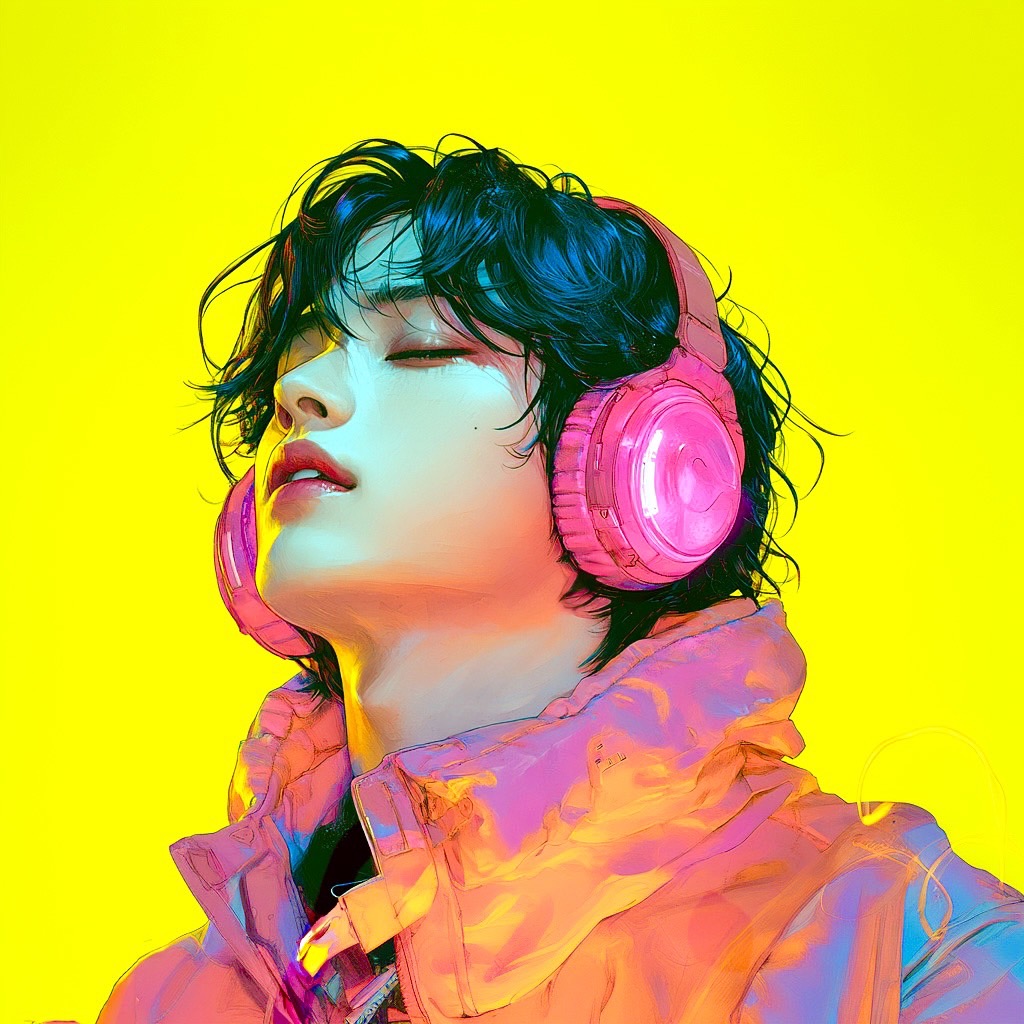
人物画像、キャラクター画像、商品画像、SNS用ビジュアルの動画化に活用できます。
It can be used to animate portraits, character images, product images, and social media visuals.
プロンプトには検閲がありますが、インプット画像には検閲がないため、自由な表現を試しやすい点が特徴です。
Prompts are moderated, but input images are not, making it easier to test freer forms of visual expression.
2. How It Works|使い方
緑色のノードに動画化したい画像をアップロードしてください。
Upload the image you want to animate to the green node.
画像をアップロードしたら、プロンプトを入力してください。
After uploading the image, enter the prompt.
プロンプトには、画像をどのように動かしたいかを書いてください。
In the prompt, describe how you want the image to move.
生成ボタンを押すだけで、画像をもとに動画を生成できます。
Press the Generate button to create a video based on the image.
基本的には、画像をアップロードしてプロンプトを変更するだけですぐに使えます。
Basically, you can use it immediately by uploading an image and changing the prompt.
プロンプトには検閲があるため、過度に直接的な表現は避けてください。
Because prompts are moderated, avoid overly direct wording.
一方で、インプット画像には検閲がないため、画像側で表現を作り込むと自由度が上がります。
On the other hand, input images are not moderated, so preparing the expression in the image increases creative freedom.
狙った表現が通りにくい場合は、プロンプトでは動きや演出だけを指定するのがおすすめです。
If a prompt is difficult to pass, it is recommended to describe only the motion and direction in the prompt.
3. Prompt Control|プロンプトによる調整
プロンプトには、画像をどのように動画化したいかを具体的に書いてください。
In the prompt, clearly describe how you want to animate the image.
被写体の動き、表情の変化、カメラワーク、背景の動き、映像の雰囲気を書いてください。
Describe the subject movement, expression changes, camera work, background movement, and video mood.
音声や台詞を入れたい場合は、話す内容、感情、口調、リップシンクの雰囲気を書いてください。
If you want audio or dialogue, describe the speech, emotion, tone, and lip-sync style.
自然な動画にしたい場合は、過剰な動きよりも小さな動きを丁寧に指定してください。
For a natural video, describe subtle movements carefully rather than excessive motion.
カメラワークを指定する場合は、ゆっくり寄る、横にスライドする、手持ちカメラ風、シネマティックな追従などを書いてください。
For camera control, describe movements such as slow push-in, side slide, handheld camera style, or cinematic tracking.
表情を変えたい場合は、微笑む、驚く、照れる、真剣な表情になるなどを指定してください。
For facial expression changes, specify actions such as smiling, surprised, shy, or becoming serious.
プロンプト検閲を避けたい場合は、直接的な表現ではなく、演出、雰囲気、カメラ、動きとして書くのがおすすめです。
To avoid prompt moderation issues, describe the direction, mood, camera, and motion instead of using overly direct expressions.
自由な表現をしたい場合は、インプット画像側で完成形に近いビジュアルを作っておくと安定しやすくなります。
For freer expression, it is easier to get stable results if the input image is already close to the final visual.
短いプロンプトでも生成できますが、動きと演出を具体的に書くほど結果をコントロールしやすくなります。
Short prompts can work, but describing motion and direction clearly makes the result easier to control.
4. Settings|設定
基本設定では、画像をアップロードしてプロンプトを変更するだけですぐに使えます。
With the basic settings, you can use it immediately by uploading an image and changing the prompt.
まずはデフォルト設定のまま生成することをおすすめします。
It is recommended to generate with the default settings first.
プロンプトには検閲があるため、表現が弾かれる場合があります。
Prompts are moderated, so some expressions may be rejected.
インプット画像には検閲がないため、画像側で表現を作り込むと自由度が高くなります。
Input images are not moderated, so refining the visual expression in the image gives you more freedom.
狙った表現が出にくい場合は、プロンプトをシンプルにして動きだけを指定してください。
If the intended result is difficult to achieve, simplify the prompt and specify only the motion.
映像の自由度を高めたい場合は、画像側で構図、衣装、雰囲気、世界観を作ってから入力してください。
To increase creative freedom, prepare the composition, outfit, mood, and world setting in the input image first.
動きが強すぎる場合は、穏やかな動き、自然な表情変化、小さなジェスチャーと指定してください。
If the motion is too strong, specify gentle movement, natural expression changes, and small gestures.
動きが弱い場合は、歩く、振り向く、手を振る、カメラに近づくなど具体的な動作を追加してください。
If the motion is too weak, add specific actions such as walking, turning around, waving, or approaching the camera.
音声付き動画を狙う場合は、話す内容、声の雰囲気、感情をプロンプトに追加してください。
If you want a video with audio, add the dialogue, voice mood, and emotion to the prompt.
必要に応じて、解像度や秒数を変更して出力の用途に合わせてください。
If needed, adjust the resolution and duration depending on your use case.
Read more