

Gemini Omni Flash · Text to Video
Write a prompt describing a scene and Gemini Omni Flash by Google generates a video with native audio at up to 8 seconds in 16:9, ready to download as MP4.
ai video
audio
gemini omni flash
text to video
Video
262
_1783415874459.gif)
_1783415874459.gif)

Nodes & Models
GeminiOmniFlashTextToVideo_floyo
VideoToFrames
FloyoStickyNote
CreateVideo
SaveVideo
ABOUT THE WORKFLOW
Generate a Video from a Prompt
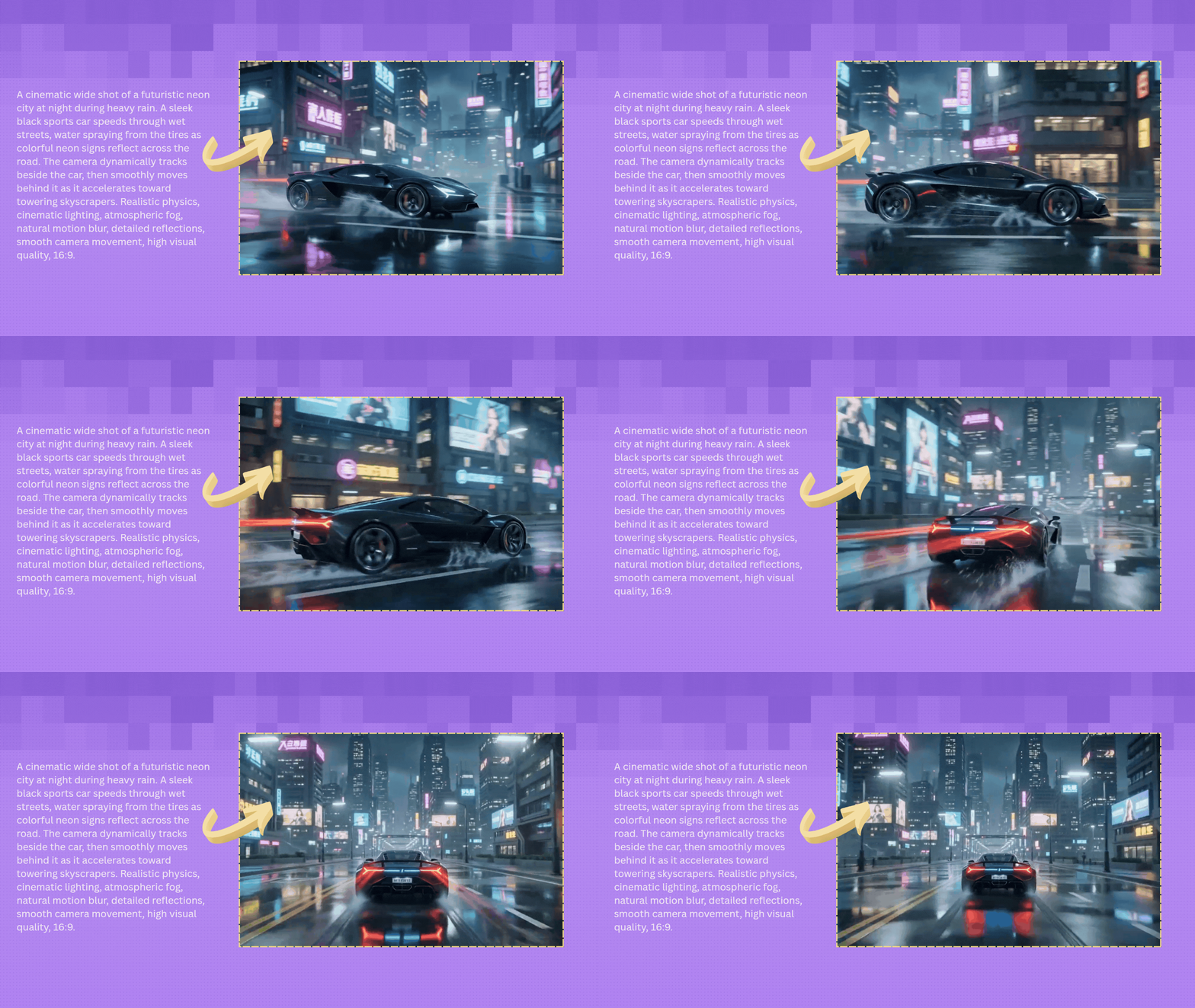
Write a prompt describing the scene, action, camera movement, and sound. Gemini Omni Flash generates a video with native audio in a single pass. Pick your duration and aspect ratio, then download the MP4.
Partner node. This workflow calls an external API, so each run uses credits from your API wallet. No API key needed. Floyo handles the connection.
Model
Gemini Omni Flash by Google. A multimodal video generation model built on the Gemini Omni architecture, grounded in real-world knowledge. Generates video with native audio, maintains character and object consistency, and supports conversational multi-turn editing.
HOW IT WORKS
Step 1. Write your prompt
Describe the full scene: subject, action, camera movement, lighting, mood, and sound. "A golden retriever runs through a sunlit meadow toward the camera, wildflowers swaying, bees buzzing, warm afternoon light, shallow depth of field" gives the model clear direction.
Works great with: cinematic scenes · product reveals · nature footage · character action · social content
Step 2. Set duration and aspect ratio
Duration defaults to 8 seconds. Aspect ratio defaults to 16:9 widescreen. Switch to 9:16 for vertical or 1:1 for square.
Step 3. Hit run and download
Gemini Omni Flash generates the video with synchronized audio and returns an MP4 at 30fps.
Ready for: Premiere · DaVinci Resolve · After Effects · TikTok · Instagram · YouTube
First time? Write a detailed prompt and hit run. Leave duration and aspect ratio as-is.
RECOMMENDED SETTINGS
Quick-start guide. Find the goal that matches yours and copy the settings.
Standard video from text — 8 seconds, 16:9, safety checker off. Write your prompt and run.
Vertical for social media — Switch aspect ratio to 9:16. Native portrait output for TikTok, Reels, and Shorts.
Shorter clip — Lower duration to 4 or 5 seconds. Faster generation, lower cost. Good for hooks and teasers.
Audio not matching the scene — Add explicit sound descriptions in the prompt. "Waves crashing, seagulls calling, wind in the grass" steers the generated audio.
Motion looks stiff or generic — Use cinematic camera terms: "slow dolly push-in," "handheld tracking shot," "low-angle crane rising." The model follows camera language.
Scene lacks detail — Write a longer prompt. Describe materials, light direction, color temperature, and spatial relationships. Gemini Omni Flash is grounded in real-world knowledge, so specific scene descriptions produce more accurate results.
Prompt: Structure it as subject, action, camera, lighting, then sound. "Close-up of hands shaping clay on a pottery wheel, camera slowly orbits, warm studio light, soft instrumental music" is specific. "Cool video of pottery" is not.
LEARN
📹 Videos
ComfyUI 101 Free Course ft. Sebastian Kamph
Floyo 101 for Team Collaboration
✨ Quick links
USE CASES
🎬 Cinematic Scene Generation
Generate atmospheric scenes with camera movement, lighting, and synchronized sound from a text description for trailers, mood boards, and concept previews.
📱 Social Media Video Content
Produce scroll-stopping vertical or widescreen clips with native audio for TikTok, Reels, and Shorts from a single prompt.
📺 Ad and Product Concept Videos
Draft video concepts for campaigns, product reveals, and explainer content without filming or stock footage.
🎨 Storyboard Animatics
Turn written scene descriptions into moving animatics with sound to test pacing, mood, and camera work before production.
WHAT WORKS BEST / WHAT TO AVOID
✅ Works great
Detailed prompts with subject, action, camera, lighting, and sound
Cinematic camera terms (dolly, tracking, pan, crane, orbit)
Sound descriptions written directly in the prompt
Moderate action with clear subjects and defined environments
⚠️ May produce softer results
Very short prompts with no camera or lighting direction
Extremely complex multi-character choreography
Prompts with no sound or atmosphere description
Requesting exact brand logos or copyrighted characters
FAQ
What is Gemini Omni Flash?
Gemini Omni Flash is Google's multimodal video generation and editing model, released June 30, 2026 alongside Nano Banana 2 Lite. It is built on the Gemini Omni architecture and generates video with native audio from text, image, and video inputs. It supports conversational editing where users can refine videos through natural language across multiple turns.
Does Gemini Omni Flash generate audio with the video?
Yes. Every video output includes natively generated audio synchronized to the visual content. This includes ambient sound, sound effects, music, and dialogue. Describe the sounds you want in the prompt and they generate alongside the visuals in a single pass.
What is the difference between Gemini Omni Flash and Veo 3.1?
Veo 3.1 is optimized for generating single high-quality clips. Gemini Omni Flash focuses on iterative, conversational editing that combines multiple assets such as images and video. Gemini Omni Flash supports multi-turn sessions where users can stack sequential edits while maintaining session history and context.
What resolution and duration does Gemini Omni Flash support?
This workflow generates video at up to 8 seconds in 16:9 widescreen at 30fps. Aspect ratio options include 16:9, 9:16, and 1:1. Pricing is $0.10 per second of video generated.
Do the outputs have a watermark?
Google applies an invisible SynthID watermark to all videos from Gemini Omni Flash. It does not change how the video looks or sounds, but it stays embedded in the file to mark it as AI-generated.
Can I use Gemini Omni Flash videos for commercial projects?
Gemini Omni Flash is a proprietary Google model. Commercial use is governed by Google's terms of service. Review the current terms for your specific use case, and note that outputs carry the SynthID watermark.
How to run Gemini Omni Flash text to video online?
You can run Gemini Omni Flash text to video online through Floyo. No installation, no setup, no API key to wire up. Open the workflow in your browser, write your prompt, and hit run. Free to try.
WHY FLOYO?
Floyo is the only platform with team collaboration for ComfyUI in the browser. You run workflows with no install. You share run history, assets, and models across your team. You pay only when you generate. Floyo supports open-source and closed-source models.
A designer runs an edit and likes the result. A teammate opens that exact run from shared history and keeps going. No file handoffs. No version confusion.
For studios and enterprise teams, Floyo adds private workspaces, pooled resources, and a team usage dashboard. Other ComfyUI cloud tools run for one person at a time. Floyo runs for the whole team, with transparent per-generation costs.
Ready to try it?
Write your scene description and hit run.
Questions? Watch the free course or check the FAQ above.
Read more
%20(1)_1775891000879.webp?width=400&height=300&quality=80&resize=contain&format=origin)





