FLUX.2 Klein 9B · Image to Image
Edit images with consistency of the subject or things using Flux.2 Klein 9B and a LoRA
FLUX
Flux.2 Klein
Image
Image2Image
Image Editing
LoRA
LoRAs
10.0k
_1786522681696.png?width=1400&height=620&quality=80&resize=contain)
_1786522681696.png?width=1400&height=620&quality=80&resize=contain)
_1786522681696.png?width=1400&height=620&quality=80&resize=contain)
_1786522681696.png?width=104&height=104&quality=80&resize=cover)
_1786522681696.png?width=104&height=104&quality=80&resize=cover)
_1786522681696.png?width=104&height=104&quality=80&resize=cover)

Nodes & Models
LoadImage
UNETLoader
flux-2-klein-9b.safetensors
KSamplerSelect
CLIPLoader
qwen_3_8b_fp8mixed.safetensors
RandomNoise
VAELoader
flux2-vae.safetensors
ReferenceLatent
Note
ConditioningZeroOut
LoraLoaderModelOnly
Klein-consistency-flux-2-klein-9b-consis-fjTks6Ly.safetensors
SamplerCustomAdvanced
VAEEncode
CFGGuider
EmptyFlux2LatentImage
SaveImage
GetImageSize
PreviewImage
Flux2Scheduler
ImageScaleToTotalPixels
CLIPTextEncode
VAEDecode
LayerUtility: ImageReelComposit
LayerUtility: ImageReel
ABOUT THE WORKFLOW
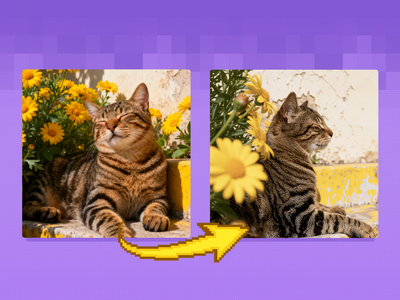
Edit an Image, Keep the Rest Upload a picture and describe the change you want. Your picture is read as a reference, an adapter pins down everything you left out of the prompt, and the edit comes back applied to that one area. A before and after view appears on screen next to the result.
Model
FLUX.2 Klein 9B by Black Forest Labs. A 9 billion parameter rectified flow model with a Qwen3 8B text encoder reading your instruction. It is step distilled for speed and handles text to image, single reference editing, and multi reference work.
Consistency LoRA. A community adapter that cuts drift in the parts of the picture you did not ask to change.
HOW IT WORKS
Step 1. Upload your reference picture The image you are editing. A sharp, well-lit original holds together best. Works great with: portraits · product shots · interiors · concept art
Step 2. Describe the change Name only what changes. Anything you leave out is meant to stay put. "Replace the clothes with Roman knight armour, change the background to a stone room, remove the laptop."
Step 3. Hit run Your picture is sized to one megapixel and read as the reference, then the edit lands across eight passes.
Step 4. Compare and download The edited picture is saved on its own. A side by side view of the original and the result is shown on screen so you can judge the change. Ready for: Photoshop · Figma · Canva · any editor
First time? Leave every setting as-is. The defaults (consistency 0.8 · 1 megapixel · 8 steps · random seed) are the right starting point for almost everyone.
RECOMMENDED SETTINGS
Quick-start guide. Find the goal that matches yours and copy the settings.
Standard edit (most people) — consistency 0.8 · 1 megapixel · 8 steps · random seed. The right starting point for almost everyone.
The change is too weak — Lower the consistency strength before you touch anything else. The useful range runs from 0.2 to 1.0, and every picture wants a slightly different value.
Too much of the picture moved — Raise consistency toward 1.0. It holds the areas outside your instruction closer to the original, at the cost of how far the edit can go.
Repeat a result you liked — Set a specific seed number instead of leaving it on random. The same picture, prompt, and seed give you the same edit back.
Want a larger or smaller output — Change the megapixel value. The result comes back at that size in the shape of your original, so a wide picture stays wide.
Wondering about guidance — Leave it at 1. The model is distilled and expects that value, and raising it works against the distillation rather than sharpening the edit.
Thinking about raising steps — Eight is already generous. Black Forest Labs distilled this model down to four inference steps, so extra passes cost time without much gain. Fix a weak edit with consistency strength instead.
Prompt: Write the change, not the scene. "Replace the jacket with a navy wool coat, keep the pose and the background" gives you more than "make it look smarter." Listing several small edits in one line works, so long as each one names a specific thing to change.
LEARN
📹 Videos
ComfyUI 101 Free Course ft. Sebastian Kamph
Floyo 101 for Team Collaboration
✨ Quick links
USE CASES
👔 Wardrobe and Styling Change what someone is wearing while their face, pose, and setting stay where they were.
🖼️ Background Swaps Move a subject into a different room or setting without cutting them out by hand.
🛍️ Product Variations Recolour, restyle, or reframe a product shot to cover several listings from one photo.
🎨 Concept Iteration Push a piece of concept art through a run of small changes while the composition holds.
WHAT WORKS BEST / WHAT TO AVOID
✅ Works great
Sharp, well-lit originals with a clear subject
Instructions that name one specific thing to change
Several small edits listed plainly in one prompt
Adjusting consistency strength per picture rather than per project
⚠️ May produce softer results
Vague instructions like "make it better" or "clean this up"
Soft, low-resolution, or heavily compressed originals
Edits that fight each other in the same prompt
Leaving consistency at 0.8 when a picture clearly needs less
FAQ
What is FLUX.2 Klein 9B? FLUX.2 Klein 9B is an open-weight image model from Black Forest Labs, released in January 2026. It is a 9 billion parameter rectified flow transformer paired with a Qwen3 8B text embedder, step distilled to four inference steps. Black Forest Labs positions it as their flagship small model, covering text to image, single reference editing, and multi reference generation at sub-second speed.
Can I use FLUX.2 Klein 9B for commercial work? Not under the weights alone. The 9B models ship under the FLUX Non-Commercial License, which grants use for non-commercial and non-production purposes. The 4B models are the Apache 2.0 ones. Black Forest Labs sells separate self-hosted commercial terms for teams that need production rights, so check your own licensing position before using output in paid work.
What does the consistency LoRA do? FLUX.2 Klein 9B is strong at precise edits and spatial reasoning, and weaker at holding a subject's identity steady on its own. The adapter reduces drift in the regions your prompt did not mention, so a wardrobe change leaves the face alone. Its strength is adjustable, and it trades against how far the edit can travel.
What is the difference between FLUX.2 Klein 9B and 4B? Size, quality, and licensing. The 9B is the quality end of the Klein family and matches or exceeds models several times larger. The 4B is smaller and lighter. The licensing split matters more than the size for most teams: 4B is Apache 2.0, and 9B is under the FLUX Non-Commercial License.
How many steps does FLUX.2 Klein 9B need? Four, by design. Black Forest Labs step distilled the model to run at four inference steps, which is where the sub-second generation figure comes from. This workflow runs eight, which leaves headroom for the adapter without pushing generation time up much. Going higher rarely improves an edit.
What hardware does FLUX.2 Klein 9B need to run locally? Black Forest Labs lists roughly 29GB of VRAM for the 9B model, putting it on an RTX 4090 or better. FP8 and NVFP4 builds were released alongside the full weights for lighter inference on RTX cards, and the 4B variants are the option for smaller GPUs.
How to run FLUX.2 Klein 9B online? You can run FLUX.2 Klein 9B online through Floyo. No installation, no setup, no 29GB of VRAM to find. Open the workflow in your browser, upload a picture, describe the change, and hit run. Free to try.
WHY FLOYO?
Floyo is the only platform with team collaboration for ComfyUI in the browser. You run workflows with no install. You share run history, assets, and models across your team. You pay only when you generate. Floyo supports open-source and closed-source models.
A designer runs an edit and likes the result. A teammate opens that exact run from shared history and keeps going. No file handoffs. No version confusion.
For studios and enterprise teams, Floyo adds private workspaces, pooled resources, and a team usage dashboard. Other ComfyUI cloud tools run for one person at a time. Floyo runs for the whole team, with transparent per-generation costs.
Ready to try it? Upload a picture, describe the change, and run it. The settings are already set.
Questions? Watch the free course or check the FAQ above.
Read more