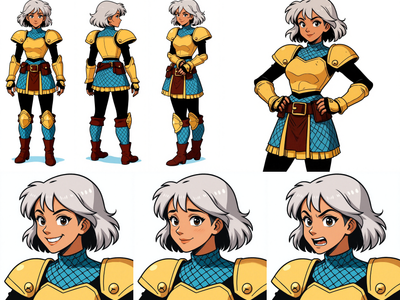
Flux 2 Klein 4B + Red Zoom LoRA for Image Zoom
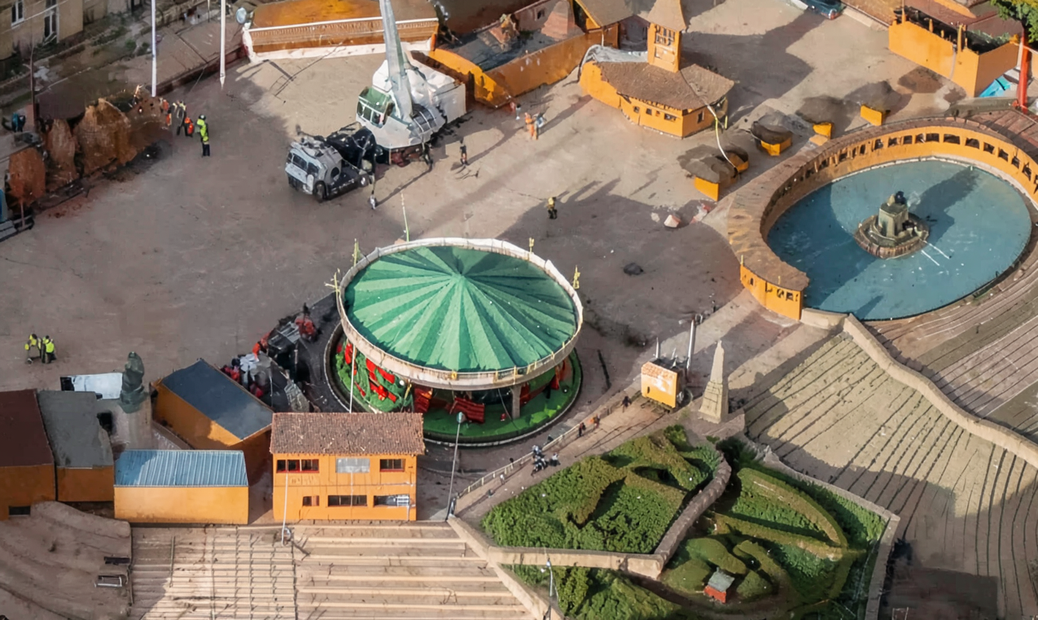
Highlight any area of your image in red and Flux 2 Klein 4B zooms into it, generating a full-resolution close-up with new detail. Six steps, fast results.
concept art
e-commerce
flux
flux 2 klein
Image
image to image
lora
LoRAs
portrait
0
377
_1775478137295.png?width=1400&height=620&quality=80&resize=contain)
_1775478137295.png?width=104&height=104&quality=80&resize=cover)

Nodes & Models
KSamplerSelect
UNETLoader
flux-2-klein-4b.safetensors
CLIPLoader
qwen_3_4b.safetensors
VAELoader
flux2-vae.safetensors
RandomNoise
LoadImage
LoraLoaderModelOnly
aoqt0fLF25ymtU3S6pxrB_pytorch_lora_weights_comfy_converted-flux-2-klein-4b-red-zo-lW6ZECMQ.safetensors
CLIPTextEncode
ImageScaleToTotalPixels
GetImageSize
VAEEncode
EmptyFlux2LatentImage
ReferenceLatent
CFGGuider
Flux2Scheduler
SamplerCustomAdvanced
VAEDecode
SaveImage
ImageCompare
GetLatentSizeAndCount
GetLatentSizeAndCount
Zoom into any part of an image by painting over it in red.
Upload your image, paint a red highlight over the area you want to zoom into, and this workflow generates a full-resolution close-up of that region. Flux 2 Klein 4B fills in the detail that the original resolution could not show. Six steps, euler sampler, done in seconds.
How do you zoom into part of an image with Flux 2 Klein?
Upload an image, paint a red area over the section you want to enlarge, then describe what you want to see in the zoomed result. The Red Zoom LoRA teaches Klein 4B to interpret the red mask as a zoom target. Six sampling steps at CFG 1.2 keep things fast.
Positive Prompt Describe the zoomed-in result you want. The default prompt is "Zoom into the red highlighted area" and it works well for general use. Want more control? Add detail about what should appear in the close-up: textures, materials, facial features, product details.
Negative Prompt Left empty by default. If you get unwanted artifacts or styles in the zoomed output, add them here.
CFG (Guidance Scale) Default is 1.2. This is low on purpose. Klein 4B responds well to light guidance. Going above 2.0 tends to oversaturate. Stay between 1.0 and 1.5 for natural-looking results.
Steps Default is 6. Enough for clean output at this CFG. Want slightly more refinement? Try 8 to 10. Going past 12 gives diminishing returns.
Resolution Matches your input image automatically. The workflow scales your upload and generates at that resolution.
Seed Randomized by default. Lock it to a fixed number when you want to compare prompt changes without the composition shifting.
LoRA Strength Default is 1.0. This controls how strongly the Red Zoom behavior applies. Lower values (0.6 to 0.8) soften the zoom effect. Keep it at 1.0 unless you want a subtler interpretation of the red area.
What is the Red Zoom LoRA good for?
The Red Zoom LoRA turns Flux 2 Klein 4B into a targeted zoom tool. Point at any part of your image, and it generates a detailed close-up of that region. Good for product detail shots, face close-ups, texture inspection, and any time you need a crop with new detail filled in.
Product photography is a strong use case. Take a wide lifestyle shot and zoom into the product to get a detail view without needing a second photo. Portrait and character work benefits too: zoom into a face from a full-body shot and get a clean headshot with added detail.
The tradeoff: this is not an upscaler. It does not preserve every pixel from the original. It regenerates the zoomed area with new detail guided by Klein 4B. If you need pixel-perfect enlargement, use a dedicated upscaling workflow instead.
Best for creative and commercial work where a "generated close-up" is the goal. Not ideal for forensic-level detail preservation.
FAQ
What LoRA strength should I use for Red Zoom with Klein 4B? Start at 1.0 (the default). This gives the strongest zoom interpretation of the red area. If the output feels too aggressive or too different from your source, drop to 0.7 or 0.8. Below 0.5, the zoom effect becomes unreliable.
Can I zoom into multiple areas at once with the Red Zoom LoRA? One red area per run. If you paint multiple red zones, the model tries to address all of them and the output gets confused. Run the workflow once per zoom target for clean results.
What image size works best for Red Zoom on Flux 2 Klein 4B? The workflow scales your input automatically. Square images (1024x1024) are the native sweet spot, but it handles other aspect ratios. Larger inputs give more detail in the zoomed result since the model has more source information to work with.
How do I run Red Zoom LoRA online? You can run the Red Zoom LoRA with Flux 2 Klein 4B online through Floyo. No installation, no setup. Open the workflow in your browser, upload your image, paint the red area, and hit run. Free to try.
Read more

_1786518453053.png?width=400&height=300&quality=80&resize=cover)