Wan 2.7 Image Unified Editing
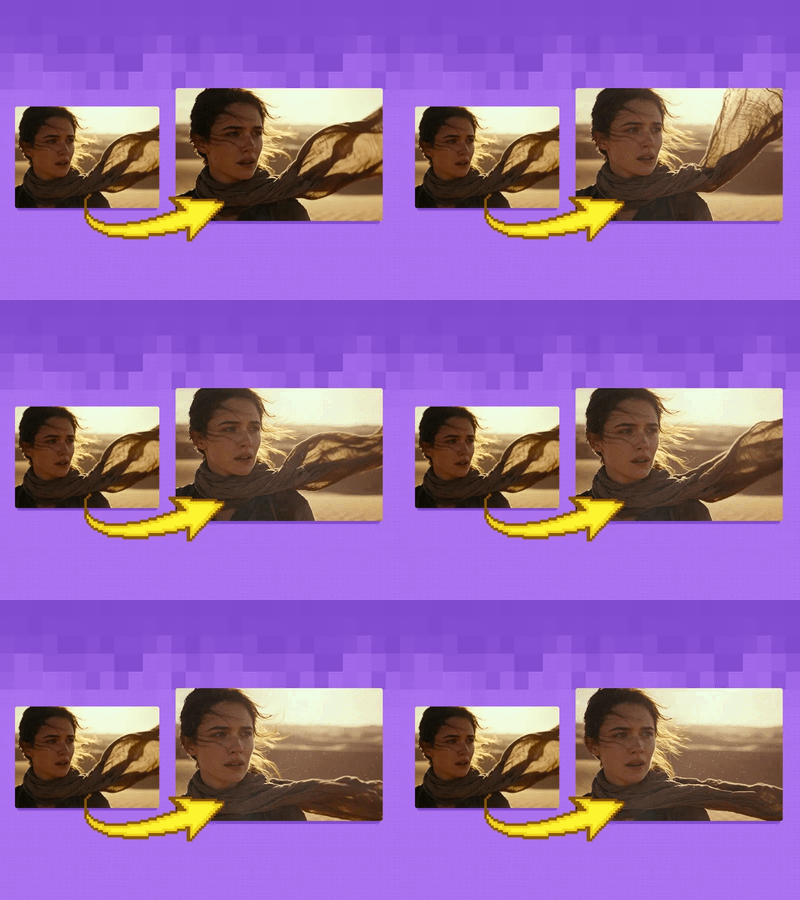
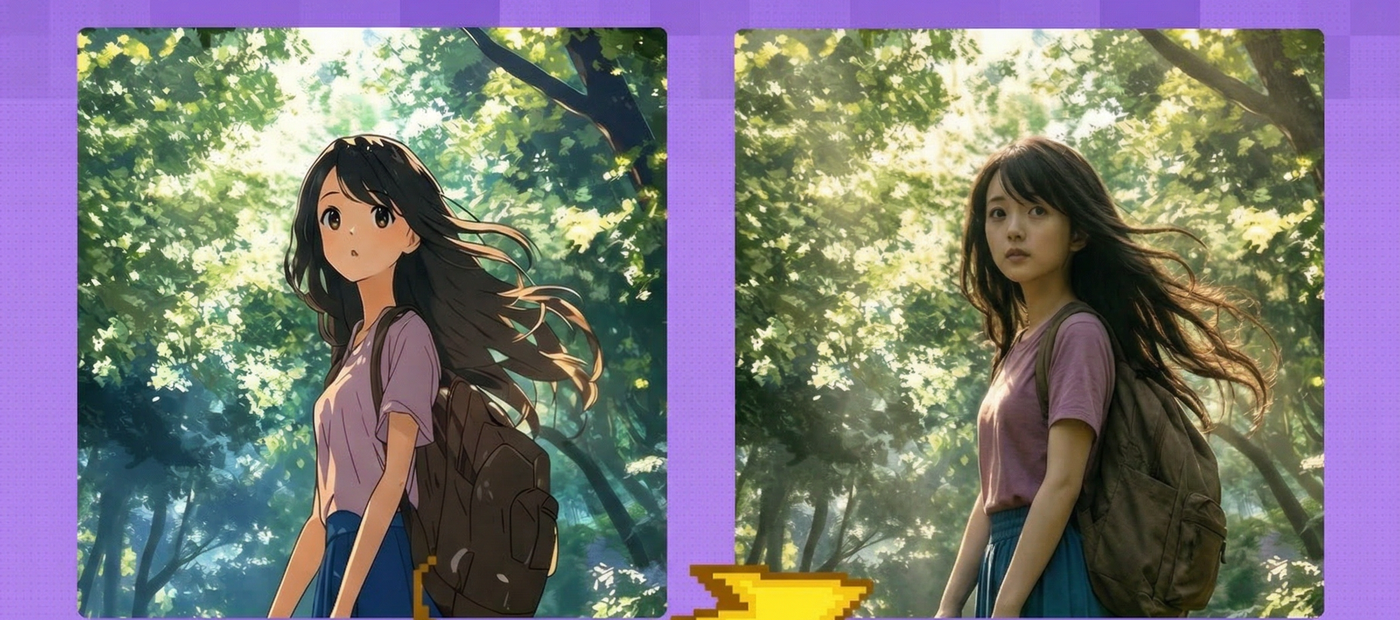
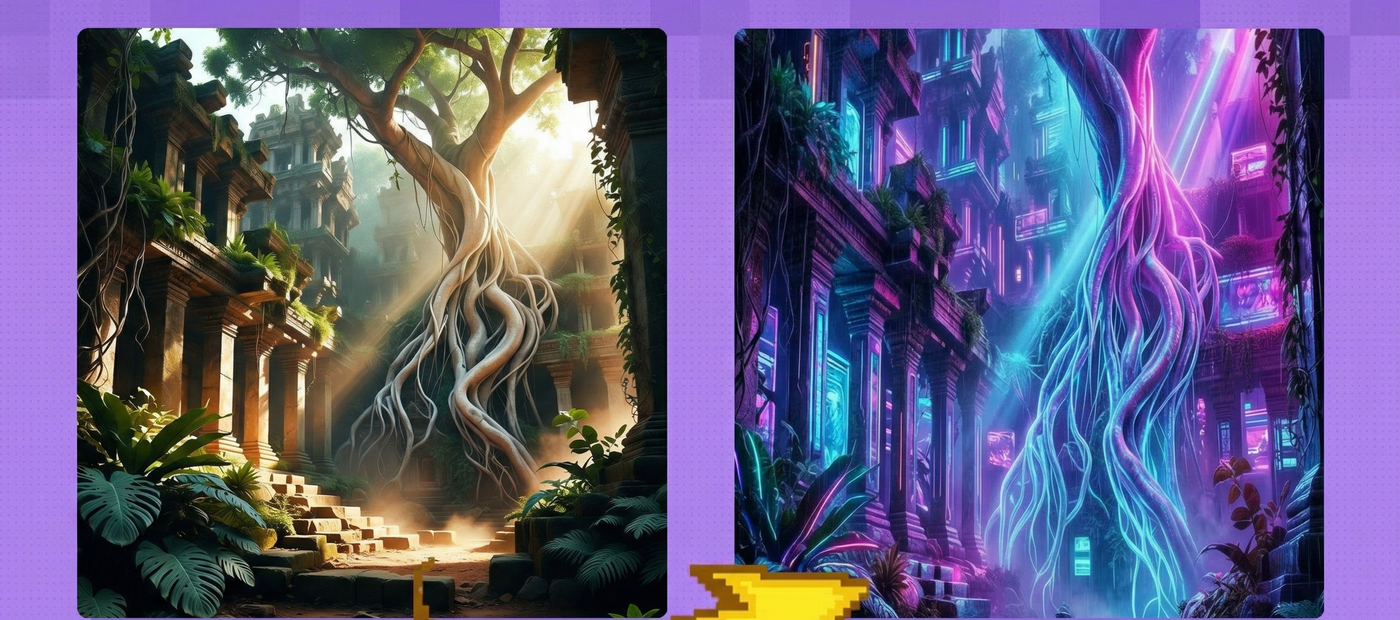
Edit and transform images with Wan 2.7. Upload a photo, describe what you want changed, and get results at original resolution with before/after comparison.
concept art
e-commerce
image to image
product photography
style transfer
wan
0
571

Nodes & Models
AlibabaWan27ImageUnified_floyo
LoadImage
WorkflowGraphics
GetImageSize
PreviewImage
ImageCompare
Image editing and transformation with Alibaba's Wan 2.7 unified image model.
Upload an image, write a prompt describing what you want, and Wan 2.7 rewrites the image to match. The workflow auto-detects your input resolution, so the output matches the original dimensions. A built-in comparison view shows your original and result side by side.
Two things to do before hitting Run: upload your image and write your prompt. Everything else is already set.
How do you edit images with Wan 2.7?
Upload your source image, write a prompt describing the transformation you want, and run. The workflow reads your image dimensions automatically and generates at matching resolution. Prompt extend and thinking mode are on by default, which helps Wan 2.7 interpret your intent more accurately.
Prompt This is where you describe what should change. Be specific about the transformation. The example prompt in this workflow is "Turn this image into a futuristic cyberpunk forest." Want a style change? Describe the target style. Need specific elements added or altered? Name them. The more concrete you are, the closer the result lands.
Prompt Extend (default: on) When this is on, Wan 2.7 expands your short prompt into a richer description before generating. If you write detailed prompts yourself, you can turn this off to keep full control. For quick one-liners, leave it on.
Thinking Mode (default: on) Gives the model more reasoning time before it starts generating. Helps with complex transformations where the model needs to plan the edit. For straightforward style swaps you can turn it off to speed things up, but for most edits it helps.
Negative Prompt Describe what you don't want in the output. Leave it blank if you have no specific exclusions.
Image 2 (optional) A second reference image input. Use this when you want to blend elements or styles from two sources.
Bounding Box JSON / Color Palette JSON Advanced inputs for region-specific edits and color control. Leave these blank for standard use. If you need to constrain edits to a specific area of the image or enforce a color scheme, pass the values as JSON strings.
Watermark (default: off) Adds a watermark to the output when enabled. Off by default.
Seed Set to randomize by default. Lock it to a specific number when you want to reproduce or compare results across different prompts.
What is Wan 2.7 image editing good for?
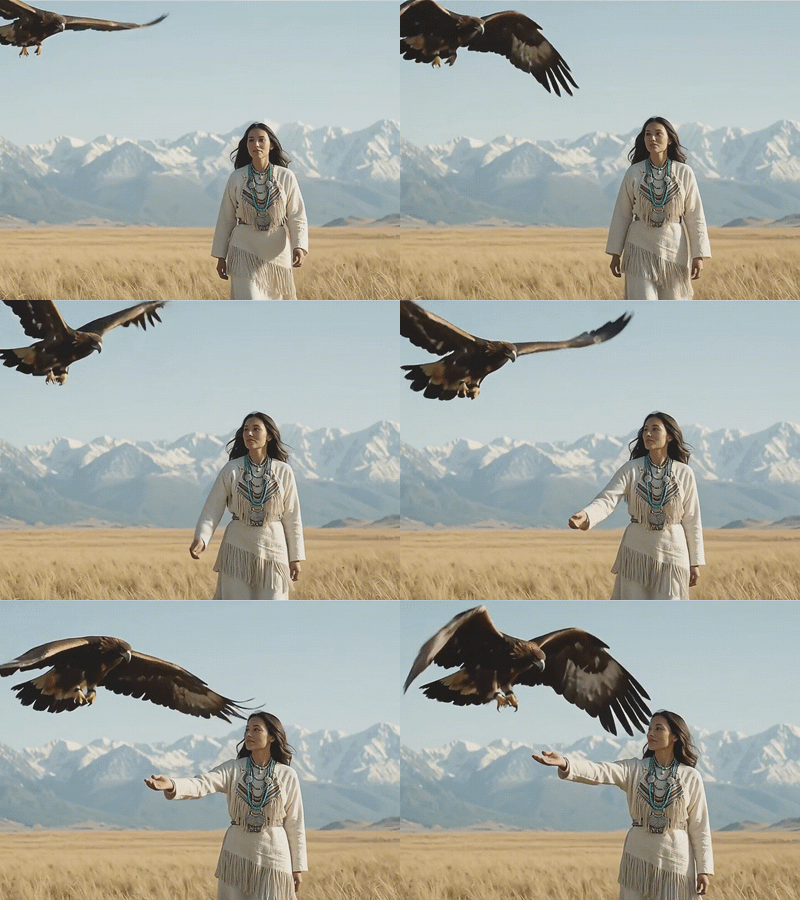
Wan 2.7's unified image model handles style transfers, scene transformations, and concept variations from a single image input. It works best when you want a significant visual change while keeping the composition and structure of your original intact.
Style transfers are the most obvious use. Take a photo and turn it into concept art, anime, oil painting, or any visual style you can describe. The model keeps the layout and subject placement from the original.
Scene transformations work well too. Change the setting of a photo from daytime to night, summer to winter, urban to rural. The structural understanding of the model means objects stay where they belong.
If you need minor retouching or pixel-level precision, a dedicated inpainting workflow will serve you better. Wan 2.7 shines when the transformation is broad and creative, not surgical.
FAQ
What resolution does Wan 2.7 support for image editing? The workflow auto-reads your input image dimensions and generates at the same size. The example uses 2048x2048 custom resolution. You can also select preset sizes from the image_size dropdown if you prefer standard dimensions.
Can I use two reference images with Wan 2.7? Yes. The workflow has an optional second image input. When connected, the model can blend elements from both sources. Leave it empty for standard single-image editing.
Does prompt extend change my prompt? It expands short prompts into richer descriptions before generation. Your original text still guides the result. If you write detailed multi-sentence prompts, turn it off to prevent the model from over-interpreting your instructions.
What does thinking mode do in Wan 2.7? Thinking mode gives the model extra reasoning time before generating. It helps with complex multi-step transformations. For quick style swaps it adds processing time without a big quality difference, so you can turn it off in those cases.
How to run Wan 2.7 image editing online? You can run Wan 2.7 image editing online through Floyo. No installation, no setup. Open the workflow in your browser, upload your inputs, and hit run. Free to try.
Read more
_1775699601810.png?width=400&height=300&quality=80&resize=cover)

_1778243880760.png?width=400&height=300&quality=80&resize=cover)