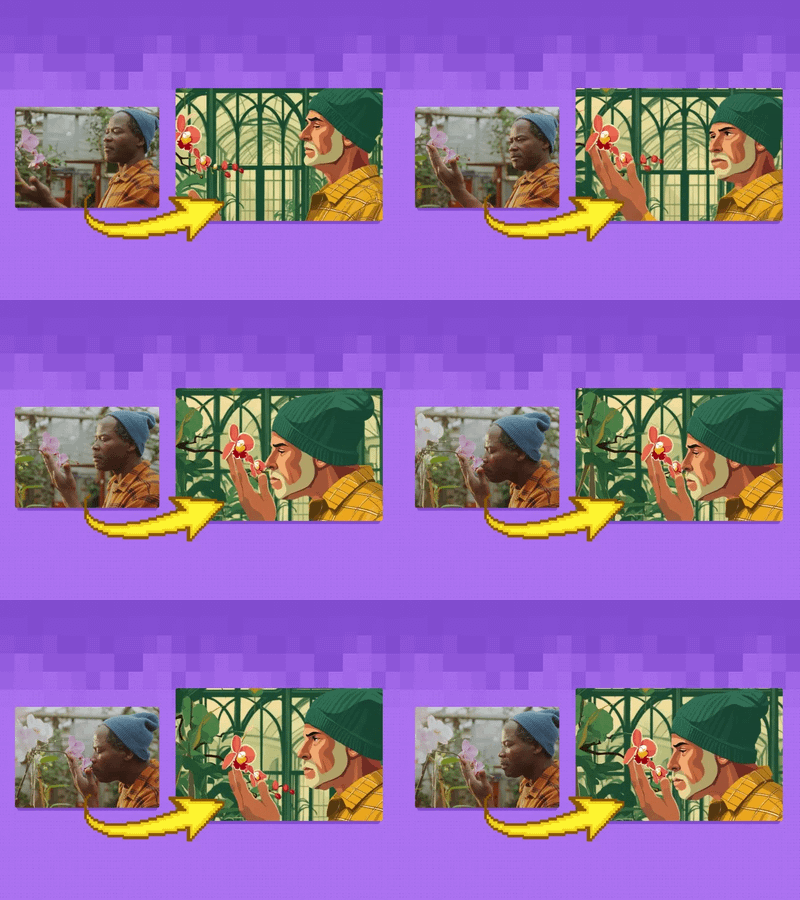
Vertical Video Clothing Replacement with Image Reference
Flux
OutfitTransfer
Video
VideoRestyle
Wan2.1
WanVideoRestyle
2.6k


Nodes & Models
DualCLIPLoader
clip_l.safetensors
t5xxl_fp16.safetensors
Note
UNETLoader
flux1-fill-dev.safetensors
GetNode
Label (rgthree)
PrimitiveInt
CLIPVisionLoader
sigclip_vision_patch14_384.safetensors
StyleModelLoader
flux1-redux-dev.safetensors
VAELoader
ae.safetensors
MarkdownNote
LoadImage
CLIPTextEncode
PreviewImage
SetNode
FluxGuidance
ConditioningZeroOut
GrowMask
ImageBlend
EmptyImage
MaskToImage
ImageToMask
InpaintModelConditioning
KSampler
VAEDecode
ImageCrop
WanVideoSLG
WanVideoTeaCache
WanVideoLoraSelect
wan2.2_i2v_lightx2v_4steps_lora_v1_high_noise.safetensors
LoadWanVideoClipTextEncoder
open-clip-xlm-roberta-large-vit-huge-14_fp16.safetensors
WanVideoVAELoader
wan_2.1_vae.safetensors
LoadWanVideoT5TextEncoder
umt5_xxl_fp16.safetensors
WanVideoModelLoader
Wan2.1-Fun-Control-14B_fp8_e4m3fn.safetensors
WanVideoEncode
WanVideoTextEncode
WanVideoControlEmbeds
WanVideoClipVisionEncode
WanVideoImageToVideoEncode
WanVideoSampler
WanVideoDecode
VHS_LoadVideo
VHS_VideoInfo
VHS_VideoCombine
WanVideoLoraSelect
wan2.2_i2v_lightx2v_4steps_lora_v1_high_noise.safetensors
LoadWanVideoClipTextEncoder
open-clip-xlm-roberta-large-vit-huge-14_fp16.safetensors
WanVideoVAELoader
wan_2.1_vae.safetensors
LoadWanVideoT5TextEncoder
umt5_xxl_fp16.safetensors
WanVideoModelLoader
Wan2.1-Fun-Control-14B_fp8_e4m3fn.safetensors
ImageResizeKJ
ImageResizeKJ
AddLabel
ImageConcanate
ImageAndMaskPreview
ImageConcatMulti
ImageResizeKJ
AddLabel
ImageConcanate
ResizeMask
ImageAndMaskPreview
ImageConcatMulti
easy float
ImageResize+
MaskPreview+
ClothesSegment
Scribble_XDoG_Preprocessor
MiDaS-DepthMapPreprocessor
DWPreprocessor
Scribble_XDoG_Preprocessor
MiDaS-DepthMapPreprocessor
DWPreprocessor
DWPreprocessor
TeaCache
WanVideoEncode
ImpactGaussianBlurMask
ReduxAdvanced
FinalFrameSelector
FinalFrameSelector
RIFE VFI
rife47.pth
Vertical Video Clothing Replacement with Image Reference
This workflow performs a complete outfit replacement on an image and then uses that updated outfit as a reference to restyle an entire video. It preserves the subject’s face, hair, pose, and identity throughout the process, ensuring consistency across both image and video.
Stage 1 — Outfit Replacement (Image)
Purpose: Swap the subject’s outfit using a reference clothing image, with precise automatic masking.
Inputs
Reference Outfit Image: The clothing design you want applied.
Target Person Image: The subject whose outfit will be replaced.
Clothing Segmentation (RMBG): Automatically detects and masks specific parts of the person.
Clothing Segmentation (RMBG) – Selectable Mask Options
You can enable any of these to control which areas are included in the outfit replacement:
Hat
Hair
Face
Sunglasses
Upper Clothes
Skirt
Dress
Belt
Pants
Left Arm
Right Arm
Left Leg
Right Leg
Bag
Scarf
Left Shoe
Right Shoe
Background
Additional Mask Controls
Processing Resolution – Sets segmentation quality (1024 recommended).
Mask Blur – Softens mask edges.
Mask Offset – Expands or reduces mask area.
Invert Output – Inverts mask selection.
Background Mode – Controls how output blends.
Process
Automatically segments the selected clothing parts.
Replaces only the specified outfit areas while keeping the face, hair, pose, and identity unchanged.
Produces a clean, realistic updated outfit image used as the reference for video restyling.
Output
Edited Outfit Image (used in Stage 2).
Stage 2 — Video Restyle (Vertical Video)
Purpose: Apply the updated outfit from Stage 1 to a full vertical video.
Inputs
Vertical Video File (MP4): The original video you want to restyle.
Edited Outfit Image: Automatically passed from Stage 1.
Video Prompt: Optional text for describing the outfit look.
Resolution: Optimized for vertical formats (e.g., 1080×1920).
Frame Controls: Frame cap, skip frames, and nth frame selection.
Process
Transfers the new outfit style across all video frames.
Preserves facial details, expressions, motion.
Ensures consistent clothing appearance throughout the video.
Output
A natural-looking vertical video where the outfit is replaced, but the subject and motion remain unchanged.
Read more