

Musubi Tuner - Z-Image LoRA Trainer
Train Z-Image LoRAs directly on Floyo with this simple all-in-one custom node.
LoRA
LoRAs
Musubi Tuner
Training
Z-Image
3.6k
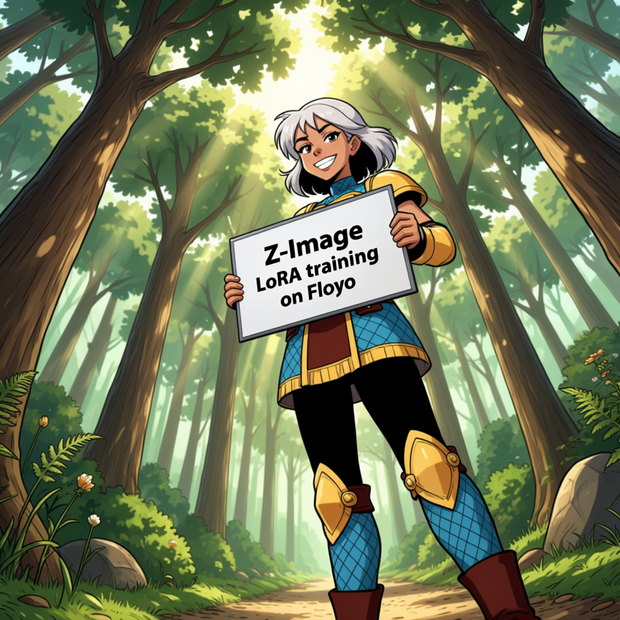

Musubi Z-Image LoRA Trainer
Created by Floyo, powered by Kohya Musubi Tuner
Train Z-Image LoRAs directly inside ComfyUI. No CLI, no external tools, no context switching. Just connect your models, point to your dataset, and press Queue.
NOTICE: Progress bar does not currently show in training node, training on a dataset of 60 images or less should take 30 minutes.
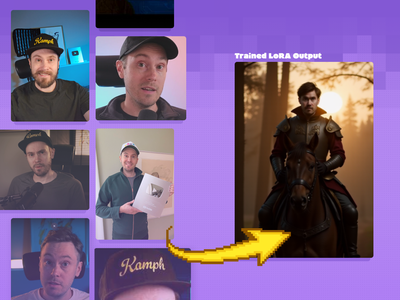
What if every image you generate could match a specific person, product, or style? That's exactly what training a LoRA does, and this workflow makes it as simple as possible.
Unlike other LoRA trainers that require dozens of nodes and complex wiring, the Musubi Z-Image Trainer handles everything in a single node. All the defaults are already tuned for Z-Image, so most users only need to do two things: set your dataset path and name your LoRA.
Setting Your Dataset Path
Upload your dataset images into a folder inside your
#inputsdirectory using the Floyo file browser (click the middle folder button on the left side of your canvas).Right-click or use the three-dot menu on your dataset folder and select "Copy Path".
Paste the path directly into the
data_pathfield on the Musubi Z-Image Trainer node.
For example, if your dataset folder is inside #inputs, the path will look like:
#inputs/my_dataset
Note: If your dataset is stored in a non-input folder (like
#outputsor#models), use "Copy path as input" instead, which adds the(as-input)prefix automatically:(as-input)#outputs/my_datasetFiles inside
#inputsdon't need this prefix since they're already accessible as inputs.
Dataset Best Practices
The quality of your dataset is the single biggest factor in your LoRA quality. A small, well-curated set will always outperform a large, sloppy one.
How Many Images?
15 to 25 images is the sweet spot for character and subject LoRAs.
As few as 9 images can work if they're high quality and varied.
For style LoRAs, aim for 30 to 50 images to capture the full range of the style.
More is not always better. Adding low-quality images actively hurts your results.
What Makes a Good Training Image?
High resolution - 1024x1024 or larger is ideal. The node's default resolution of 960x544 handles bucketing automatically, but higher-quality source images give better results.
Sharp and clean - no blur, no compression artifacts, no noise.
No watermarks or text overlays - the model will learn these as part of the concept.
Single clear subject - avoid cluttered frames with multiple people or objects competing for attention.
Consistent exposure and white balance - if half your images are dark and warm, the LoRA will bake that in.
Diversity Is Key
Vary your angles: front, side, three-quarter, from above, from below.
Vary your lighting: natural light, studio light, warm, cool, dramatic, soft.
Vary poses and expressions: don't just use the same headshot 20 times.
Include non-portrait shots: environmental shots, hands, partial body. This prevents the model from locking into one composition.
Mix your backgrounds: if every image has the same backdrop, the model will associate your subject with that specific setting.
What to Avoid
Blurry or out-of-focus images
Heavy filters, HDR processing, or AI-upscaled artifacts
Near-duplicate images (slight crop variations of the same photo)
Extreme distortion or unusual lens effects
Mixing wildly different styles in one dataset (e.g., photos + illustrations)
Captioning Your Images
Each training image can have an optional caption stored in a .txt file with the same filename:
my_dataset/
  image01.png
  image01.txt
  image02.png
  image02.txt
Don't want to caption manually? Use the Detailed Auto Caption workflow to generate captions for your entire dataset automatically.
Caption Tips
For character LoRAs: Start simple. You may not need captions at all. Z-Image often learns identity well without them. Add captions only if you need more control.
If you do caption, keep it descriptive and factual:
zxqperson, woman with long dark hair, blue denim jacket, standing in park, natural lightingUse a unique trigger word - a short nonsense token like
zxqpersonorfloyocharworks best. Avoid real words that might collide with the model's existing vocabulary.Don't over-describe mood or aesthetics - words like "moody," "cinematic," "cozy," or "ethereal" get amplified by the model and become hard to escape at inference time.
Stay consistent - use the same caption structure across all images so the model has a clear pattern to learn from.
Node Settings
The defaults are already optimized for Z-Image LoRA training. Here's what each setting does if you want to fine-tune:
Setting Default What It Does data_path (none) Path to your dataset folder (the only required change) output_dir #models/loras Where your trained LoRA is saved output_name name_of_lora Name of your output file (change this!) resolution 960,544 Training resolution batch_size 1 Images processed per training step max_train_epochs 5 Number of full passes through your dataset save_every_n_epochs 0 Save intermediate checkpoints (0 = only save final) learning_rate 0.00020 How fast the model learns. Lower is more stable network_dim 16 LoRA rank. Higher captures more detail but creates a larger file gradient_checkpointing false Trades speed for lower memory usage fp8_base false Use fp8 precision for the base model blocks_to_swap 0 Offload transformer blocks to CPU to save GPU memory
Quick Tuning Tips
Want more detail? Try
network_dimat 32 instead of 16. File size increases but the LoRA can capture finer features.Training too fast / overfitting? Lower the learning rate to
0.0001or reduce epochs.Want to compare checkpoints? Set
save_every_n_epochsto 1 so you can test each epoch's output and pick the best one.
Running the Workflow
Set your dataset path in the
data_pathfield.Name your LoRA in the
output_namefield.Press Queue and let it train.
That's it. Your trained LoRA will be saved to #models/loras/ and is ready to use immediately with any Z-Image generation workflow.
Using Your Trained LoRA
Once training is complete, load your LoRA using a LoRA Loader node in any Z-Image workflow. If you used a trigger word in your captions, include it in your prompt to activate the learned concept.
Start with a LoRA strength of 0.7 to 0.8 and adjust from there. If the output looks too locked in to your training data, reduce the strength. If the concept isn't showing up enough, increase it.
Read more
_1786518453053.png?width=400&height=300&quality=80&resize=cover)

_1786522681696.png?width=400&height=300&quality=80&resize=cover)
_1783028563354.gif?width=400&height=300&quality=80&resize=contain&format=origin)


