GPT Image 1.5
for Image Editing
GPT Image 1.5
Image
Image2Image
Image Editing
2
611
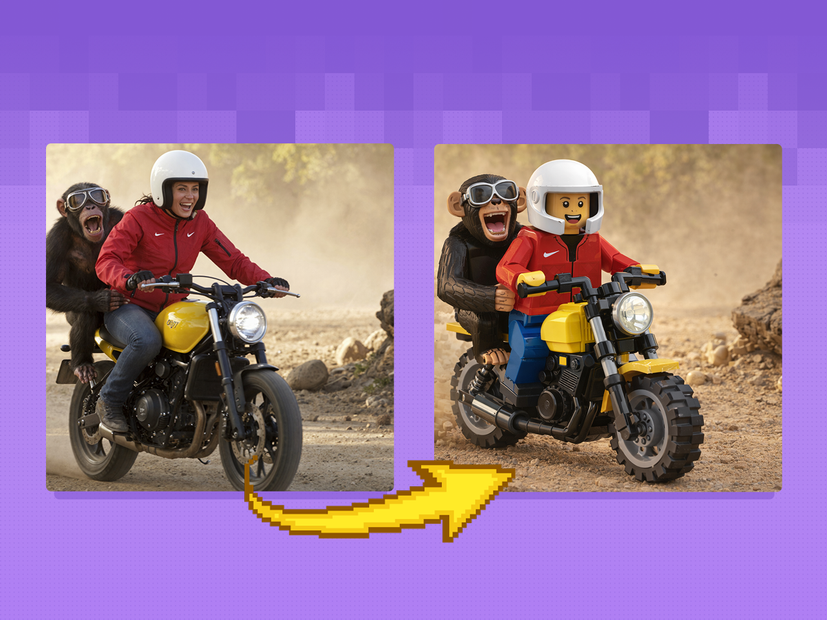
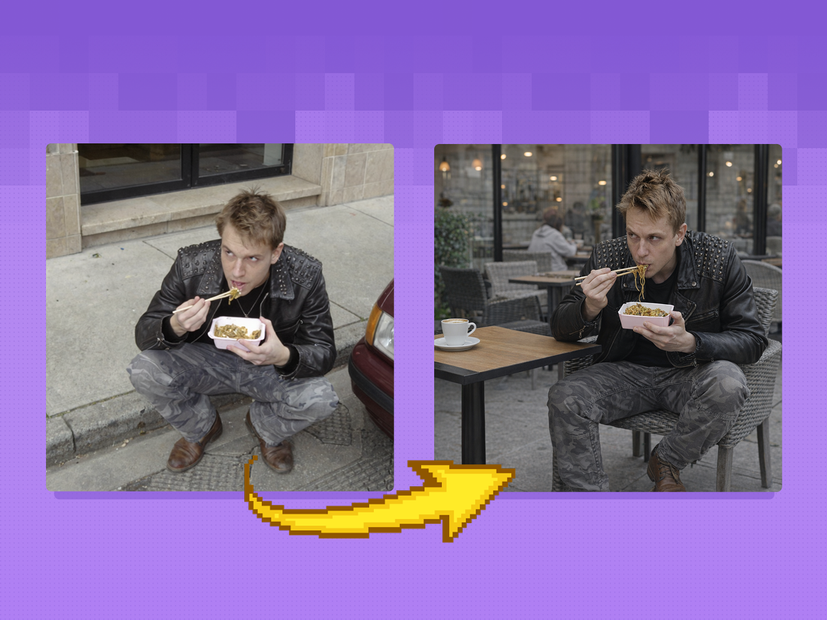

Nodes & Models
GPTImage15Edit_floyo
WorkflowGraphics
LoadImage
PreviewImage
GPT Image 1.5 image editing from OpenAI. Upload an image, describe what to change, and the model edits only what you specify.
This is a cloud API workflow. No local model, no VRAM to manage. Upload your image, write an instruction describing the change and what to keep, and GPT Image 1.5 edits in place. The default prompt ships as a full creative transformation: convert a photo of a girl into an old Hollywood movie poster for a film called "Codex," adapting costume to fit the era. That's the range. The same model handles a one-sentence background swap or a full style transformation.
Optionally connect a mask to limit edits to a specific region. Without a mask, the model interprets your instruction and decides what to change.
How do you use GPT Image 1.5 for image editing?
Upload an image, describe the change and what to preserve, and run. GPT Image 1.5 edits only what your instruction specifies. Set input fidelity to control how closely the model follows the source. An optional mask limits the edit to a specific region. Cloud API, no VRAM required.
Most edits need two things: a clear description of what changes and an explicit statement of what stays the same.
Images Upload one or more source images. For single-image edits (background swap, outfit change, style transfer), connect one image. For multi-image edits (apply style from image 1 to subject in image 2, composite two references), connect multiple images and specify the relationship in the prompt.
Mask (optional) Connect a mask to limit the edit to a specific region. The white area of the mask defines what the model can change; everything outside stays untouched. Use this for precise localized edits: a logo region, a text area, a single garment. Without a mask, the model follows your instruction and uses context to determine the edit scope.
Prompt The single most important input. Describe both what to change and what to preserve. GPT Image 1.5 follows instructions precisely when they're explicit on both sides.
Prompting approach that works: State the change first: "Change the background to a sunset beach." State the preservations second: "Keep the person's face, pose, clothing, and lighting exactly as they are." For text edits: specify the exact existing text and replacement. "Change the headline from 'Spring Sale' to 'Summer Sale' while preserving font, color, and layout." For style changes: name the target style and anchor what shouldn't change. "Convert to a golden age Hollywood movie poster aesthetic. Adapt the costume to the era." Iterate in layers: change one element per pass rather than everything at once.
Input fidelity (default: high) Controls how closely the model follows the source image. High: composition, faces, poses, and core elements stay nearly identical. The edit applies to what you specified and not much else. Use this for retouching, localized swaps, and any work where identity preservation matters. Low: the model reinterprets more freely. Use when you want a creative transformation rather than a precise edit.
Quality (default: high) High quality for final outputs where detail matters: portrait retouching, product shots, design work. Lower quality for fast drafting when you're checking composition and instruction response before committing to a final pass.
Background (default: auto) Auto detects and handles the background contextually. Switch to transparent for compositing workflows where you need a clean cutout. Switch to opaque to explicitly fill or replace the background.
Image size (default: 1024x1024) Output resolution. 1024x1024 is the default square format. Adjust for portrait, landscape, or platform-specific sizes.
Number of images (default: 1) How many output variants to generate per run. Increase to 2-4 when you want side-by-side variations from the same prompt before committing to a direction.
Output format (default: PNG) PNG for lossless output or transparency support. Switch to JPEG for smaller file sizes when transparency isn't needed.
What is GPT Image 1.5 editing good for?
GPT Image 1.5 is strongest for edits where you need to change specific elements of an image while keeping everything else intact. Background swaps, outfit changes, text replacement, style transfer, and localized retouching all work well. Multi-image reference inputs enable compositing and style transfer from a separate source.
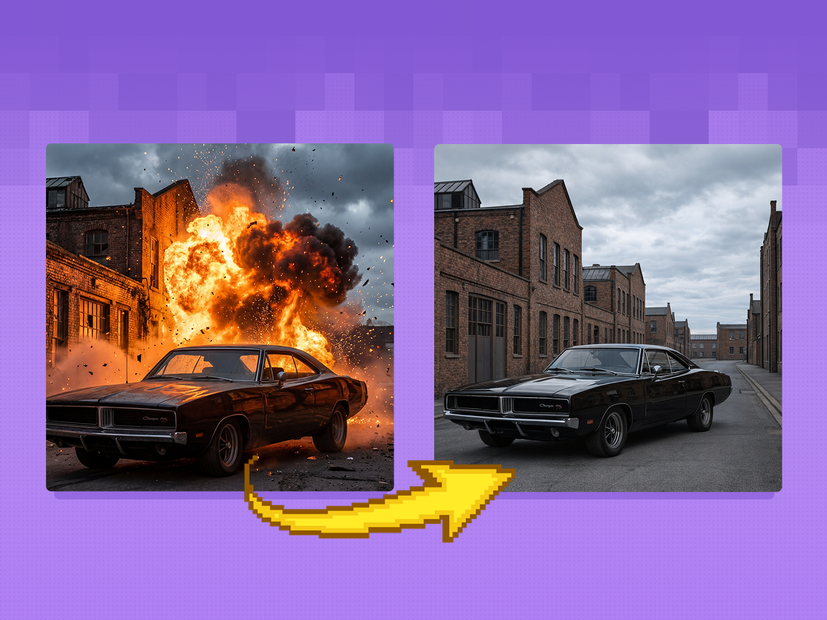
Background replacement. Swap a product or portrait background with a single instruction while keeping the subject unchanged. "Replace the background with a studio white backdrop, keep all product details, lighting, and shadows exactly as they are." High input fidelity keeps the foreground locked.
Outfit and prop changes. Change what a subject is wearing, replace a prop, or swap a product variant. Describe the replacement precisely and anchor the subject's face and pose explicitly in the prompt.
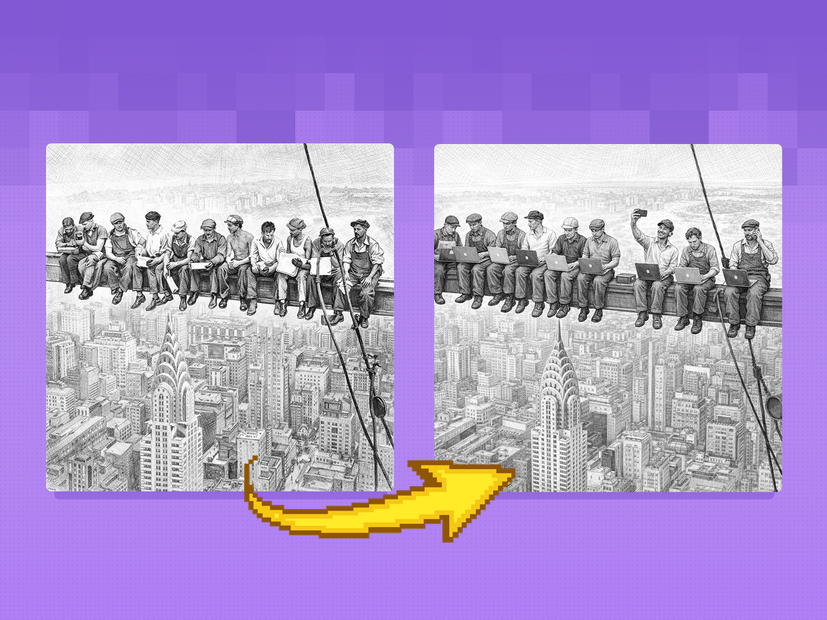
Text and logo editing. Replace text in posters, packaging, UI mockups, and signs while preserving font, color, layout, and surrounding design. GPT Image 1.5 handles dense and small text more accurately than most image models. Specify exact strings: state the existing text and the replacement text.
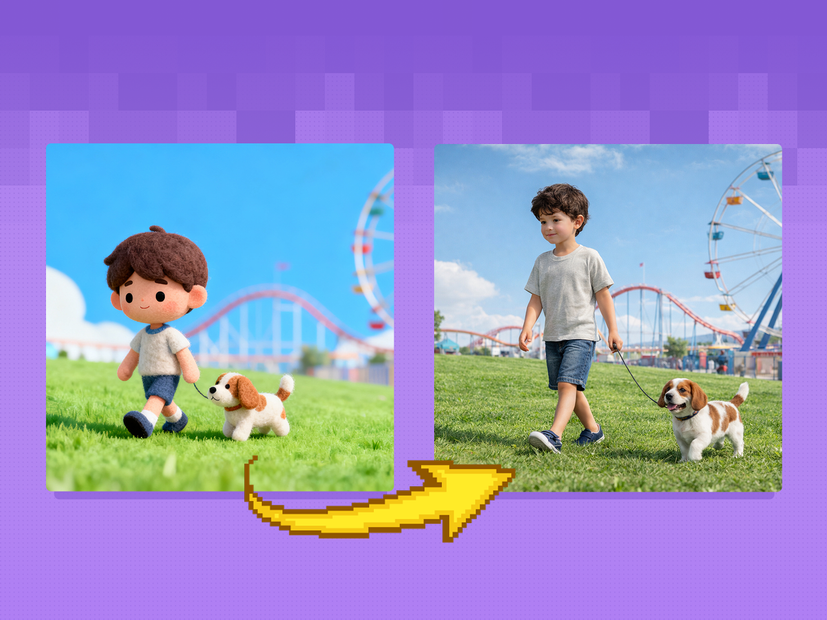
Style transfer and creative transformations. Convert a photo to an illustration, anime aesthetic, painterly style, or specific art direction while keeping the subject and composition. The default prompt demonstrates the full range: a photo into a period-accurate movie poster with costume adaptation.
Localized retouching. Use a mask to limit edits to a specific region. Portrait fixes, logo replacements, detail corrections, or single-element swaps without touching the rest of the image.
Honest notes: GPT Image 1.5 applies content moderation and some requests are filtered. For precise localized edits, a mask gives more control than relying on the model to infer edit scope from the prompt alone. Complex multi-element changes in a single instruction are less reliable than iterating one element at a time.
How does GPT Image 1.5 compare to other AI image editors?
GPT Image 1.5's main advantages over diffusion-based editors are instruction-following accuracy and text rendering. It handles precise text edits, multi-image compositing, and explicit preservation instructions better than most open-weight models. The tradeoff is less control over the generation pipeline and OpenAI's content moderation filters.
Open-weight models like Flux Klein and Qwen Image Edit give you full control over sampler settings, LoRA attachments, ControlNet conditioning, and inpainting masks. GPT Image 1.5 trades that pipeline control for stronger natural-language understanding. One clear instruction produces reliable edits without tuning samplers.
For text editing tasks specifically, GPT Image 1.5 is ahead of most alternatives. Most image models produce broken or distorted text in compositions. GPT Image 1.5 handles font-accurate text replacements, small-scale text, and multilingual text well.
For production workflows where you need repeatable, controllable outputs with custom models or LoRA styles, open-weight workflows give more flexibility. For fast, instruction-driven edits where the source image's identity and layout must stay intact, GPT Image 1.5 is a strong choice.
FAQ
What types of image edits can GPT Image 1.5 handle?
Background replacement, outfit and prop swaps, text and logo replacement, style transfer, and localized retouching with a mask. It handles multi-image inputs for compositing and reference-based style transfer. Instruction-following is strongest when you specify both what to change and what to preserve.
How do I keep faces and poses intact when editing with GPT Image 1.5?
Set input fidelity to high and state preservation explicitly in the prompt. "Keep the person's face, pose, clothing, and lighting exactly as they are" anchors the model to the source. Use a mask to limit edits to a specific region when precision matters.
Can GPT Image 1.5 replace text in images accurately?
Yes, and it's one of its strengths. Specify the exact existing text and the replacement text in your prompt, and state what to preserve: "Change 'Spring Sale' to 'Summer Sale', preserve the font, color, and layout." Works on posters, packaging, UI mockups, and small-scale text.
What is the difference between high and low input fidelity in GPT Image 1.5?
High fidelity keeps composition, faces, poses, and core elements nearly identical to the source. Use it for retouching, localized swaps, and identity-preserving edits. Low fidelity lets the model reinterpret the image more freely. Use it for creative transformations where you want the model to deviate from the source.
How do I use multiple images as input in GPT Image 1.5?
Connect multiple source images to the images input. In your prompt, specify the relationship: "Apply the lighting style from image 1 to the subject in image 2." or "Place the product from image 1 into the scene in image 2." The model reads all inputs together and applies the instruction across them.
How do I run GPT Image 1.5 image editing online?
You can run GPT Image 1.5 online through Floyo. No installation, no setup. Open the workflow in your browser, upload your image, and hit run. Free to try.
Read more
_1786522681696.png?width=400&height=300&quality=80&resize=cover)