FireRed Image Edit - Makeup Transfer
Transfer makeup from a reference photo onto a portrait using FireRed Image Edit 1.1. Upload a face and a makeup reference, and the model applies the look while keeping pose and facial features intact.
Flux
Image
Image to image
Opensource
Style transfer
886

Nodes & Models
easy positive
easy imageConcat
LoadImage
UNETLoader
FireRed-Image-Edit-1.1-transformer.safetensors
CLIPLoader
qwen_2.5_vl_7b.safetensors
VAELoader
qwen_image_vae.safetensors
FluxKontextImageScale
ModelSamplingAuraFlow
VAEEncode
TextEncodeQwenImageEditPlus
AddLabel
CFGNorm
LoraLoaderModelOnly
FireRed-Image-Edit-1.0-Lightning-8steps-v1.0.safetensors
FireRed-Image-Edit-Makeup.safetensors
KSampler
VAEDecode
SaveImage
ImageConcatMulti
Anything Everywhere
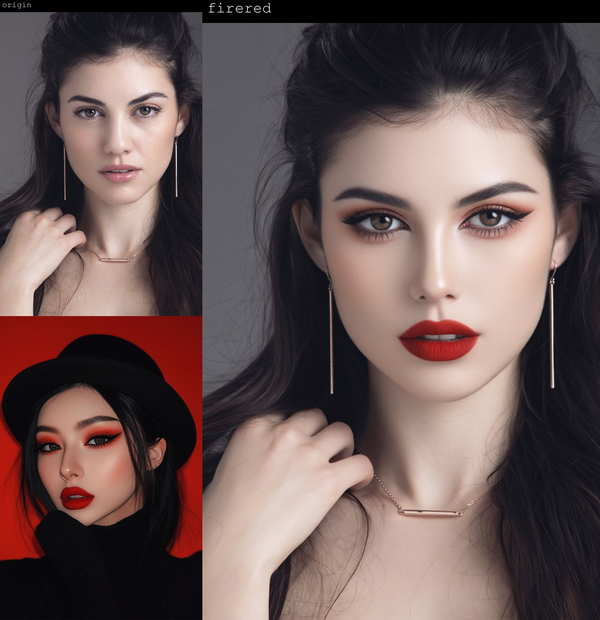
Upload a portrait and a makeup reference image. FireRed Image Edit 1.1 reads both, then transfers the makeup from the reference onto the face in Image 1 — foundation, eye makeup, lip color, the whole look — while keeping the pose, facial structure, and identity unchanged.
A dedicated Makeup LoRA guides the transfer. A Lightning LoRA keeps generation to 8 steps. Output includes a side-by-side comparison of before and after.
How do you use FireRed makeup transfer?
Upload your portrait as Image 1 and the makeup reference as Image 2. The model applies the makeup from the reference onto Image 1. Prompt, steps, and LoRA strength are pre-tuned — most runs need only the two image inputs.
Image 1 (portrait) The face you want to apply makeup to. A clear, front-facing or three-quarter portrait works best. The model preserves facial features, pose, and identity — it's changing the makeup layer, not the face.
Image 2 (makeup reference) The look you want to transfer. This can be another portrait, a beauty campaign shot, or any image with visible makeup. The model reads the makeup styling from this image and applies it to Image 1. The reference person's identity doesn't carry over — only the makeup.
Prompt Pre-filled: "Replace the makeup of the person in Image 2 onto Image 1, keeping the pose and facial features unchanged." Edit this if you want to add constraints — specifying skin tone preservation, keeping natural brows, or limiting the transfer to specific features (lips only, eye makeup only).
Makeup LoRA strength 0.6 by default. This controls how strongly the Makeup LoRA pulls the output toward a clean transfer. Lower it (0.4–0.5) if the output is over-applying the look or losing the subject's natural features. Raise it (0.7–0.8) if the transfer feels too subtle.
Steps 8 by default via the Lightning LoRA. Fast and clean for most transfers. Increase to 12–15 if you're seeing artifacts or want more detail in fine makeup elements like eyeliner or highlight placement.
Denoise 1.0 — full generation from the conditioned latent. Don't change this for makeup transfer; partial denoise doesn't apply here.
Seed Randomized by default. Fix it to reproduce a result. Change it to get variation on the same transfer.
What is FireRed makeup transfer good for?
FireRed makeup transfer is for beauty, e-commerce, and portrait work where you need to show a specific look on a specific face without a makeup artist or re-shoot. The Makeup LoRA keeps the transfer clean — the subject's face stays the subject's face, the makeup styling comes from the reference.
Good scenarios: beauty e-commerce where the same product look needs to be shown across different models. Campaign visualization where you want to preview how a look translates to a specific face before production. Portrait retouching where a client wants to try different makeup styles on their own photo.
The model handles full-face looks well — foundation coverage, eye makeup, lip color, highlight and contour. Very fine detail (individual lash definition, precise liner edges) gets softer. For those, bump steps up and check Makeup LoRA strength.
It's not built for extreme style transfers — theatrical or editorial makeup with heavy texture, prosthetics, or face paint pushes outside what the Makeup LoRA was trained on. For natural-to-glam transfers it's reliable.
FAQ
Does the reference person's identity transfer along with the makeup? No. The model is conditioned to extract makeup styling only. The face structure, skin tone baseline, and identity in Image 1 stay intact. What transfers is the look — colors, application style, coverage — not who's wearing it.
What kind of reference image works best for makeup transfer? A clear portrait with the makeup well-lit and visible. Heavy shadows or low resolution on the reference makes it harder for the model to read the look accurately. Beauty campaign shots and professional portraits work well.
Can I transfer only part of a makeup look — just the lips, or just the eyes? Yes, by editing the prompt. Add a constraint like "transfer only the lip color from Image 2" and the model follows it. The default prompt transfers the full look, so be explicit if you want partial transfer.
Why is denoise set to 1.0 for this workflow? Makeup transfer here uses full generation from conditioned latents rather than img2img-style partial denoising. The model reconstructs the face from scratch using both images as conditioning, which is why the face stays consistent while the makeup changes.
How do you run FireRed makeup transfer online? You can run it online through Floyo. No installation, no setup. Open the workflow in your browser, upload your two images, and hit run.
Read more

_1786516256661.png?width=400&height=300&quality=80&resize=cover)