Wan 2.1 InfiniteTalk
Wan 2.1 InfiniteTalk talking video from audio and a reference clip
animation
Audio
image to video
lipsync
vid2vid
Video
video generation
wan
540


Nodes & Models
GetNode
WanVideoLoraSelect
lightx2v_I2V_14B_480p_cfg_step_distill_rank64_bf16.safetensors
MultiTalkModelLoader
Wan2_1-InfiniTetalk-Single_fp16.safetensors
CLIPVisionLoader
clip_vision_h.safetensors
WanVideoBlockSwap
WanVideoTorchCompileSettings
DownloadAndLoadWav2VecModel
MarkdownNote
INTConstant
WanVideoTextEncodeCached
umt5-xxl-enc-bf16.safetensors
Note
LoadAudio
WanVideoVAELoader
Wan2_1_VAE_bf16.safetensors
SetNode
WanVideoModelLoader
Wan2_1-I2V-14B-480P_fp8_e4m3fn.safetensors
WanVideoApplyNAG
ImageResizeKJv2
WanVideoEncode
GetImageRangeFromBatch
MultiTalkWav2VecEmbeds
GetImageSizeAndCount
WanVideoClipVisionEncode
PreviewAny
WanVideoImageToVideoMultiTalk
WanVideoSampler
WanVideoDecode
VHS_LoadVideo
VHS_VideoCombine
VHS_LoadVideo
VHS_VideoCombine
VHS_LoadVideo
VHS_VideoCombine
AudioCrop
AudioSeparation
AudioSeparation
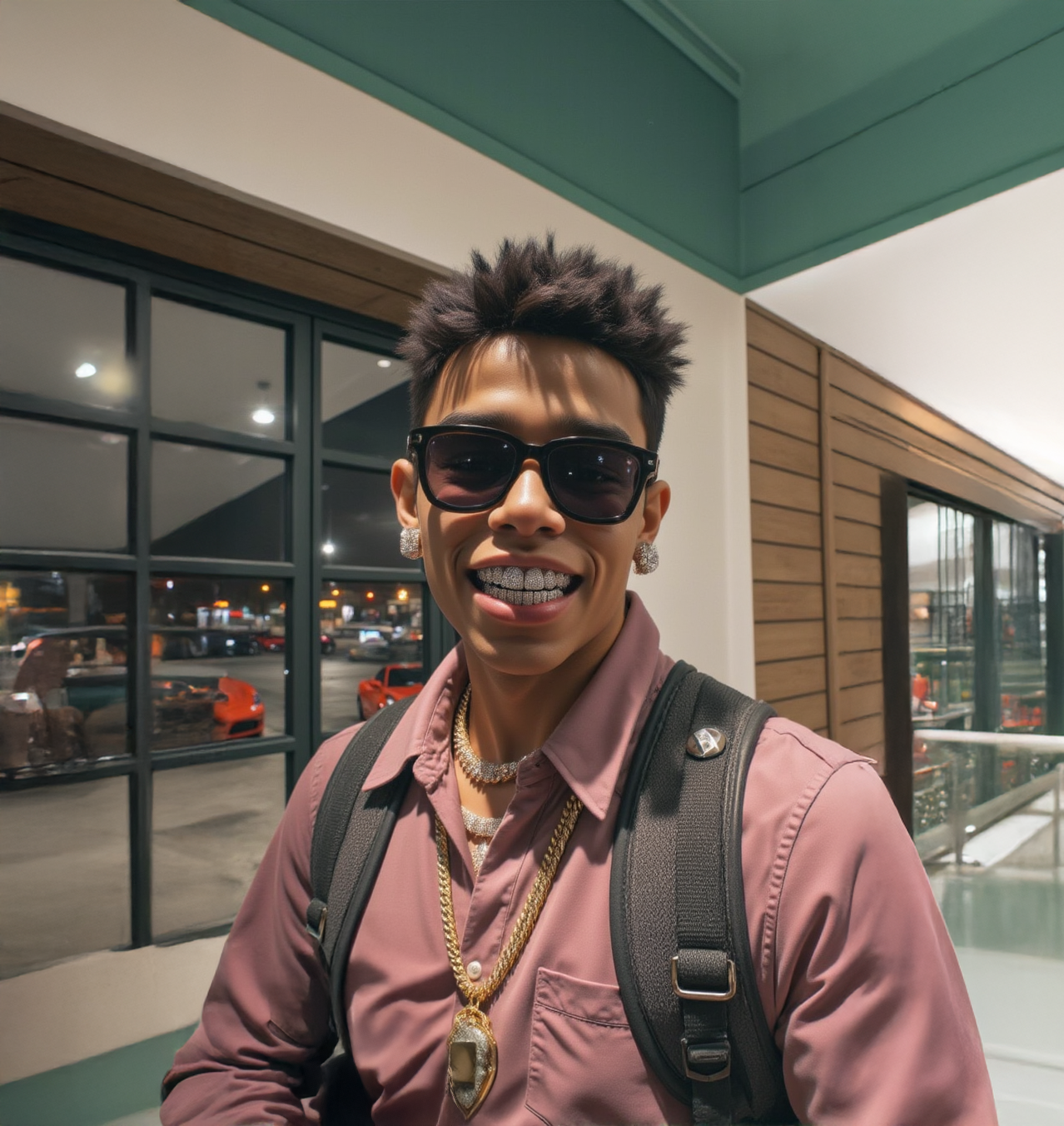
Wan 2.1 InfiniteTalk makes the person in your video appear to say whatever is in your audio track.
Upload a video with a face in it and an audio file with speech. The model watches the audio and animates the face to match: mouth movements, expressions, and all. If your audio is longer than your video, it keeps going from the last frame automatically. You can run up to four speakers at the same time if you have a multi-person scene.
Your video and audio in. A talking video out.
How do you use Wan 2.1 InfiniteTalk?
Upload a video and an audio file. Write a one-line description of who is in the video. The model does the rest. It animates the face to match the speech in your audio and outputs a finished talking video.
Reference video The video with the face you want to animate. A clear shot of the person facing the camera works best. The model uses your video as the visual base and drives the face using the audio. If your audio is longer than the clip, the video extends automatically from the last frame.
Audio The speech that drives the animation. Upload up to four audio files if you have multiple speakers in the scene. Each audio file controls one face. Clean recordings without background noise give the best results. You can trim the audio to a specific section before running.
Prompt A short description of what is happening in the video. One line is enough: "a woman is talking, realistic" or "a man giving a presentation." This helps the model understand the scene. You do not need to describe the mouth movements. The audio handles that.
Audio scale How much the audio influences the face movement. Turn it up if the mouth looks like it is barely moving. Turn it down if the movement looks exaggerated. Start in the middle and adjust from there.
Steps How many passes the model makes when generating the video. The default of 10 is enough for this workflow. Going higher than 15 does not improve the output much and takes longer to run.
Number of speakers You can add up to four separate audio tracks if your video has multiple people talking. Each audio track drives the face of one person in the scene.
What is Wan 2.1 InfiniteTalk good for?
Making people in videos appear to say something new, dubbing footage into another language, creating talking head content from a short clip, and animating multi-person conversation scenes.
The most common use is straightforward: you have a video of someone and you want them to say something specific. Upload the video, record or source the audio, and run it. The output looks like the person is speaking those words.
It also works well for dubbing. Take footage in one language, add a translated voiceover, and the model makes the person's mouth match the new audio. No manual editing needed.
If your audio is longer than your reference video, you do not need to find a longer clip. The model extends the footage automatically from the last frame until the audio ends.
Read more