floyo logo
Workflows
Pricing
floyo logo
Workflows
Pricing
Retro Music Video From One Singer Photo hero

COMMUNITY PAGE

Retro Music Video From One Singer Photo

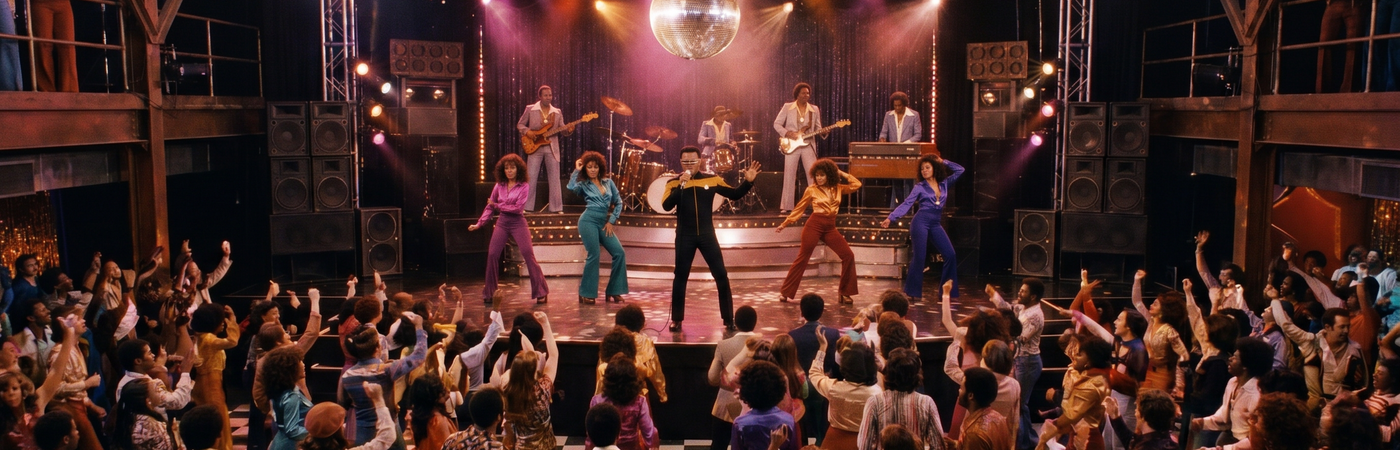
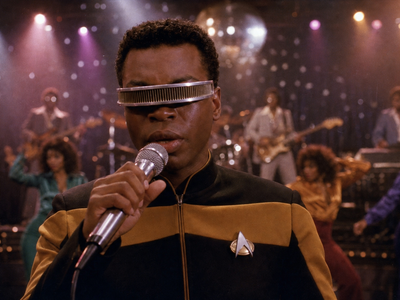
This page breaks down exactly how I made a full 46-second retro music video from scratch using two workflows and a single photo of the singer. The first workflow generates 8 different angle shots of the singer automatically, no prompts needed. The second workflow takes each angle image, syncs it to a section of the audio, and outputs a video clip. Six scenes, six clips, one edit. That is the whole thing.

1

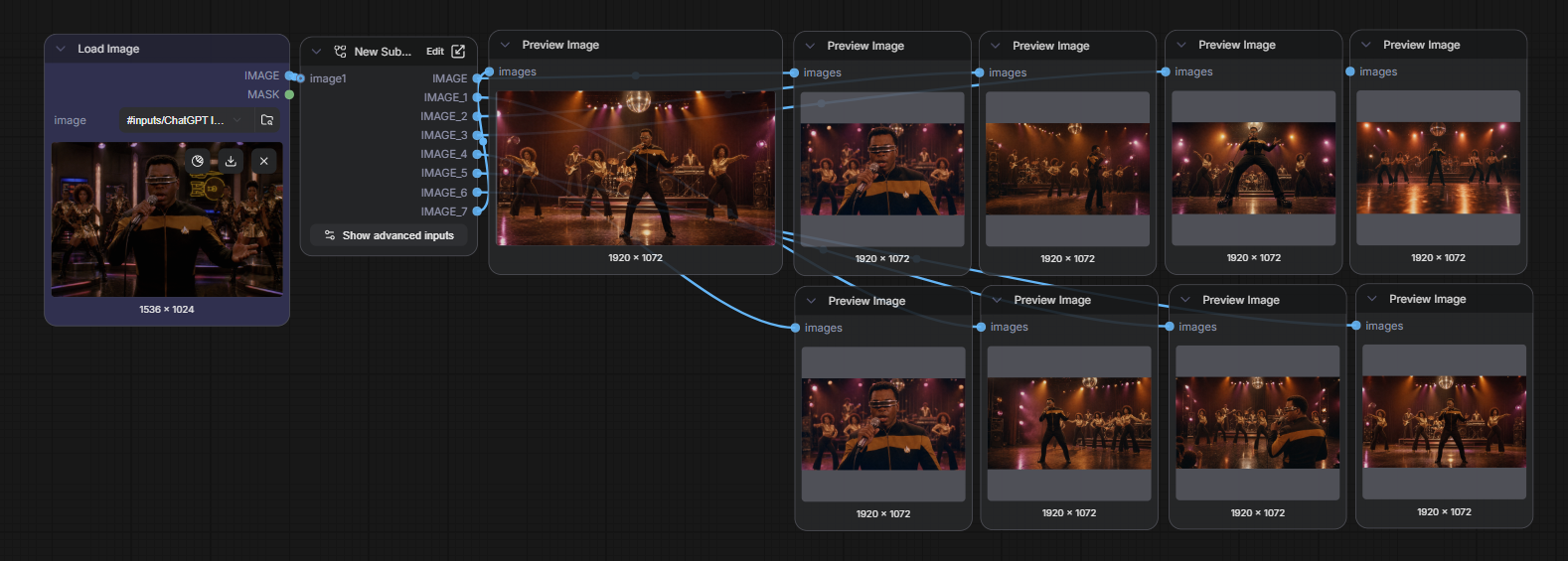
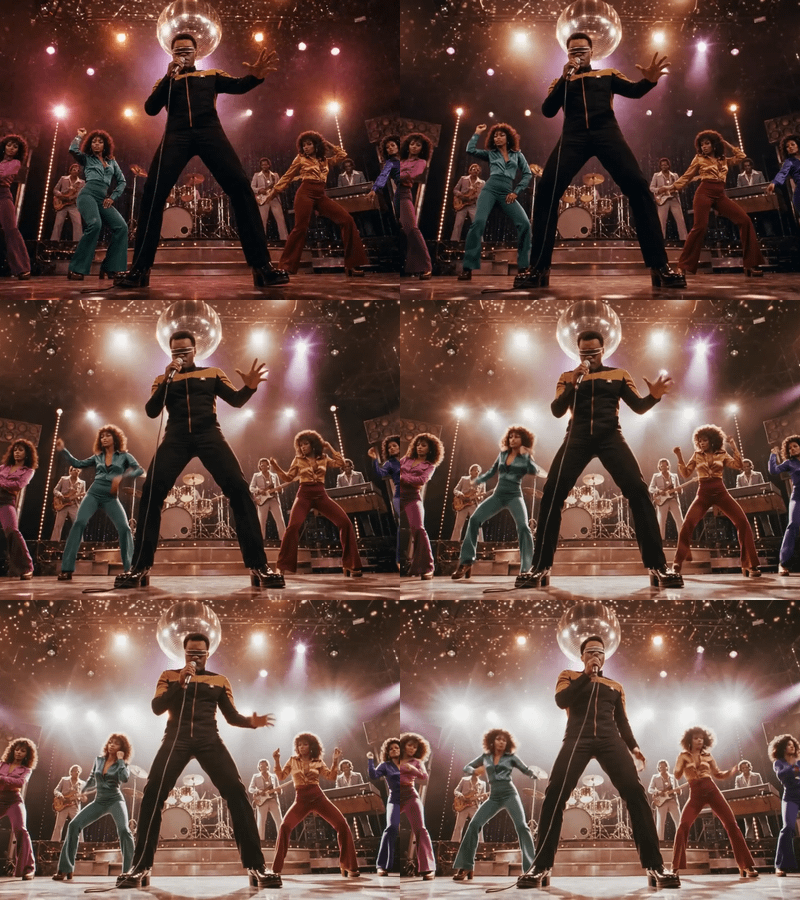
Open the Singer Multi-Angle Generator on Floyo. Upload one photo of your singer and hit Run. No prompt needed. The workflow generates 8 angle variations automatically.

2

Look at the 8 outputs. Pick the images you want to use as your scenes. I used 6 for this video. Download each one you want to use.

3

Open the LTX 2.3 Audio-to-Video workflow. For each scene: load the image, load the audio file, set the trim start and duration to match that scene, add a scene prompt, and hit Run.

4

Drop all your clips into any video editor in order. Trim the cuts, export, done.

Final Output

Step 1 · Generate your singer's angles

Before you touch the video workflow, you need images of your singer from different angles. I used 6 for this video. This workflow does all the work. One photo in, 8 angle variations out. No prompt. No settings to adjust. Just upload and run.
Retro Disco Multi-Scene Concert Generator — GPT 2

#1970s

#claude

#live-band

#llm

#music-video

#stage-generation

Drop any performer photo → automatically generate 9 consistent retro disco concert images ready to cut into a music video.

Retro Disco Multi-Scene Concert Generator — GPT 2

Drop any performer photo → automatically generate 9 consistent retro disco concert images ready to cut into a music video.

How to use this workflow, step by step

1 Open the Singer Multi-Angle Generator workflow on Floyo. You will see a single image upload slot.
2 Upload a clear photo of your singer . Ideally front-facing, good lighting, plain or simple background. The cleaner the input, the better the angle variations.
3 Click Run. No prompt needed. The workflow generates 8 images automatically: different angles, poses, and framings of the same person. This usually takes around 30 to 60 seconds.
4 Review the 8 outputs in the preview panels. Look for variety: close-ups, wide shots, side angles. Pick the ones that feel like different scenes of a music video. I used 6 for this video.
5 Download and save your chosen images and label them Scene 1, Scene 2, and so on. These are the inputs for each run of the LTX 2.3 workflow in Step 2.

What to look for when picking your images

Pick images with different framings: one close-up on the face, one mid-shot, one wide. Variety makes the final video feel like it was shot from multiple cameras.

Avoid picking images where the singer looks cut off or the pose is awkward. LTX will animate from that frame and the awkwardness carries through.

If you do not like any of the 8 outputs, run the workflow again. Each run generates a different set of variations.

Step 2 · Build each scene with LTX 2.3

You are going to run the LTX 2.3 workflow once per scene. The duration changes per scene to match the music. The key is the audio trim timing. Set the trim start to where the previous scene ended so every clip picks up exactly where the last one left off.
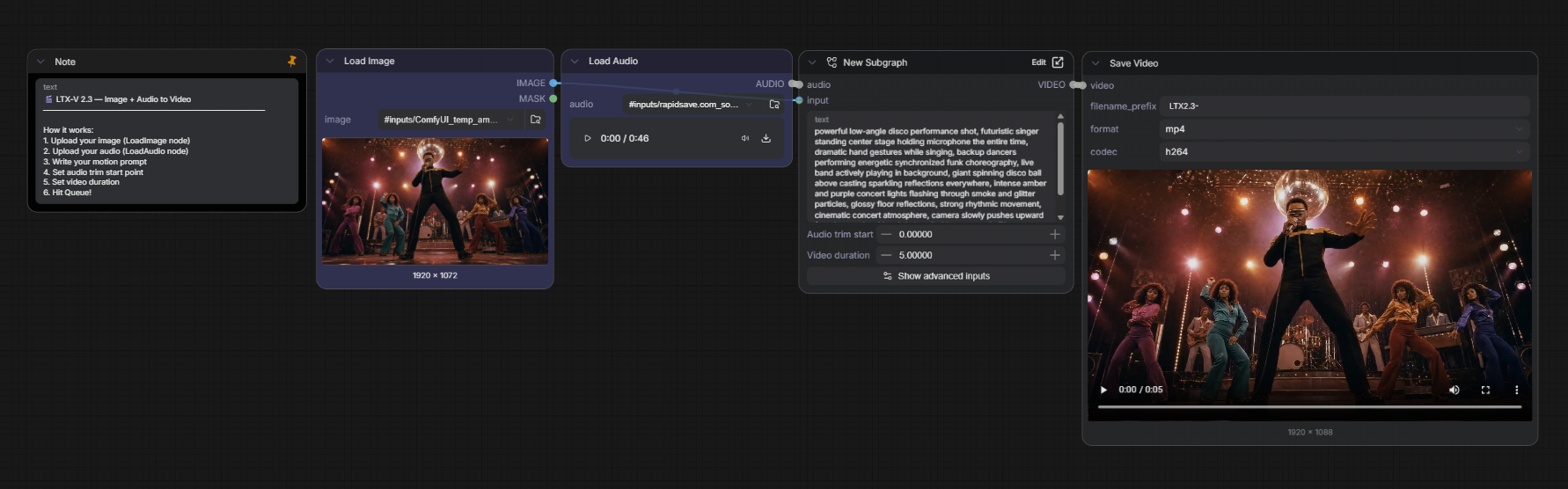
LTX-2.3 — Turn Any Image + Audio Into a Video

audio-driven

audio-to-video

concert-video

image-to-video

ltx-22b

ltxv-2.3

ltx-video

music-visualizer

Bring any still image to life using audio

LTX-2.3 — Turn Any Image + Audio Into a Video

Bring any still image to life using audio

How to use this workflow for each scene

1 Open the LTX 2.3 Image and Audio to Video workflow on Floyo. You will see an image upload slot, an audio upload slot, and fields for trim start and duration.
2 Load the scene image. For Scene 1 load your Scene 1 image. For Scene 2 load your Scene 2 image, and so on.
3 Load your audio file. Upload your full song mp3. You use the same audio file for all 6 runs. Only the trim start changes between scenes.
4 Set the audio trim start. This is where in the song the clip starts. Each scene starts where the previous one ended. Scene 1 = 0:00, Scene 2 = 0:10, Scene 3 = 0:17, Scene 4 = 0:24, Scene 5 = 0:31, Scene 6 = 0:38.
5 Set the duration to match the length of that scene. Scenes do not have to be the same length. Match the cut to where it feels natural in the music.
6 Add a scene prompt describing the visual mood and movement for this clip. The scene prompts I used are in the copy blocks below. Adapt them to your own video.
7 Click Run. Watch the output preview. If it looks good, download the mp4. If not, adjust the prompt and run again. Then move to the next scene.

How the audio timing works across 6 scenes

The duration is not fixed. Each scene runs as long as it needs to match the music and the mood. The trim start is always where the previous scene ended.

Scene Trim Start Duration Covers
Scene 1 0:00 10s 0s to 10s
Scene 2 0:10 7s 10s to 17s
Scene 3 0:17 7s 17s to 24s
Scene 4 0:24 7s 24s to 31s
Scene 5 0:31 7s 31s to 38s
Scene 6 0:38 8s 38s to 46s

Scene 1 · 0:00 to 0:10

The opening. Introduce the singer. Set the retro atmosphere. This is the first thing the audience sees so make the visual feel strong and deliberate.

Scene 1 prompt used in this video

close-up of futuristic disco singer singing into microphone, backup dancers moving softly in blurred background, sparkling disco lights and floating reflections behind him, subtle head movement and gentle hand motion while singing, cinematic depth of field, warm purple and amber nightclub lighting, light film grain, camera slowly pushes in with a tiny natural handheld sway, then softly settles on his face, ultra cinematic retro funk vibe

📍 Scene 1 settings: Trim start = 0:00 · Duration = 10 seconds

Scene 2 · 0:10 to 0:17 

Change the angle and the energy. A different framing creates the feeling of a cut even though everything is generated separately.

Scene 2 prompt used in this video

retro disco singer performing center stage with backup dancers grooving smoothly, live band playing behind, colorful nightclub lights flashing, disco ball reflections moving across the floor, light smoke drifting through the stage, dancers swaying rhythmically, singer slowly turning and raising hand while singing, cinematic atmosphere, camera slowly slides from left to right then gently stops on the singer, vintage 70s funk music video vibe, ultra cinematic

📍 Settings for Scene 2: Image = Scene 2 image · Audio trim start = 0:10 · Duration = 7 seconds

Scene 3 · 0:17 to 0:24 

Build intensity. The third scene is usually the most energetic part of the song. Push the motion and lighting harder here.

Scene 3 prompt used in this video

wide cinematic disco stage performance, futuristic singer energetically singing while holding microphone the entire time, backup dancers performing synchronized funky choreography, live band actively playing instruments in background, giant disco ball spinning with moving reflections across the glossy floor, colorful amber purple nightclub lights flashing dynamically, smoke drifting through stage, strong rhythmic body movement and stylish poses, cinematic concert atmosphere, subtle camera orbit movement around the singer with smooth handheld energy, vintage 70s funk music video vibe, ultra cinematic, high energy performance

📍 Settings for Scene 3: Image = Scene 3 image · Audio trim start = 0:17 · Duration = 7 seconds

Scene 4 · 0:24 to 0:31

The close. Bring it home. Use a framing that feels like a final shot. A slow pull-back or a held close-up with the singer fading into the light works well.

Scene 4 prompt used in this video

Retro disco stage performance, futuristic singer with backup dancers, live band in background, spinning disco ball reflections, colorful 70s nightclub lights, smoky atmosphere, smooth synchronized dance moves, cinematic lighting, glitter particles, vintage funk music video vibe, realistic motion, camera slowly zooms in toward the singer then smoothly stops at mid shot, ultra cinematic

📍 Settings for Scene 4: Image = Scene 4 image · Audio trim start = 0:24 · Duration = 7 seconds

Scene 5 · 31 to 38 seconds

Keep the energy going. Push the visual intensity. This is the final stretch before the close.

Scene 5 prompt used in this video

cinematic close-up of glamorous disco dancer in shiny purple satin outfit dancing confidently under warm nightclub lights, smooth rhythmic shoulder and hip movements, soft hair bounce with elegant hand motion, colorful disco reflections moving across her outfit, blurred live band in background, smoky retro nightclub atmosphere, subtle camera push-in with gentle cinematic sway, vintage 70s funk vibe, ultra cinematic, expressive dance performance, rich lighting and film grain

📍 Settings for Scene 5: Image = Scene 5 image · Audio trim start = 0:31 · Duration = 7 seconds

Scene 6 · 38 to 46 seconds

The outro. Bring it down. A slow fade, a held close-up, or a pull-back into darkness all work well here depending on how the song ends.

Scene 6 prompt used in this video

powerful low-angle disco performance shot, futuristic singer standing center stage holding microphone the entire time, dramatic hand gestures while singing, backup dancers performing energetic synchronized funk choreography, live band actively playing in background, giant spinning disco ball above casting sparkling reflections everywhere, intense amber and purple concert lights flashing through smoke and glitter particles, glossy floor reflections, strong rhythmic movement, cinematic concert atmosphere, camera slowly pushes upward from low angle with subtle handheld energy, epic 70s retro funk music video vibe, ultra cinematic, high energy finale shot

📍 Settings for Scene 6: Image = Scene 6 image · Audio trim start = 0:38 · Duration = 8 seconds

Step 3 · Combine the clips

You now have all your clips, each synced to the correct section of the song. Drop them into any video editor in order and export. The audio is already embedded in each clip from the LTX workflow so you just need to cut between them.
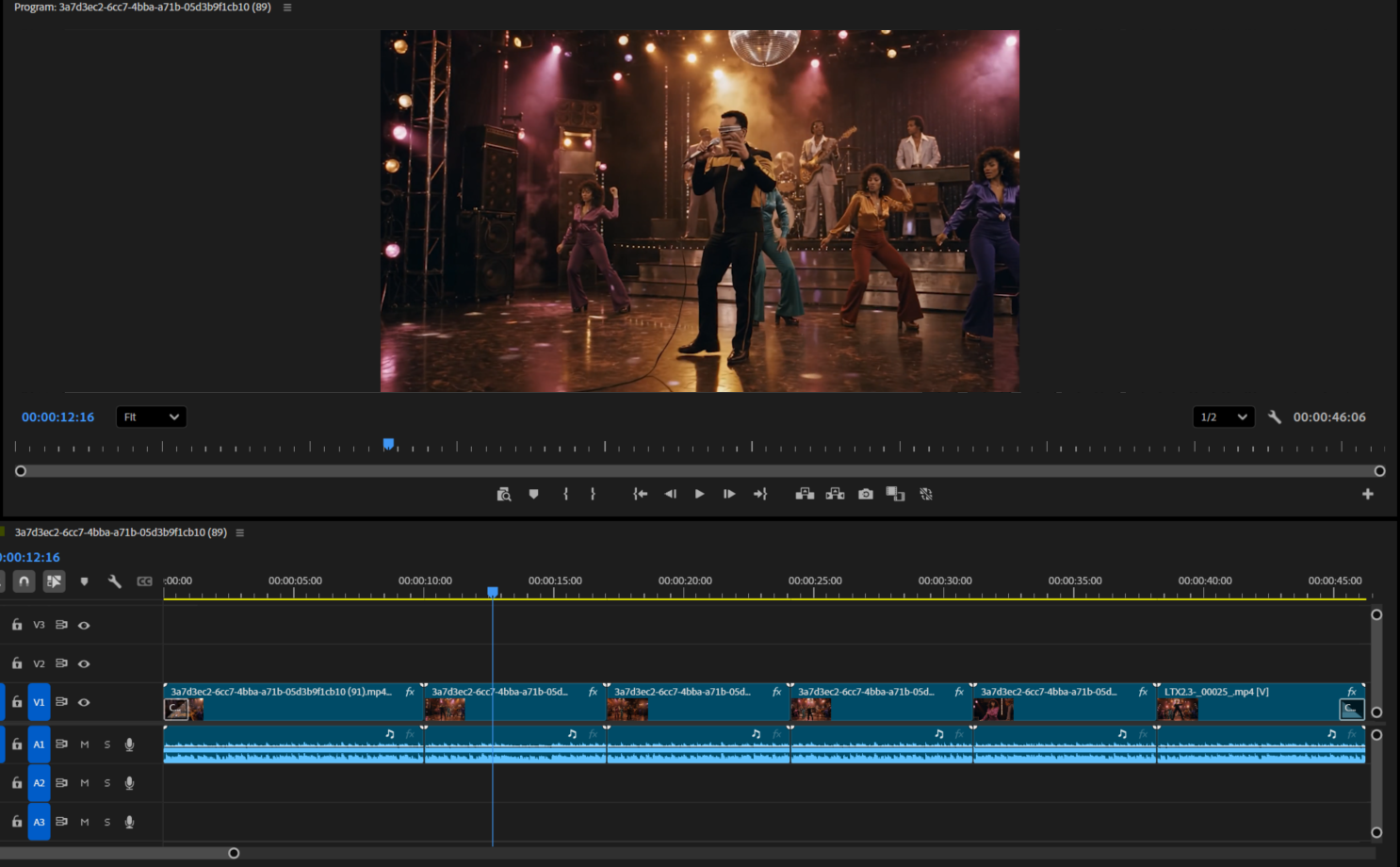
1 Open CapCut, DaVinci Resolve, or any video editor you have. Create a new project at the same aspect ratio as your clips.
2 Drag all your scenes into the timeline in order. Each clip already has audio baked in from the LTX output.
3 Mute the individual clip audio tracks if your editor stacks them. Add a single clean audio track of the full song on top and align it to the start of Scene 1. This ensures the audio is perfectly continuous.
4 Export as mp4. If you want to push the retro aesthetic further, add a VHS filter or film grain overlay before export. CapCut and DaVinci Resolve both have free retro filter packs.

Free editing tools that work for this

CapCut · Free DaVinci Resolve · Free Canva Video · Free

Prompting guide for retro music videos

LTX 2.3 responds well to specific visual language. Here is what makes retro music video prompts work.

1. Always name the era

LTX reads era names as style shortcuts. "1970s soul," "1980s MTV," "1990s hip-hop," and "Super 8 home video" all produce very different aesthetics. Name the decade explicitly rather than describing individual effects.

2. Describe camera behavior separately from scene content

Write what is in the frame first, then describe how the camera moves. "Slow push-in," "gentle rack focus," "slight handheld drift," and "static locked-off shot" are all things LTX responds to when placed at the end of a prompt.

3. Include a film texture term in every prompt

Terms like "film grain," "VHS scan lines," "Super 8 flicker," "analog warmth," and "Kodachrome color shift" all push the output toward a retro look. Use one or two per prompt, not all of them at once.

4. Keep each prompt focused on one moment

A 10-second clip is one moment, not a story arc. Describe one action, one lighting setup, one camera movement. Prompts that try to describe multiple things happening one after another usually produce confused motion.

5. If the first run is wrong, change one thing

Do not rewrite the whole prompt. If the motion is too fast, add "slow, deliberate movement." If the lighting is wrong, describe the lighting more specifically. Change one variable at a time so you know what fixed it.

Table of Contents