

Text to Image + LoRA model
Flux
LoRA
Text to Image
515



Nodes & Models
RandomNoise
KSamplerSelect
VAELoader
DualCLIPLoader
t5xxl_fp16.safetensors
clip_l.safetensors
UNETLoader
FLUX1/flux1-dev-fp8.safetensors
Note
EmptySD3LatentImage
LoraLoader
Fashion Photography Style v2 (FLUX)_epoch_10.safetensors
ModelSamplingFlux
CLIPTextEncode
BasicScheduler
FluxGuidance
BasicGuider
SamplerCustomAdvanced
VAEDecode
SaveImage
Create an image from a text prompt and a trained AI model of something specific ( a specific figure, outfit, art style, product etc) to ensure specific details within.
Key Inputs
Prompt: as descriptive a prompt as possible
Width & height: Optimal resolution settings are noted
Load LoRA: Load your reference model here
Model Strength: The amount of adherence to the original model. Higher has more adherence.
Uploading LoRAs to Floyo
Launch App or Run Workflow
On the left side of the canvas, click the middle file button
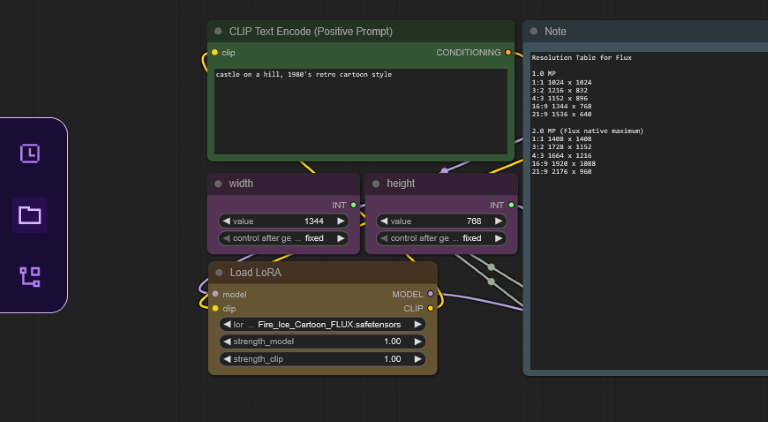
In "My Files" navigate to models/loras, select "Upload a File" and choose a LoRA file
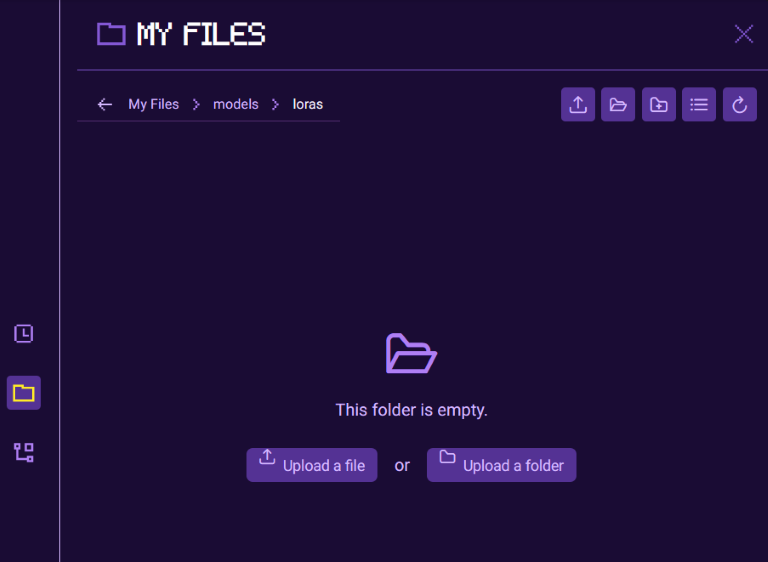
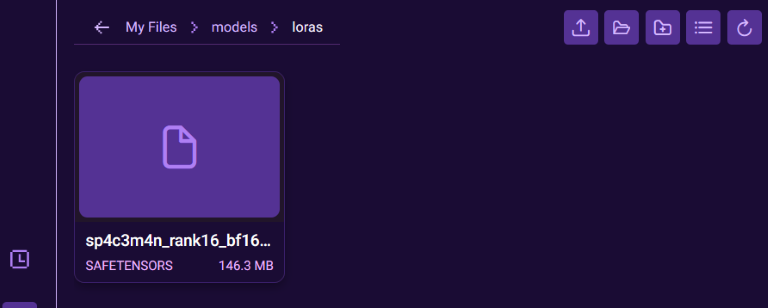
Once your LoRA is uploaded, close the file browser and refresh your ComfyUI canvas by pressing "R", this will update all model lists
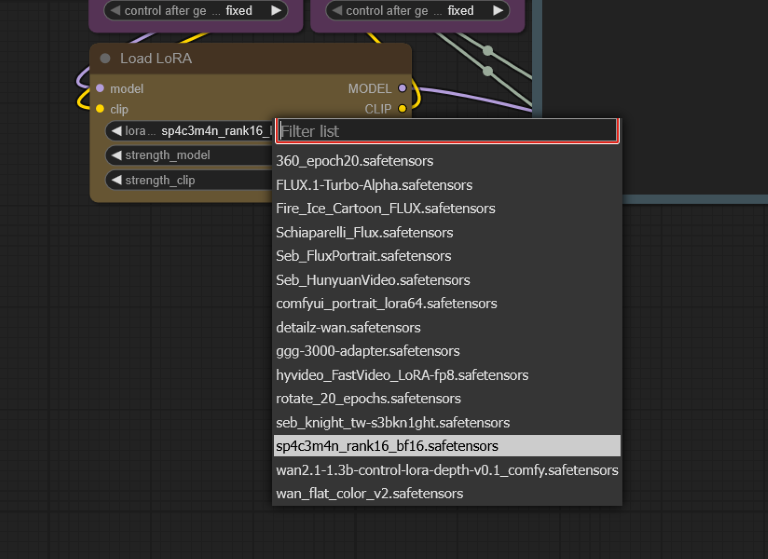
Select your LoRA in the Load LoRA node
Read more
N