Explore mais casos de uso
Ver tudo


Todos os workflows de consistência de personagemWorkflows de Consistência de personagem
Todos os Workflows

Qwen Image Edit 2509: Build a LoRA Dataset
Create Character LoRA Dataset
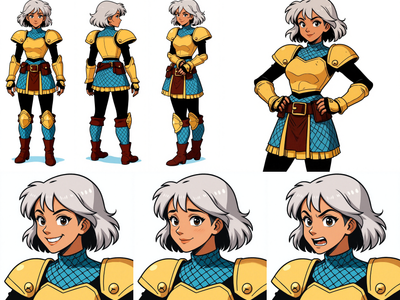

Image to Character Sheet with Kontext
Create a character sheet with multiple poses and expressions from a single image!
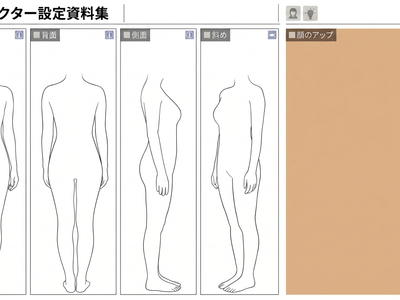

NanoBanana2_Character Sheet
Nanobanana2を使用したキャラクターシート生成ワークフローです。キャラクター画像をアップロードして生成ボタンを押すだけで、顔のアップ、正面図、キャラクターシートを自動生成できます。 This is a character sheet generation workflow using Nanobanana2. Simply upload a character image to the green node, Load Image1, and click Generate to create a face
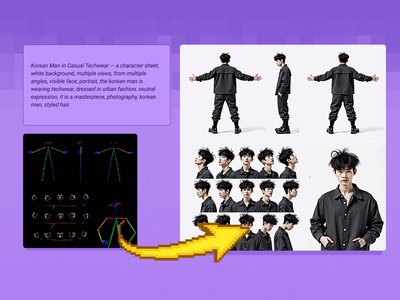
Flux Text to Character Sheet
Create a character and a range of consistent outputs suitable for establishing character consistency, training a model, and ensuring consistency throughout multiple scenes. Key Inputs Image reference: Use the included pose sheet to show range of positions Prompt: as descriptive a prompt as possible

Seedream 5.0 Pro_Character Sheet
Seedream 5.0 Proを使用したキャラクターシート生成ワークフローです。This is a character sheet generation workflow using Seedream 5.0 Pro.
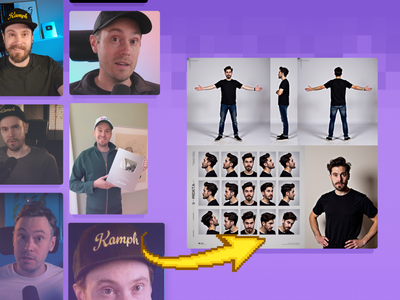
Text to Character Sheet with a reference LoRA
Generate a character sheet using a prompt and a LoRA model of a particular person for more accurate renders. Key Inputs Load Image: Use any JPG or PNG of your pose sheet Prompt: as descriptive a prompt as possible Width & height: Optimal resolution settings are noted at 1280px x 1280px Denoise: The amount of variance in the new image. Higher has more variance. ControlNet Strength: The amount of adherence to the original image. Higher has more adherence. Start Percent: The point in the generation process where the control starts exerting influence. (Have it start later, to let AI imagine first.) End Percent: The point in the generation process where the control stops exerting influence. (Have it end sooner, to let AI finish it off with some variation.) Flux Guidance: How much influence the prompt has over the image. Higher has more guidance.
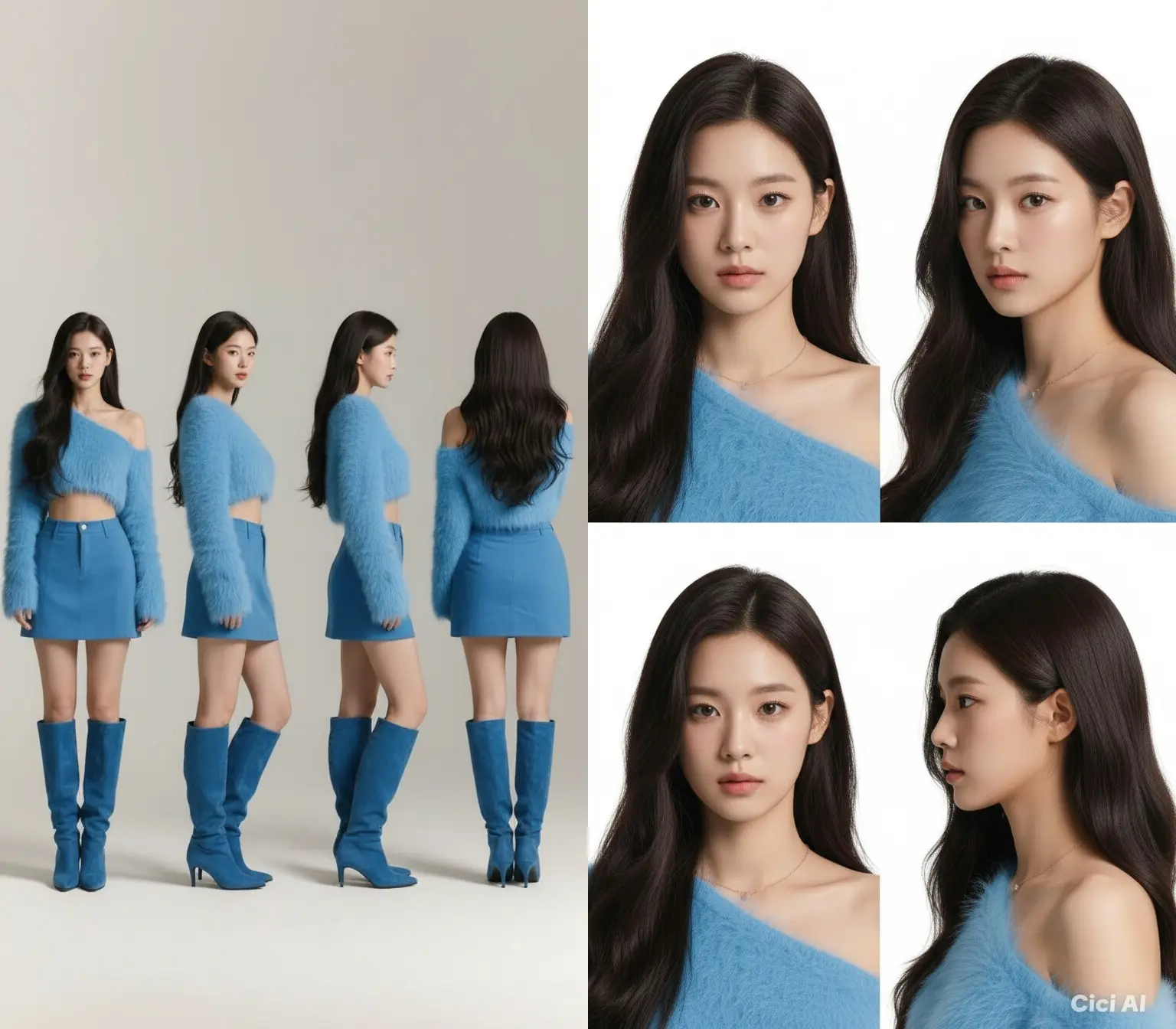
360° Character Turnaround & Sheet Workflow
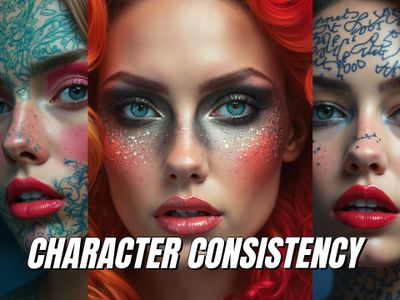
Character Consistency - 1 image only. Flux Ace++
Load 1 image and use natural language to get variations of your input image. Works great for character consistency to generate a dataset for loras.
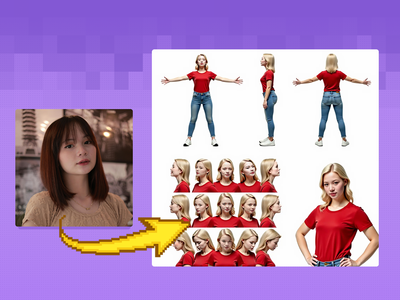
Image to Image Character Sheet Face Swap with Ace+
Take a character sheet and use a reference image to replace all the faces with that new person. Key Inputs Load Image: Use any JPG or PNG showing your pose sheet Load New Face: Use any JPG or PNG showing your subject clearly that you would like to swap into the pose sheet. Prompt: as descriptive a prompt as possible Width & height: Optimal resolution settings are noted at 1024px x 1024px Keep Proportion: Enable keep_proportion if you want to keep the same size with input and output Denoise: The amount of variance in the new image. Higher has more variance.
Seedream5.0Hot_Character Sheet
Seedream5.0を使用したキャラクターシート生成ワークフローです。キャラクター画像をアップロードして生成ボタンを押すだけで、顔のアップ、正面図、キャラクターシートを自動生成できます。 This is a character sheet generation workflow using Seedream5.0. Simply upload a character image to the green node, Load Image1, and click Generate to create a face
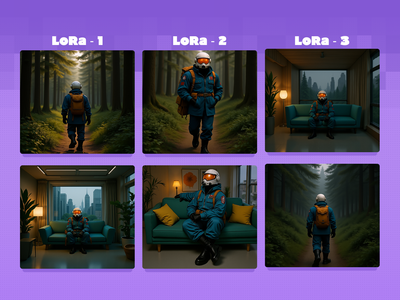
Flux Character LoRA Test and Compare
Test and compare multiple epochs of a character LoRA side by side with preset prompts When training a LoRA, you'll usually have a few checkpoints throughout the process to test. This workflow lets you load up to 4 LoRAs to test side by side, making it easier to determine which one is right for you! Key Inputs: LoRA Loaders: Load each LoRA epoch for the same character in up to 4 groups. Groups Bypasser: Enable/disable groups as needed. If you only have 2 epochs to test, disable the back 2 groups! Triggerword: Simply add the trigger word for your LoRA and it will auto-fill in the default prompts. Leave blank if you're using your own custom prompts that include the trigger word. LoRA Testing Prompts: Default prompts work well to get an idea of how your character will look in different situations, but feel free to replace them with your own prompts (max 4).
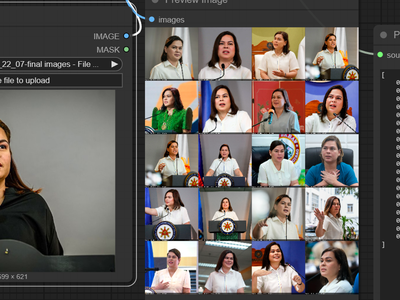
InsightFace for Filtering Character LoRA Dataset
Upload a reference face, point to your dataset, and InsightFace filters out images that don't match. Cosine, L2 Norm, and Euclidean distance all supported.
Workflows = APIs
Todo workflow é um endpoint de API. Leve geração com IA para o seu produto sem criar um backend. Escolha um workflow, personalize, clique em “Copiar snippet da Floyo API” e pronto.
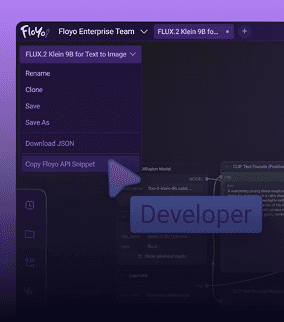
MCP
Todos os workflows da plataforma, ao alcance dos seus agentes e ferramentas internas, com os mesmos controles de administração.
mcp.floyo.ai/mcp
Templates fáceis
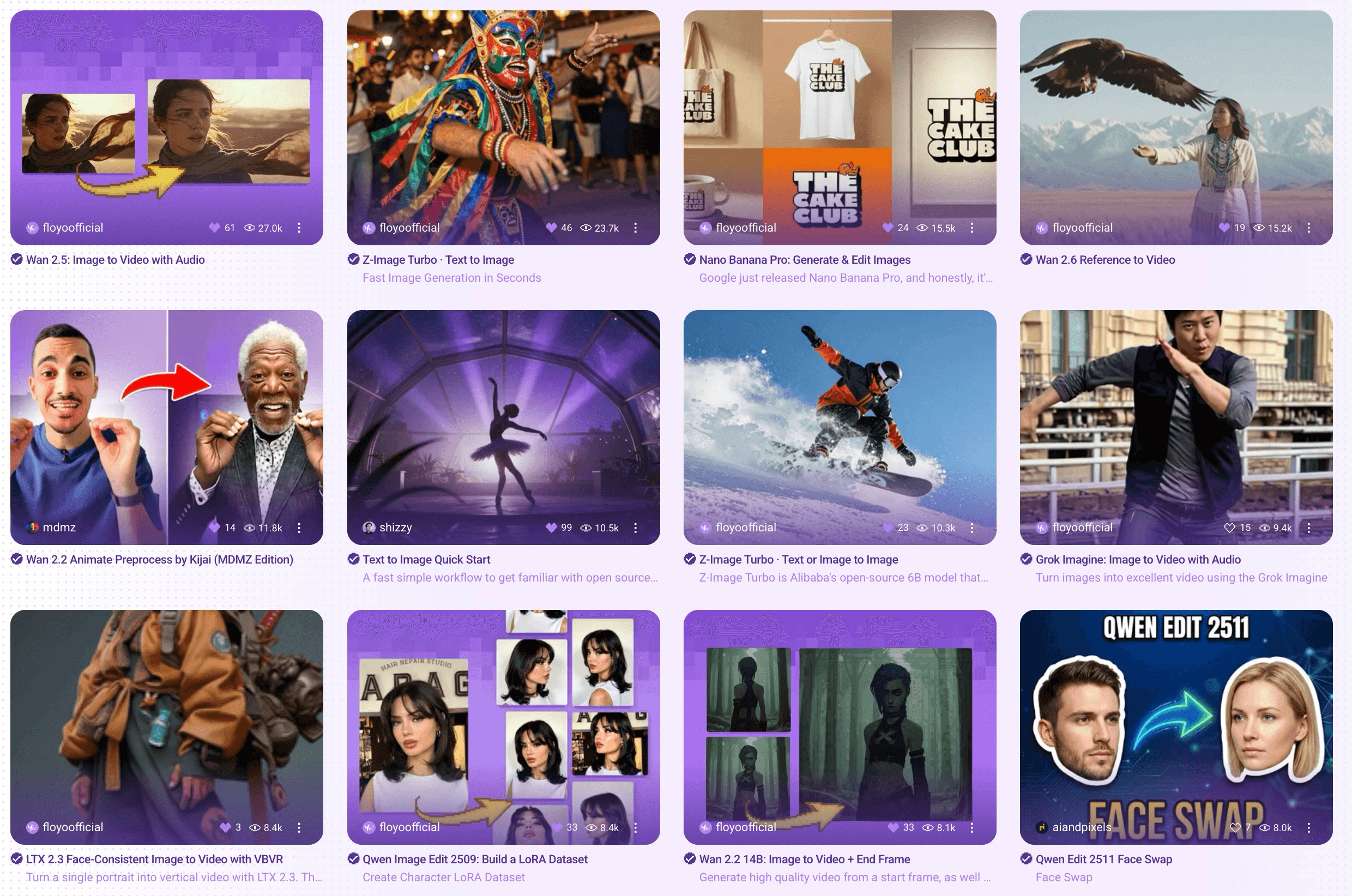
Abra um workflow pronto, leia as instruções, troque a entrada e clique em Run. A maioria das pessoas nunca abre um node. A complexidade é opcional e fica nos bastidores.
Trust Center
Saiba o que é seguro antes que alguém execute. Status Verified Private e Commercial Use para cada modelo, além de controles de equipe para bloquear os que você não aprovar.Os administradores escolhem quais modelos, provedores e nodes a equipe pode usar.

Templates fáceis
Abra um workflow pronto, leia as instruções, troque a entrada e clique em Run. A maioria das pessoas nunca abre um node. A complexidade é opcional e fica nos bastidores.
Trust Center
Saiba o que é seguro antes que alguém execute. Status Verified Private e Commercial Use para cada modelo, além de controles de equipe para bloquear os que você não aprovar.Os administradores escolhem quais modelos, provedores e nodes a equipe pode usar.
Workflows = APIs
Todo workflow é um endpoint de API. Leve geração com IA para o seu produto sem criar um backend.Escolha um workflow, personalize, clique em “Copiar snippet da Floyo API” e pronto.
Comece agora
Curso gratuito
ComfyUI 101
curso gratuito com Sebastian KamphCurso gratuito com Sebastian Kamph
Dez aulas, da tela em branco ao ControlNet. Nodes, texto para imagem, modelos, LoRA, upscale e configurações do KSampler. Nada para instalar. Todas as aulas rodam aqui, então você termina com workflows que você mesmo criou.