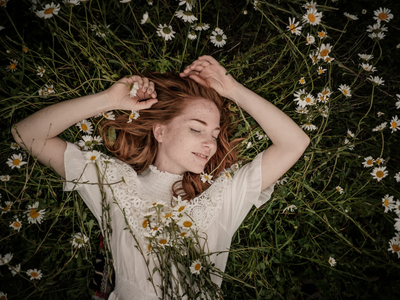
Wan 2.7 Pro · Image Editing
Edit any image with Wan 2.7 Pro Unified, Alibaba's thinking-mode image model. Upload a picture, describe the change, and get a before-and-after comparison.
concept art
image to image
portrait
style transfer
text to image
wan
wan2.7 pro
1.1k





Nodes & Models
AlibabaWan27ImageProUnified_floyo
LoadImage
GetImageSize
PreviewImage
ImageCompare
ABOUT THE WORKFLOW
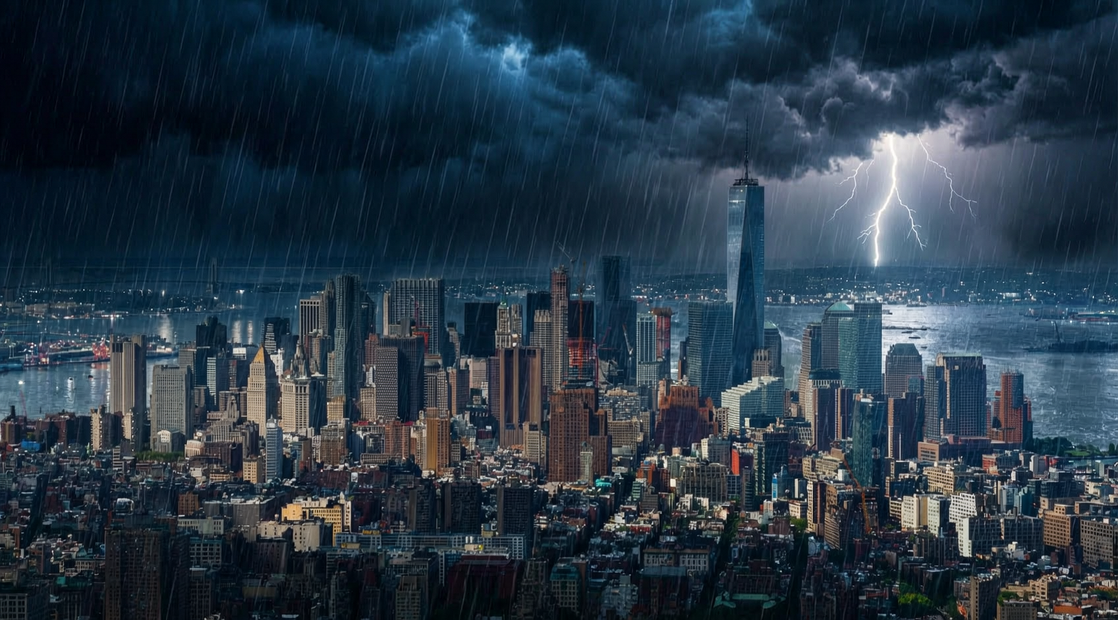
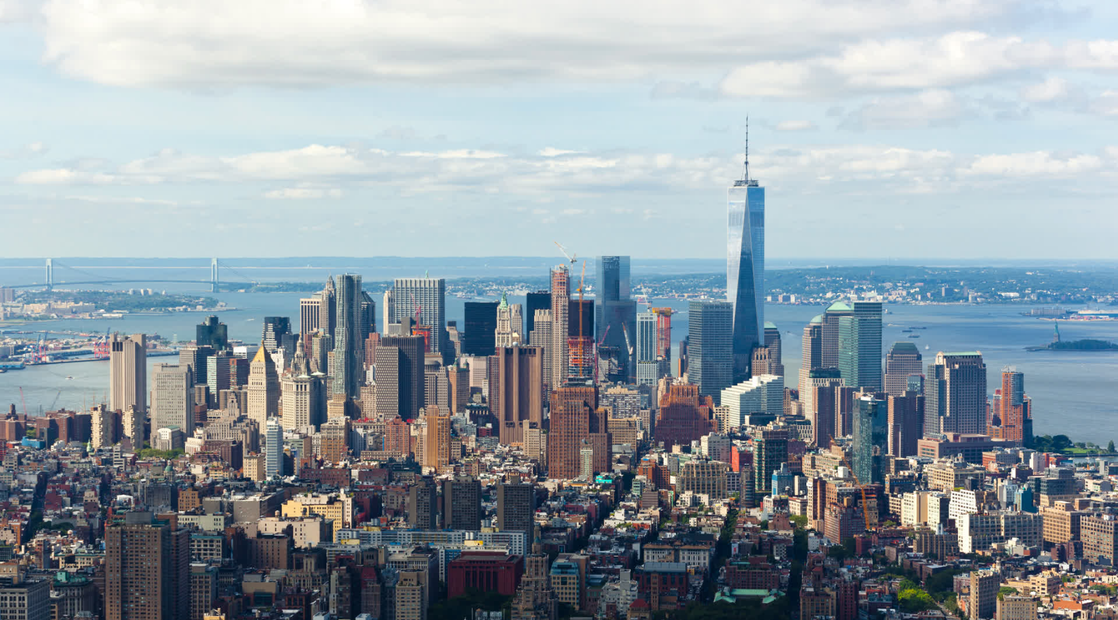
Edit an Image Upload a picture and describe the change you want. Wan 2.7 Pro Unified reasons about the edit before it draws, applies the change, and returns the result at the same size as your original. A side-by-side comparison is saved so you can judge the edit at a glance.
Partner node. This workflow calls an external API, so each run uses credits from your API wallet. No API key needed. Floyo handles the connection.
Model
Wan 2.7 Pro Unified by Tongyi Lab at Alibaba. Released April 2026. The unified image endpoint of the Wan 2.7 family. Handles generation, editing, and multi-reference work in one model. Includes a thinking mode that reasons about the edit before drawing, which helps complex or layered instructions land more precisely.
HOW IT WORKS
Step 1. Upload your picture The image you want edited. The output is returned at the same size. Works great with: portraits · product shots · interiors · landscapes
Step 2. Describe the change Say what should change and what must stay. "Turn this image into a cinematic HD sunset" or "change the jacket to red leather, keep the pose and the face."
Step 3. Add a second picture (optional) For edits that combine two pictures, like placing a subject from one into the setting of the other.
Step 4. Hit run The model reasons about the instruction, applies the edit, and returns the result. A comparison slider shows both versions on screen, and the pair is combined into one saved file. Ready for: Photoshop · Figma · Canva · any editor
First time? Leave every setting as-is. The defaults (custom size · prompt extend on · thinking mode on · watermark off · random seed) are the right starting point for almost everyone.
RECOMMENDED SETTINGS
Quick-start guide. Find the goal that matches yours and copy the settings.
Standard edit (most people) — custom size · prompt extend on · thinking mode on · watermark off · random seed. The right starting point for almost everyone.
The edit changed too much — Name what must stay fixed alongside what changes. "Change the sky to sunset, keep the buildings, the street, and the people unchanged" holds more of the picture in place.
The edit barely landed — Be more specific. Name the object, the area, and what replaces it rather than giving a broad instruction.
Complex, layered instruction — Leave thinking mode on. The model reasons through the plan before drawing, which helps when several conditions have to hold at once.
Speed matters more than precision — Turn thinking mode off. The edit runs faster but may interpret a complex instruction less accurately.
Your wording is already exact — Turn prompt extend off. Left on, the model rewrites your prompt for richer detail, which helps loose descriptions and works against carefully worded ones.
Combining two pictures — Connect a second image and say in the prompt what each one contributes, so the model knows which supplies the subject and which the setting.
Repeat a result you liked — Set a fixed seed number instead of leaving it on random. The same picture, prompt, and seed give you the same edit back.
Need the edit alone, not the comparison — The saved file combines both images. Crop it in your editor, or remove the ImageCombine node and wire the edit output directly to save.
Prompt: Write the change, not the scene. "Turn the background into a misty forest at dawn, keep the person and the lighting on their face" gives you more than "make it look moody." When you connect two pictures, say what each one is for.
LEARN
📹 Videos
ComfyUI 101 Free Course ft. Sebastian Kamph
Floyo 101 for Team Collaboration
✨ Quick links
USE CASES
🌅 Style and Mood Transfer Restyle a photo into a different look, time of day, or season while the subject holds.
🖼️ Background and Setting Changes Swap the background behind a subject without cutting them out by hand.
🛍️ Product Retouching Adjust a product shot, change the setting, or restyle it for a different listing or market.
🔀 Two-Image Compositing Combine a subject from one picture with the setting from another in a single pass.
WHAT WORKS BEST / WHAT TO AVOID
✅ Works great
Specific instructions that name what changes and what stays
Style transfers and relighting that change mood while keeping the subject
Layered instructions where several conditions have to hold at once
Clear, well-lit source images
⚠️ May produce softer results
Vague instructions like "make it better" or "enhance this"
Expecting untouched areas to remain pixel-identical
Edits that conflict with each other in the same prompt
Leaving thinking mode off for complex multi-step instructions
FAQ
What is Wan 2.7 Pro Unified? Wan 2.7 Pro Unified is the image endpoint of the Wan 2.7 family from Tongyi Lab at Alibaba, released April 2026. It handles text-to-image generation, single-image editing, and multi-reference compositing through one model. Its standout feature is a thinking mode where the model reasons through the instruction before drawing, which helps layered or complex edits land more precisely.
What is thinking mode? The model plans the edit before it draws. It reads your instruction, reasons about what needs to change and what must stay, and then executes. That planning step is what makes complex, multi-condition edits work better than a single-pass interpretation. It costs extra time per run.
How many images does Wan 2.7 Pro Unified take? Up to two in this workflow. The first is the picture you are editing. The second is optional and is used for edits that combine two images, like placing a subject from one into the scene of another. The model itself supports up to nine references for image generation tasks.
Does the output match my input size? Yes. The image size is set to custom, and the workflow reads the dimensions of your uploaded picture and sends them to the model, so the result comes back at the same width and height.
Is Wan 2.7 Pro Unified open source? No. Wan 2.7 is API-only with no published weights. Open weights in the Wan family stop at Wan 2.2, which is released under Apache 2.0. This workflow calls the hosted Pro endpoint.
What is the difference between this and the Wan 2.7 video workflow? This workflow edits still images. The video workflow animates a still into a clip with sound. They call different endpoints of the same Wan 2.7 family. Use this one to change a picture and the video workflow to bring it to life.
How to run Wan 2.7 Pro image editing online? You can run Wan 2.7 Pro image editing online through Floyo. No installation, no setup, no API key to wire up. Open the workflow in your browser, upload a picture, describe the change, and hit run. Free to try.
WHY FLOYO?
Floyo is the only platform with team collaboration for ComfyUI in the browser. You run workflows with no install. You share run history, assets, and models across your team. You pay only when you generate. Floyo supports open-source and closed-source models.
A designer runs an edit and likes the result. A teammate opens that exact run from shared history and keeps going. No file handoffs. No version confusion.
For studios and enterprise teams, Floyo adds private workspaces, pooled resources, and a team usage dashboard. Other ComfyUI cloud tools run for one person at a time. Floyo runs for the whole team, with transparent per-generation costs.
Ready to try it? Upload a picture, describe the change, and run it. The settings are already set.
Questions? Watch the free course or check the FAQ above.
Read more