Seedream 4.5 · Text to Image
Generate images from a text prompt with Seedream 4.5, ByteDance's unified model for illustration, text rendering, and layouts. Write a prompt and hit run.
Image
Image2Image
Image Editing
Seedream 4.5
Text2Image
typography
1.9k





Nodes & Models
SeedreamV45Unified_floyo
LoadImage
PreviewImage
ABOUT THE WORKFLOW
Generate an Image From Text Write a prompt and get a picture. Seedream 4.5 is strong at stylized illustration, text inside images, and detailed scene composition. An image input exists but is turned off by default, so this runs as pure text to image out of the box. Enable it for editing or style transfer.
Partner node. This workflow calls an external API, so each run uses credits from your API wallet. No API key needed. Floyo handles the connection.
Model
Seedream 4.5 by the ByteDance Seed team. Released 3 December 2025. A unified model that handles generation and editing in one architecture. Outputs up to 2048 x 2048. Accepts up to 10 reference images per request. Strong at text rendering inside images, bilingual typography, and complex multi-element layouts. Closed model with no open weights. Ranked 10th on the LM Arena image leaderboard.
HOW IT WORKS
Step 1. Write your prompt Describe the picture. Detailed prompts with layout, style, lighting, and text instructions produce the sharpest results. Works great with: illustrations · posters · isometric scenes · product visuals
Step 2. Hit run and download The model builds the picture and shows it in the preview. Right-click the preview to save. Ready for: Photoshop · Figma · Canva · any editor
First time? Leave every setting as-is. The defaults (2048 x 2048 · 1 image · watermark off) are the right starting point for almost everyone.
RECOMMENDED SETTINGS
Quick-start guide. Find the goal that matches yours and copy the settings.
Standard generation (most people) — 2048 x 2048 · 1 image · watermark off. The right starting point for almost everyone.
Want a different shape — Change the size preset to a standard ratio like 16:9 or 9:16, or set custom width and height.
Want several options to pick from — Raise the batch size above 1. Each image in the batch costs the same as a single run.
Want text inside the image — Spell out the exact words, the font style, the size, and the position. Text rendering is one of this model's strengths.
Want to edit an existing image instead — Enable the muted LoadImage node (right-click, Unmute or Ctrl+M) and connect it to the image1 slot. Upload your picture and write the edit as the prompt.
Want to use reference images — A second image slot exists on the node. Connect additional loaders to bring in style references or elements to combine.
The result looks generic — Write a longer prompt. Name the camera angle, the lighting source, the colour palette, and the texture of surfaces. Short prompts return default-looking output.
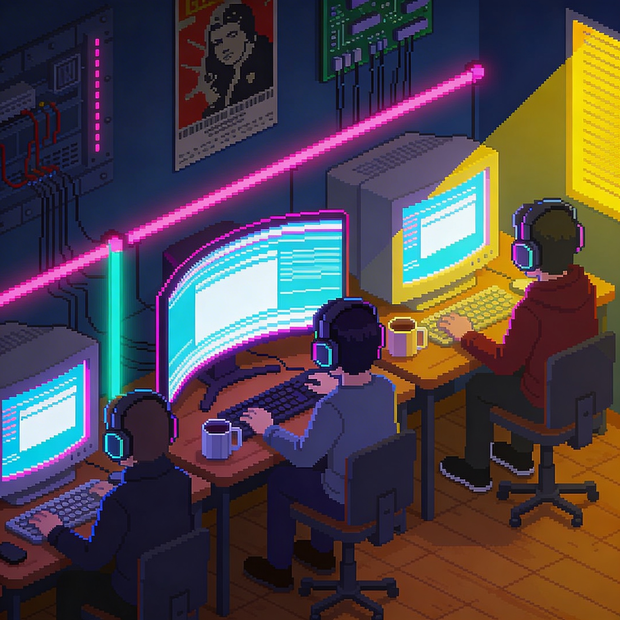
Prompt: Be specific and layered. "Isometric view of a cozy cyber cafe filled with retro CRT monitors and RGB lights, people wearing headphones, pixel art style, soft ambient glow, detailed interior decor" gives you more than "cyber cafe." Name the viewpoint, the style, the lighting, and the objects in the scene.
LEARN
📹 Videos
ComfyUI 101 Free Course ft. Sebastian Kamph
Floyo 101 for Team Collaboration
✨ Quick links
USE CASES
🖼️ Illustration and Concept Art Generate stylized scenes, isometric views, and detailed compositions from a text description.
🪧 Posters and Marketing Materials Build posters with readable text, bilingual typography, and layout-aware composition in a single pass.
🛍️ Product Visuals Create styled product scenes, lifestyle shots, and catalogue imagery without a photo shoot.
🎨 Multi-Element Scene Design Describe a complex scene with many objects, characters, and text elements and get a coherent composition back.
WHAT WORKS BEST / WHAT TO AVOID
✅ Works great
Detailed prompts that name layout, style, lighting, and text
Stylized illustration and isometric views
Text rendering in English and Chinese
Outputs at or near 2048 x 2048
⚠️ May produce softer results
Photorealistic human faces at close range
Short keyword prompts with no scene direction
Work that needs open weights or local control
Generating many images in a single batch on a first test
FAQ
What is Seedream 4.5? Seedream 4.5 is an image generation and editing model from the ByteDance Seed team, released 3 December 2025. It unifies generation and editing in one architecture, accepts up to 10 reference images per request, and outputs at up to 2048 x 2048. It ranked 10th on the LM Arena image leaderboard with a score of 1147 and supports a prompt context window of up to 10,000 tokens. It was succeeded by Seedream 5.0 Lite in February 2026.
Is Seedream 4.5 good at text rendering? Yes. Rendering readable text inside images is one of its documented strengths. It handles correctly spelled, legible text in various font styles and non-Latin scripts, integrated naturally into scenes like signs, packaging, and posters.
Can Seedream 4.5 edit images too? Yes. The model supports editing and generation in the same architecture. This workflow ships as text-to-image by default, but enabling the muted LoadImage node and connecting it to the partner node switches it to editing mode.
Is Seedream 4.5 open source? No. Seedream 4.5 is a closed model with no published weights. It is reached through the ByteDance Seed API.
What is the difference between Seedream 4.5 and Seedream 5.0 Lite? Seedream 5.0 Lite, released February 2026, is the next version in the family with stronger reference adherence, better skin texture restoration, and improved handling of short or abstract prompts. It supports up to 14 reference images versus 10 for 4.5. Both are closed and API-only.
How does Seedream 4.5 compare to Qwen Image 3? Both are closed, API-only models from large Chinese tech companies. Qwen Image 3 has a longer prompt window (4,500 tokens vs 10,000 for Seedream), support for 12 languages, and a focus on dense infographic layouts. Seedream 4.5 has broader editing support with up to 10 references and stronger bilingual typography. Pick Seedream for unified generation-and-editing workflows with references, and Qwen Image 3 for information-dense layouts with small text.
How to run Seedream 4.5 online? You can run Seedream 4.5 online through Floyo. No installation, no setup, no API key to wire up. Open the workflow in your browser, write a prompt, and hit run. Free to try.
WHY FLOYO?
Floyo is the only platform with team collaboration for ComfyUI in the browser. You run workflows with no install. You share run history, assets, and models across your team. You pay only when you generate. Floyo supports open-source and closed-source models.
A designer runs an edit and likes the result. A teammate opens that exact run from shared history and keeps going. No file handoffs. No version confusion.
For studios and enterprise teams, Floyo adds private workspaces, pooled resources, and a team usage dashboard. Other ComfyUI cloud tools run for one person at a time. Floyo runs for the whole team, with transparent per-generation costs.
Ready to try it? Write a prompt and run it. The picture comes back at 2048 x 2048.
Questions? Watch the free course or check the FAQ above.
Read more